KYB (Know Your Business)
KYB verifies businesses, where KYC verifies individuals. A KYB flow collects a company's business information and incorporation documents, captures its Ultimate Beneficial Owners (UBOs) and — optionally — its directors, and then cross-checks the submitted data against the uploaded documents and the official company register. UBOs and directors are each verified through a linked KYC flow, and the platform runs PEP and sanctions screening before a compliance operator approves the result.
This page walks through the full KYB lifecycle: creating a KYB flow, the experience your end users go through, and how operators review results and request clarifications.
KYB results are not delivered via webhook. KYB results — including moderation status, UBO and director definitions, and business information verification — are available exclusively through the Zyphe Dashboard and API. See Webhook Payload for details.
1. Create a KYB flow
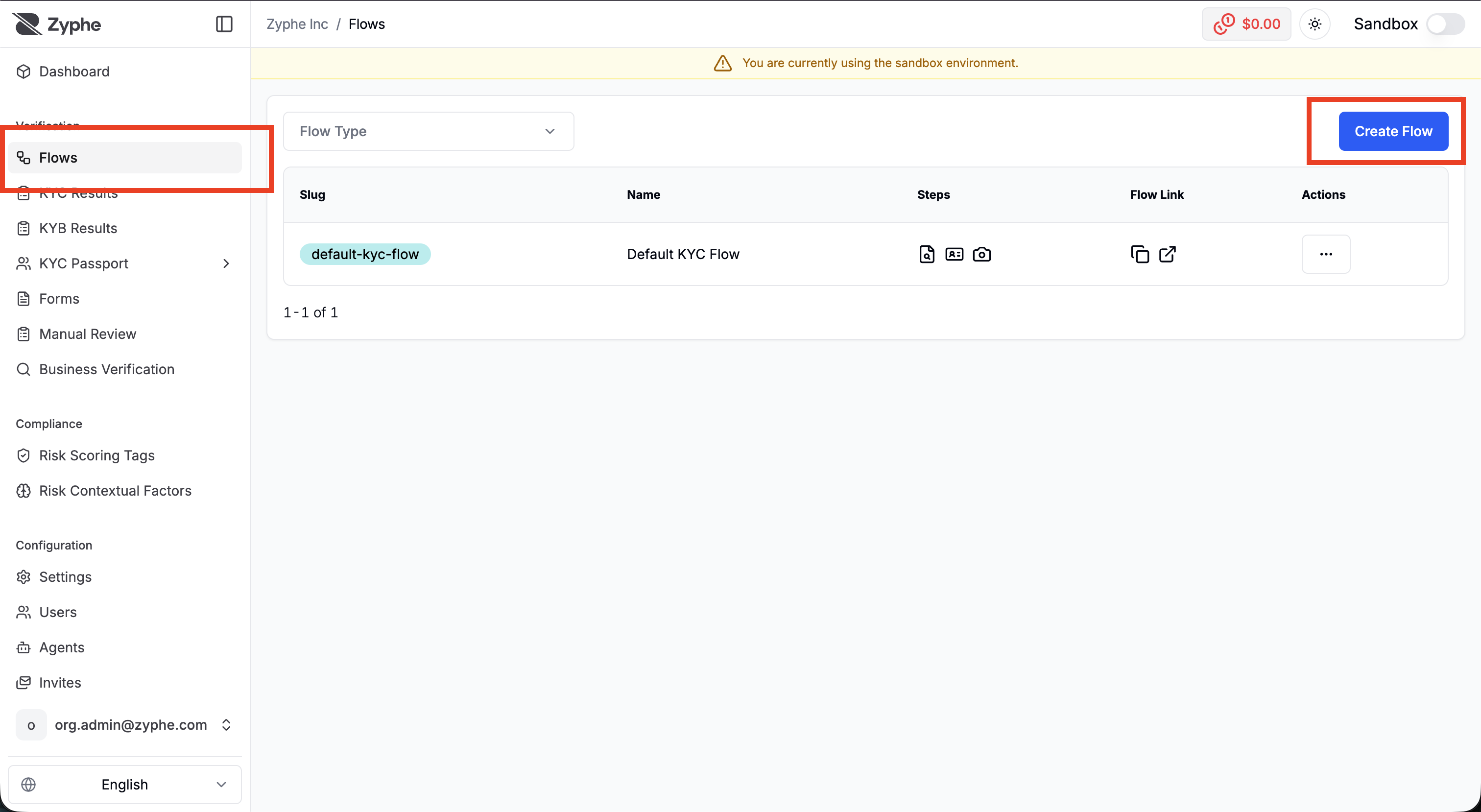
Login to the Zyphe Dashboard, open the Flows section, and click Create Flow in the top right.
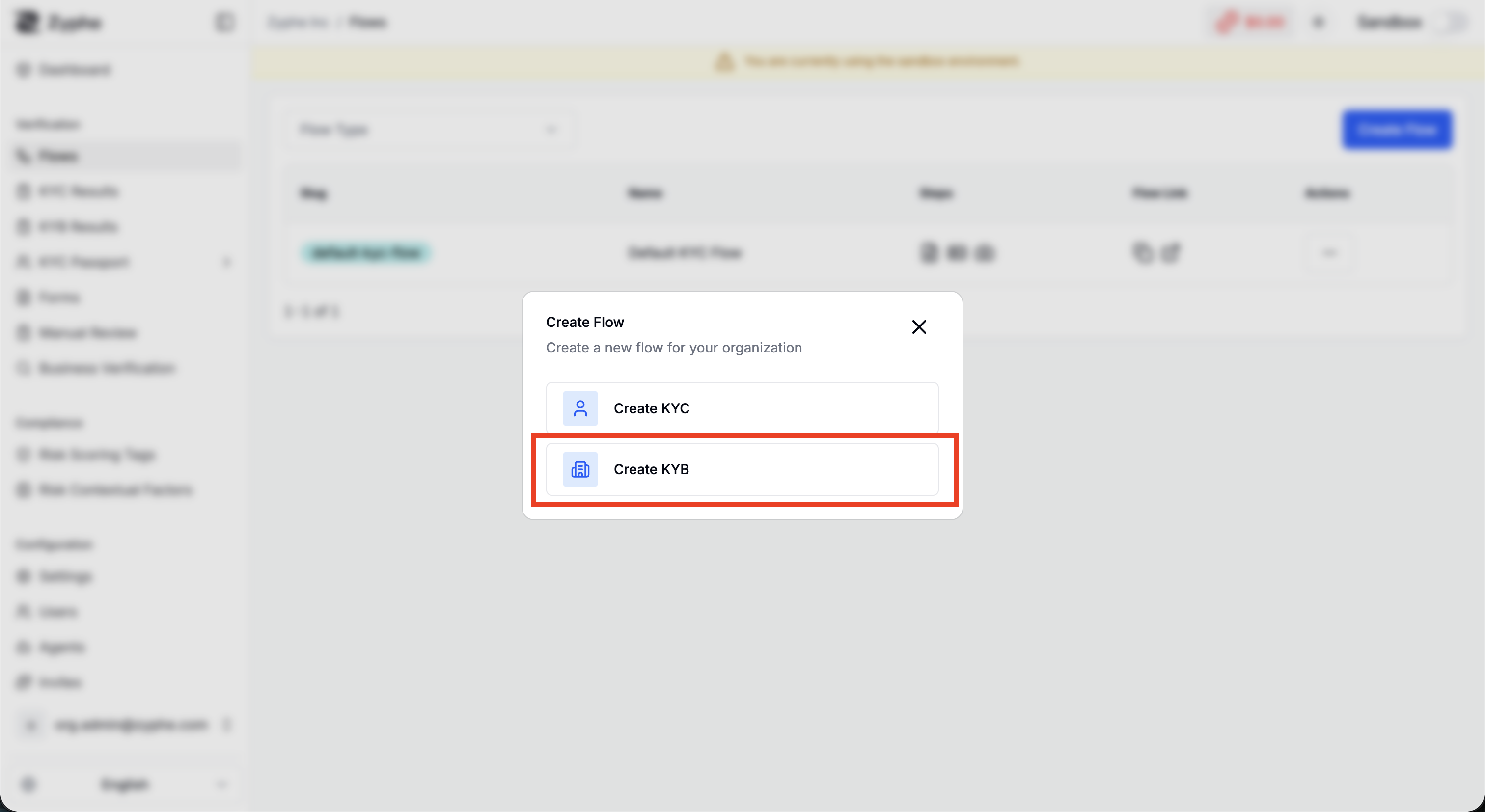
In the dialog, choose Create KYB.
2. Configure the flow
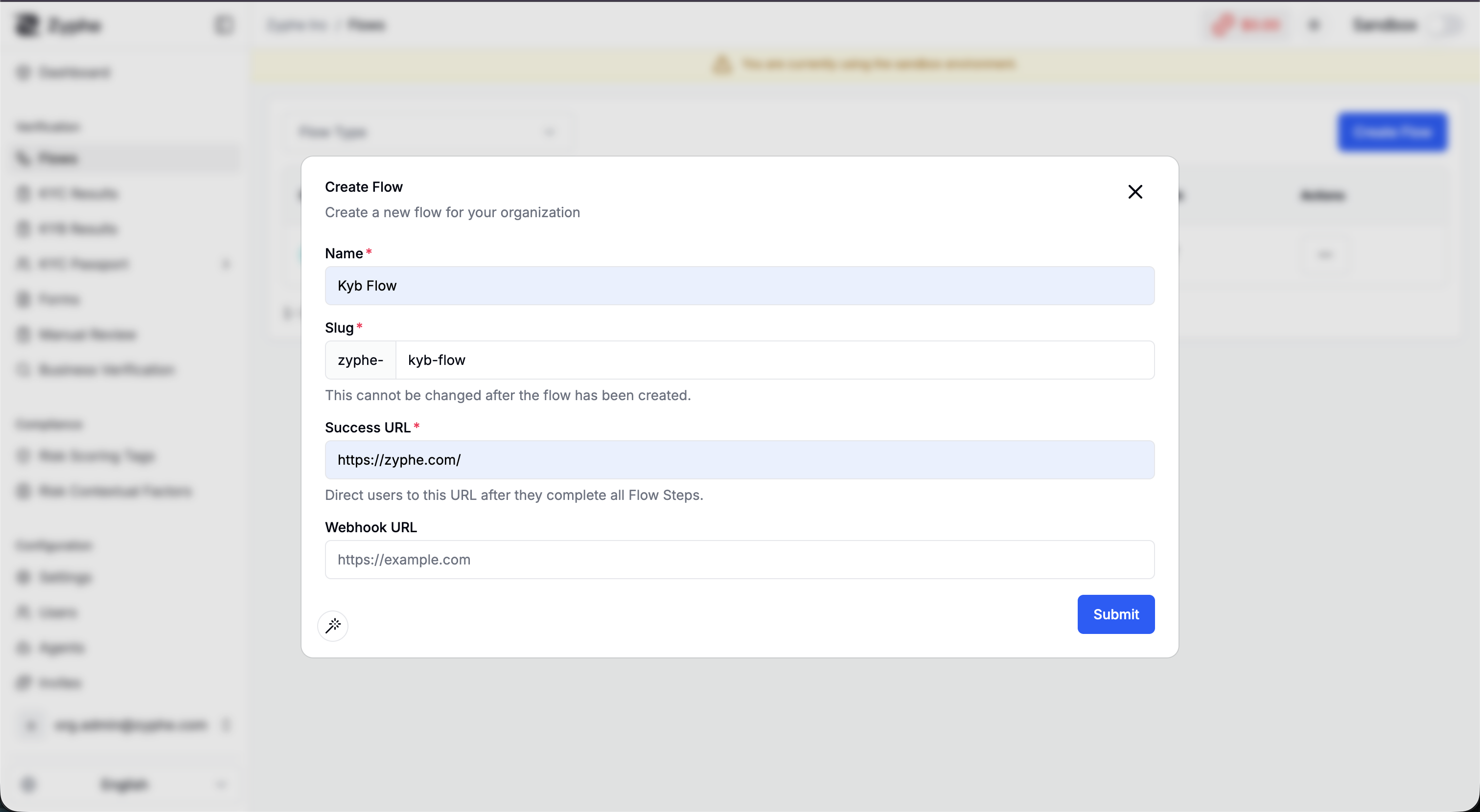
Enter the flow's basic settings:
- Name: the name of the flow.
- Slug: a short identifier used in the verification link shared with end users. This cannot be changed after the flow is created.
- Success URL: where users are redirected after they complete all flow steps.
- Webhook URL: the endpoint that receives webhook events for the flow.
3. Configure the KYB step
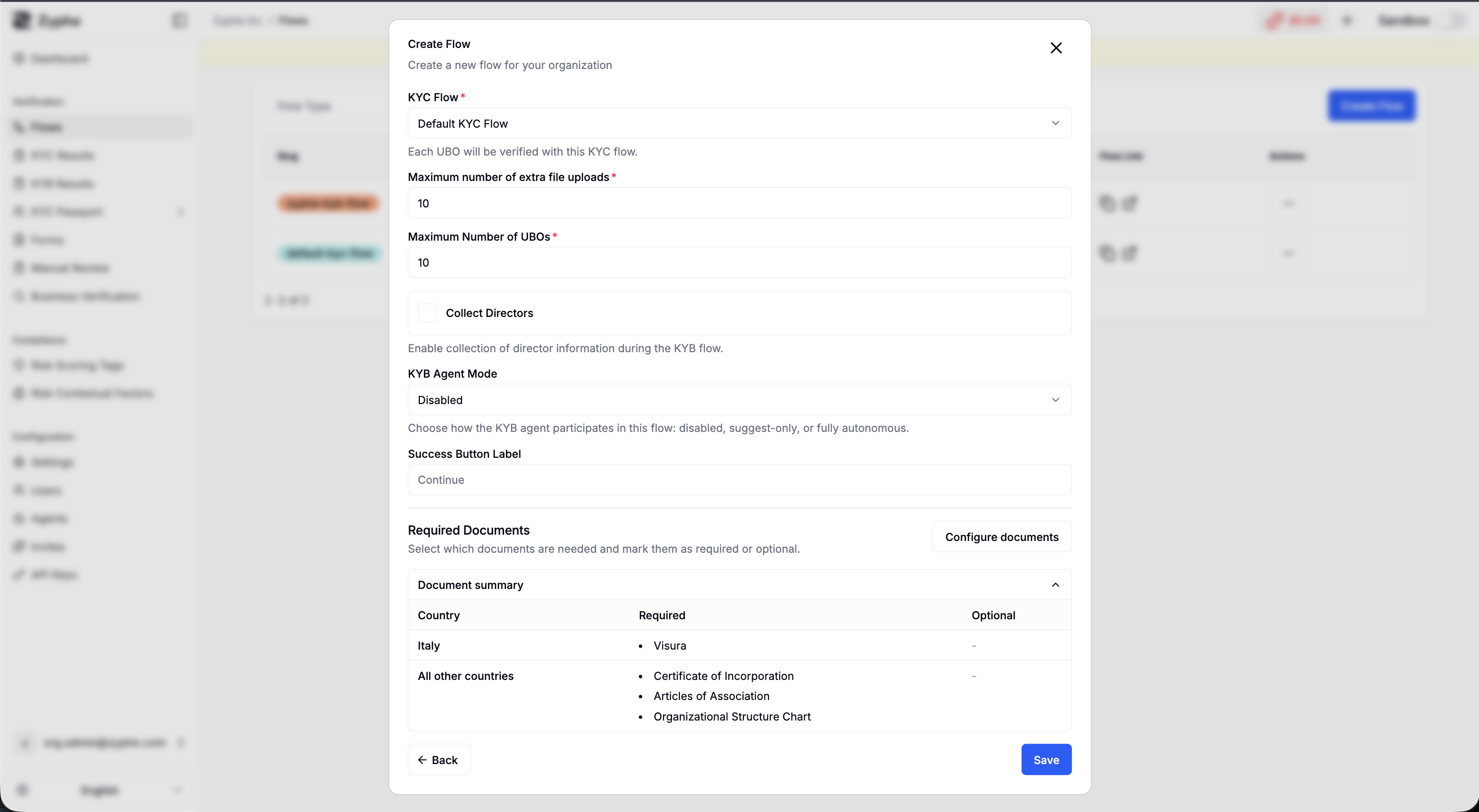
Configure how the business is verified:
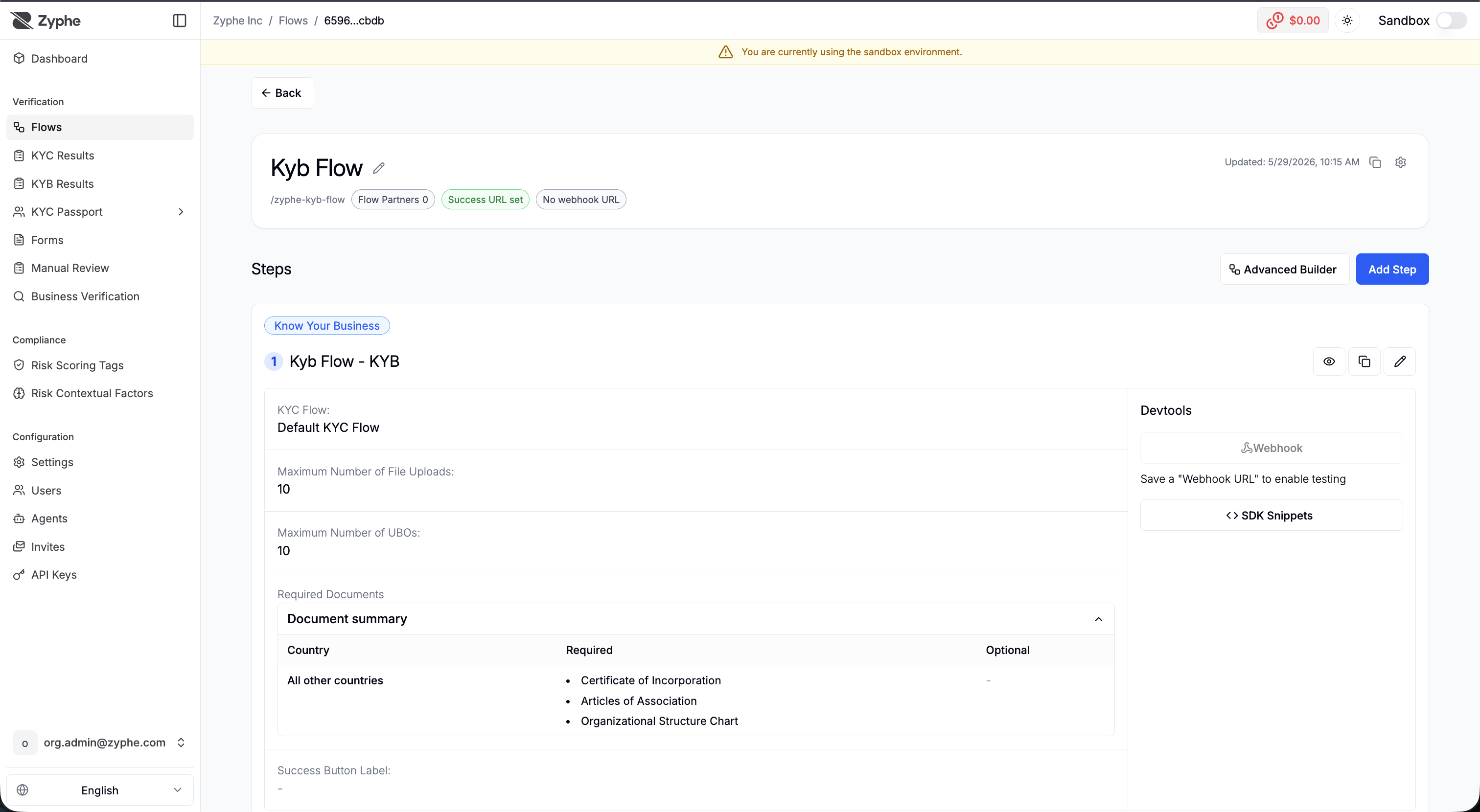
- KYC Flow: each UBO (and director, when enabled) is verified with this KYC flow.
- Maximum number of extra file uploads: how many additional documents an applicant may attach (default 10).
- Maximum Number of UBOs: the maximum number of beneficial owners that can be added (default 10).
- Collect Directors: when enabled, the flow also collects director information during the KYB flow. Enabling it reveals a Maximum Number of Directors setting (default 10). See Step 11. Directors for the end-user experience.
- KYB Agent Mode: chooses how the KYB AI agent participates in this flow — disabled, suggest-only, or fully autonomous. See KYB Agent Mode below.
- Success Button Label: the label of the button shown to the user on completion.
- Required Documents: a summary of which documents are requested, per country.
KYB Agent Mode
The KYB AI agent cross-checks every submitted business-information field against the uploaded documents and the official business register, classifies the result as a Match, Partial Match (fuzzy), Mismatch, or Not Found, writes a one-sentence explanation, and proposes a canonical suggested value. The agent mode controls how far that automation goes:
- Disabled: the agent is not invoked. Fields still receive a match type, but there is no AI reasoning or suggested value — operators review everything manually.
- Suggest: the agent runs and surfaces its reasoning and suggested values to compliance operators without changing the stored record. A human confirms or rejects each one. This is what the results screenshots below show.
- Auto-pilot: the agent moderates results automatically. For fields that cleanly agree across all sources (a clean Match), it applies the canonical value to the business-information record with no human action. Fields that are Partial Match, Mismatch, or Not Found are still surfaced for manual review.
Auto-pilot significantly reduces manual review effort by clearing the fields that already agree, while keeping every disputed field under human control.
4. Configure required documents
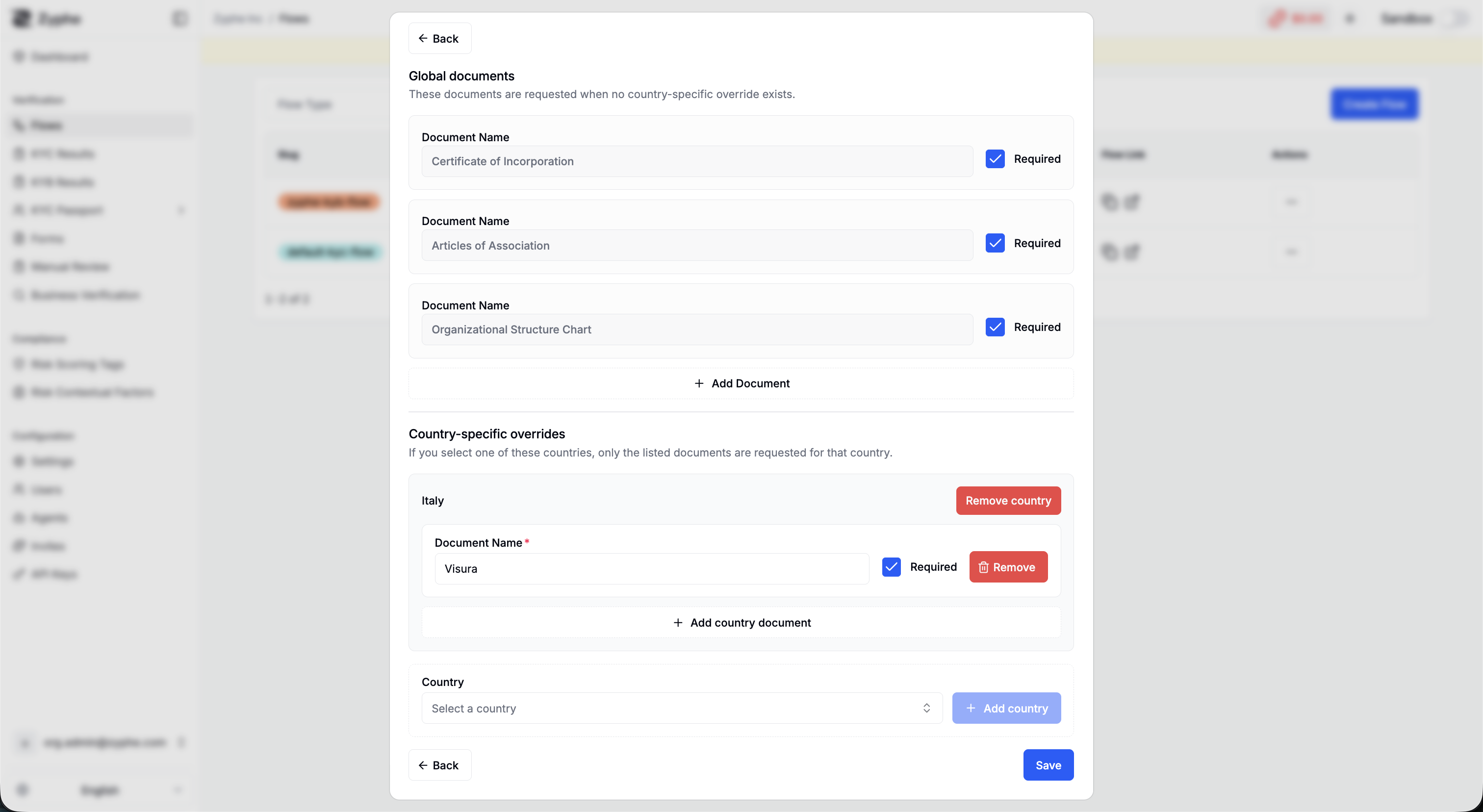
Click Configure documents to define which documents applicants must provide.
- Global documents are requested when no country-specific override applies. By default these are the Certificate of Incorporation, Articles of Association, and Organizational Structure Chart, each of which can be marked Required or optional. You can also add custom documents.
- Country-specific overrides let you request a different document set for a given country. When a country is configured (for example, Italy → Visura), only the listed documents are requested for applicants from that country, replacing the global list.
5. Review the created step
Once saved, the KYB step appears in the flow, showing the configured KYC flow, limits, and document summary. Use the Devtools panel to access the webhook tools and SDK Snippets for the step.
For general flow settings, advanced flow building, SDK snippets, and webhook configuration, see Create a Flow.
The end-user KYB experience
The following steps are what an applicant goes through after opening the KYB flow link.
6. Business registration status
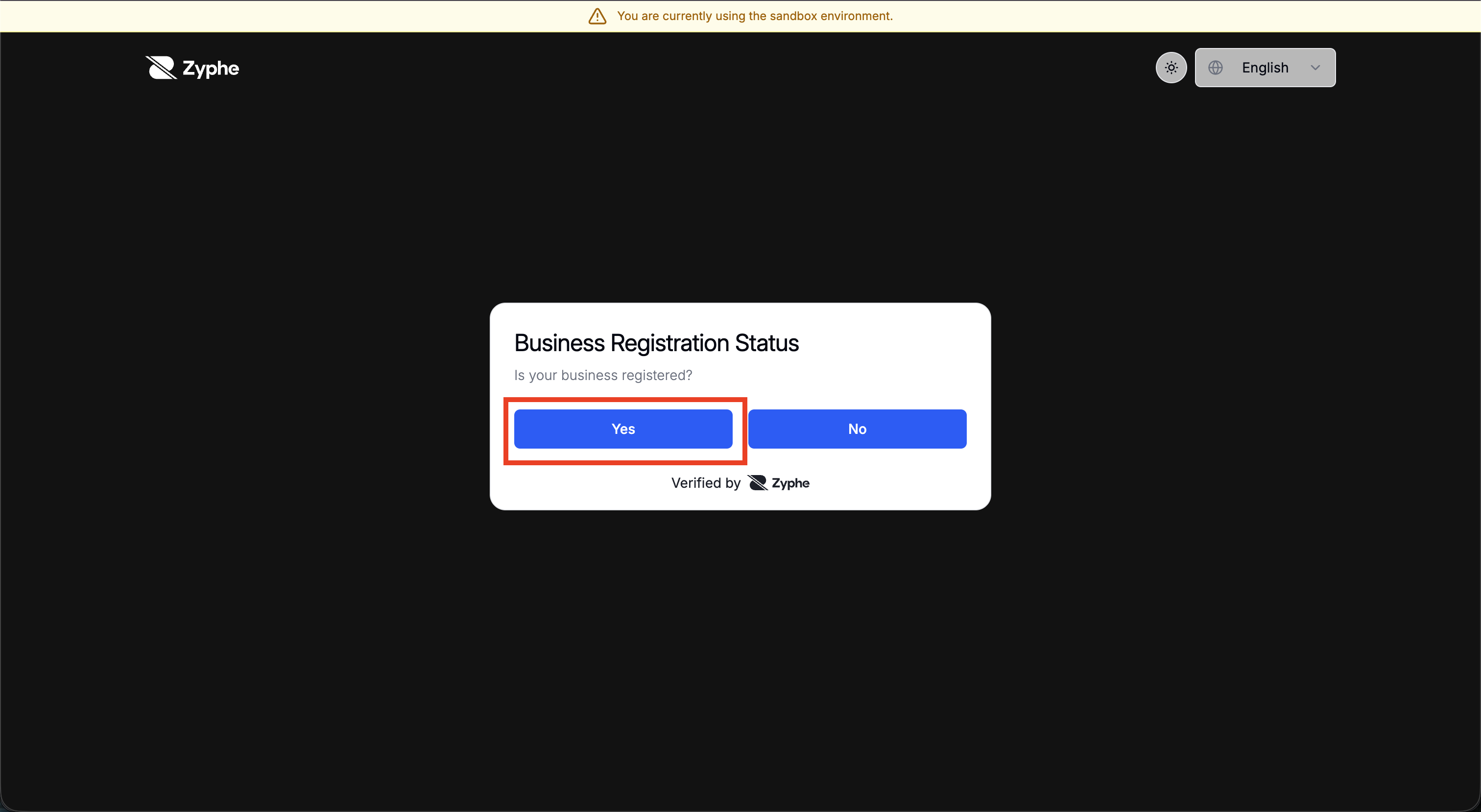
The flow first asks whether the business is registered.
- Yes — the applicant continues to the business information and document steps (the registered-business path).
- No — the flow skips the company details and collects a single owner directly (the unregistered / sole-proprietor path).
7. Business information
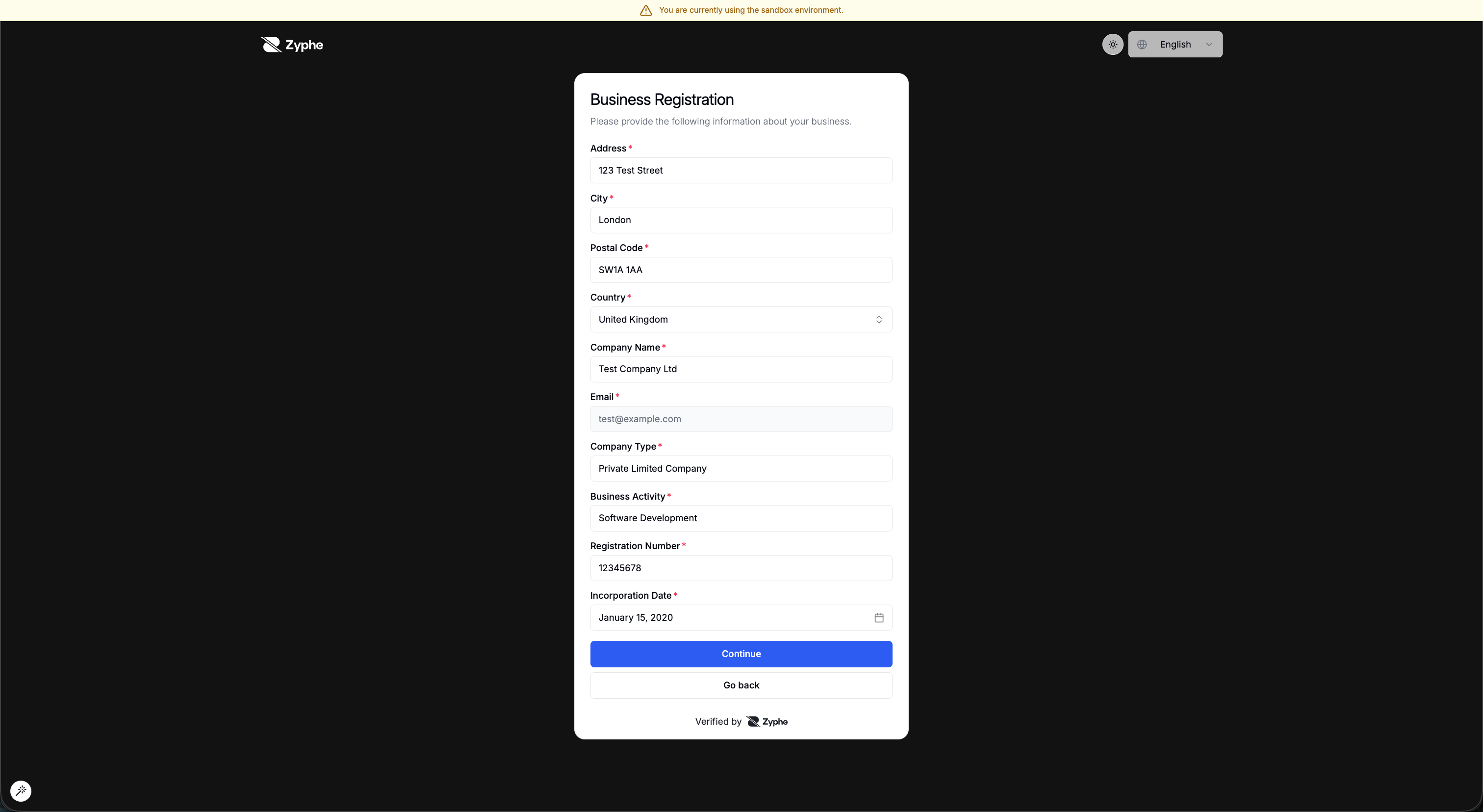
The applicant provides the company details: Address, City, Postal Code, Country, Company Name, Email, Company Type, Business Activity, Registration Number, and Incorporation Date.
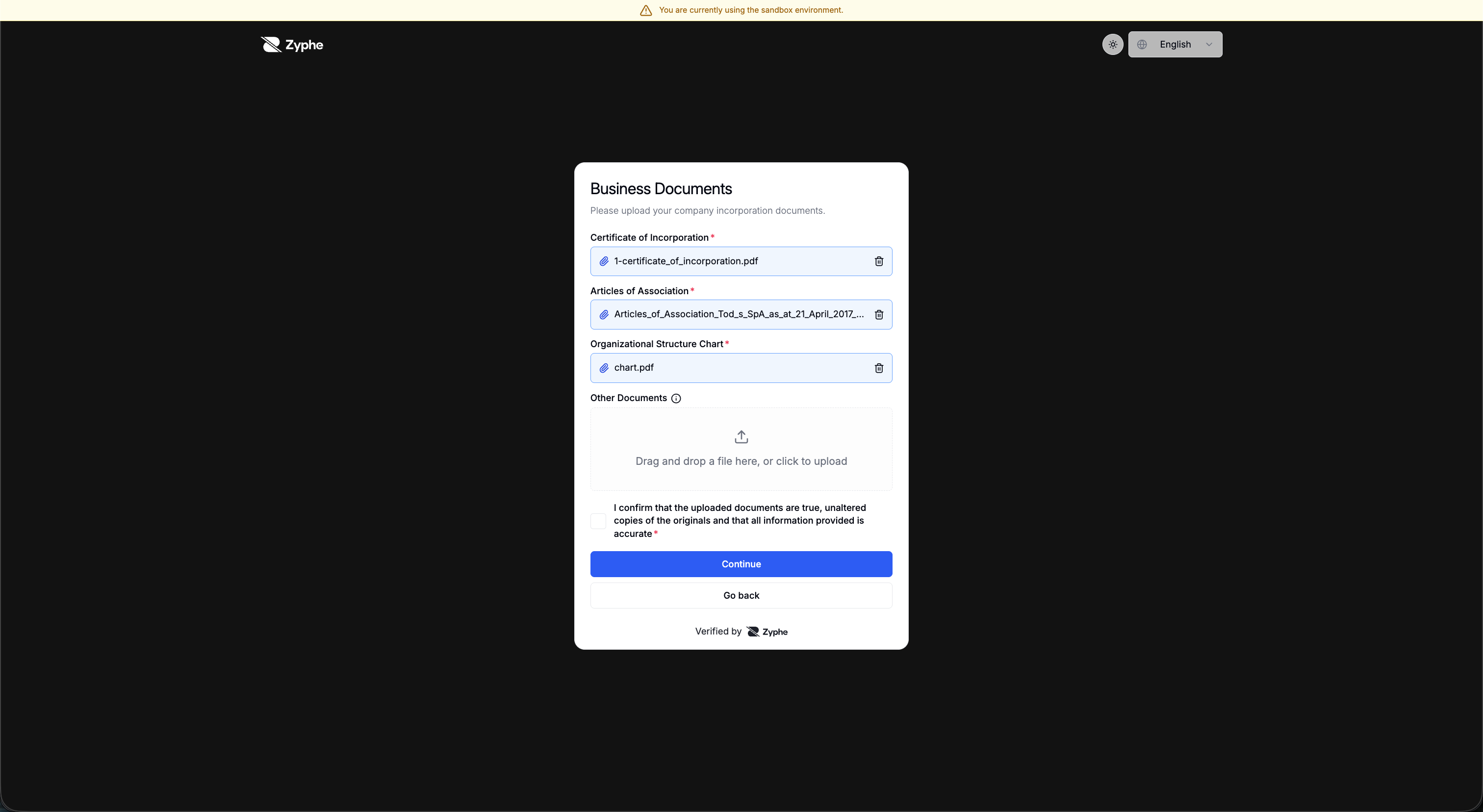
8. Business documents
The applicant uploads the required company documents — by default the Certificate of Incorporation, Articles of Association, and Organizational Structure Chart — plus any Other Documents. The applicant must confirm the authenticity attestation before continuing. Uploaded documents are screened automatically.
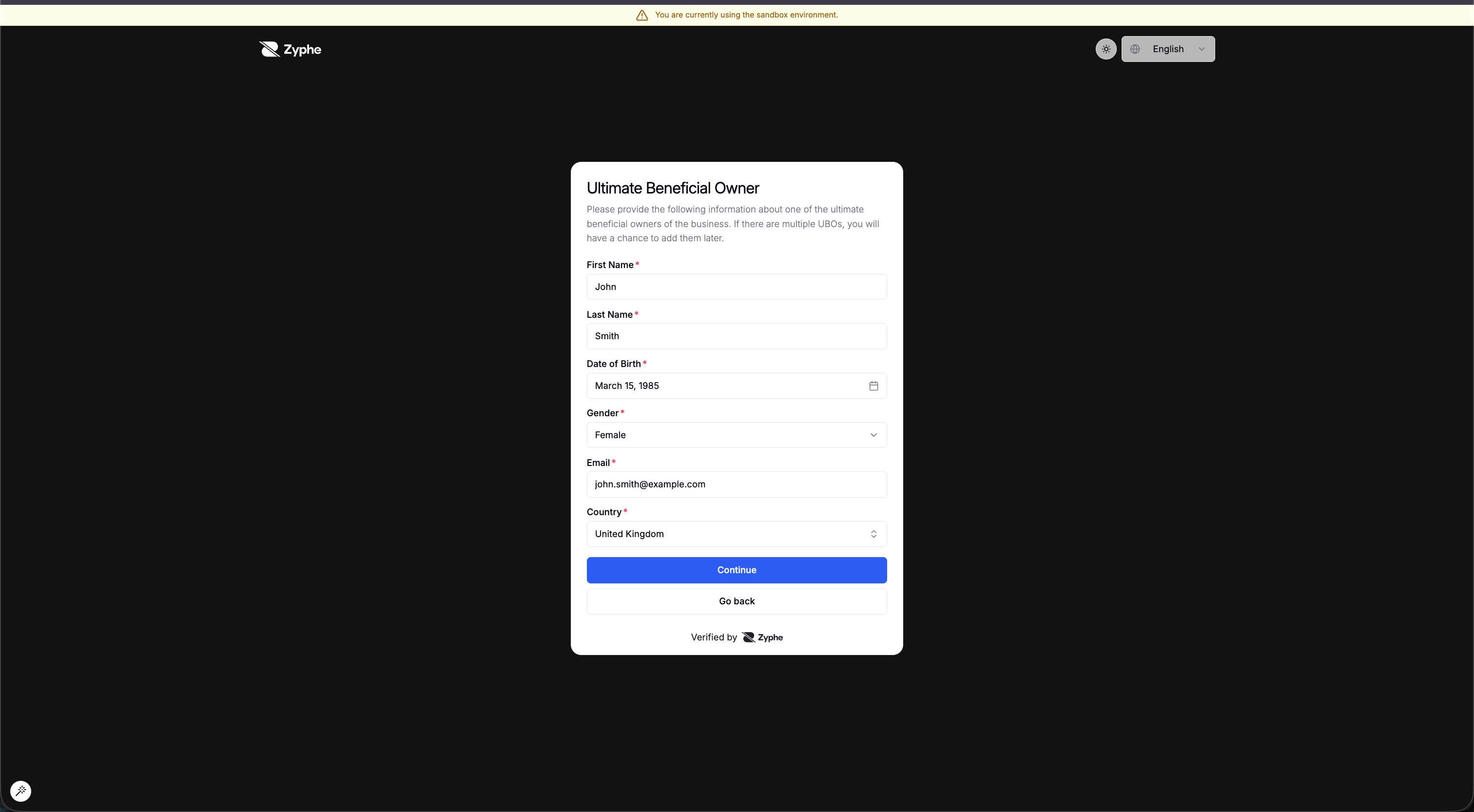
9. Ultimate Beneficial Owners
The applicant enters each Ultimate Beneficial Owner's details: First Name, Last Name, Date of Birth, Gender, Email, and Country.
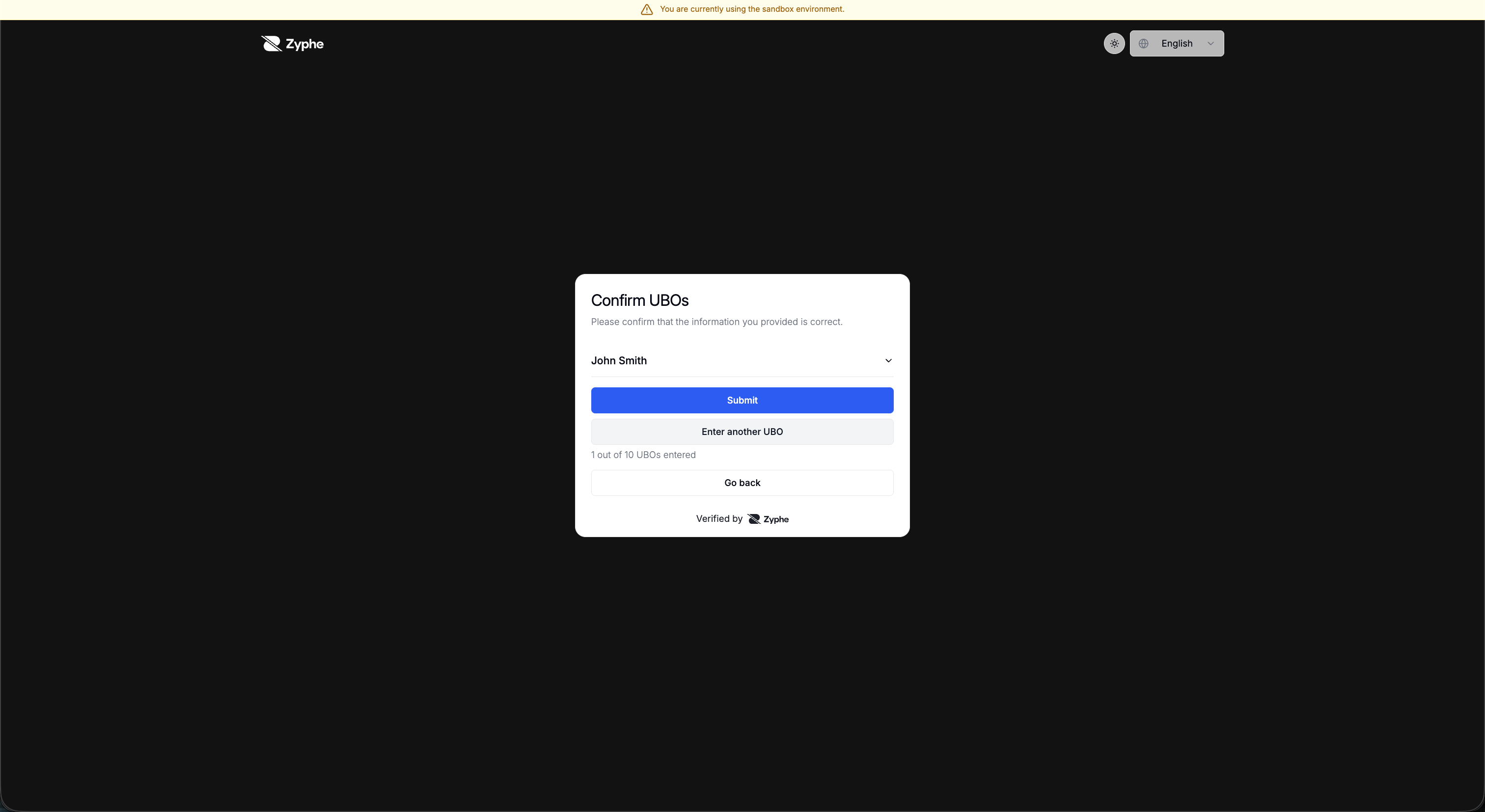
10. Confirm owners
The applicant reviews the owners they have added. They can choose Enter another UBO (up to the configured maximum) or Submit to continue.
11. Directors (when enabled)
If Collect Directors was enabled on the step, an equivalent director sub-flow runs immediately after the applicant confirms the UBOs. The director screens mirror the UBO screens above:
- A director form with the same fields as the UBO form (First Name, Last Name, Date of Birth, Gender, Email, Country).
- A Confirm directors screen, where the applicant can choose Enter another director (up to the configured Maximum Number of Directors) before submitting.
When directors are not collected, the flow submits right after the UBOs are confirmed.
After submission, each UBO and director completes the linked KYC flow. You can send them reminders from the dashboard (see Step 16).
Reviewing KYB results
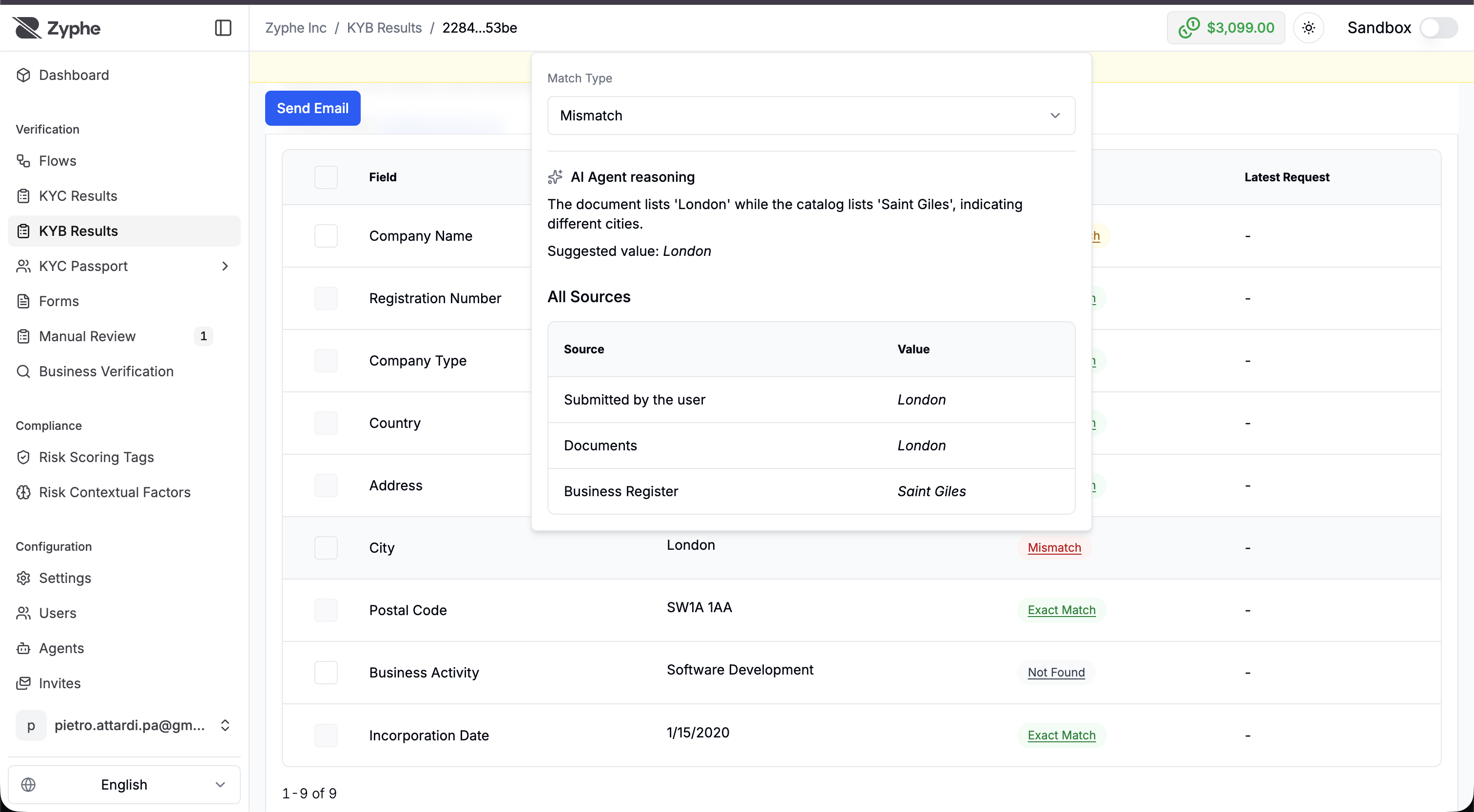
KYB results are available under KYB Results in the Zyphe Dashboard. Each business-information field is shown with a Match Type comparing the value submitted by the user, the value extracted from the documents, and the value found in the official business register.
How much of this is handled automatically depends on the KYB Agent Mode chosen at setup — in Auto-pilot, agreed fields are moderated automatically and only disputed fields need operator attention.
12. Business information verification
Each field shows its match result — Exact Match, Partial Match, Mismatch, or Not Found. Selecting a field opens the AI Agent reasoning popup with the agent's explanation, a suggested value, and All Sources: the value submitted by the user, the value found in the documents, and the value from the business register.
13. Request a clarification
To resolve a discrepancy, select the field(s) that need attention and click Send Request.
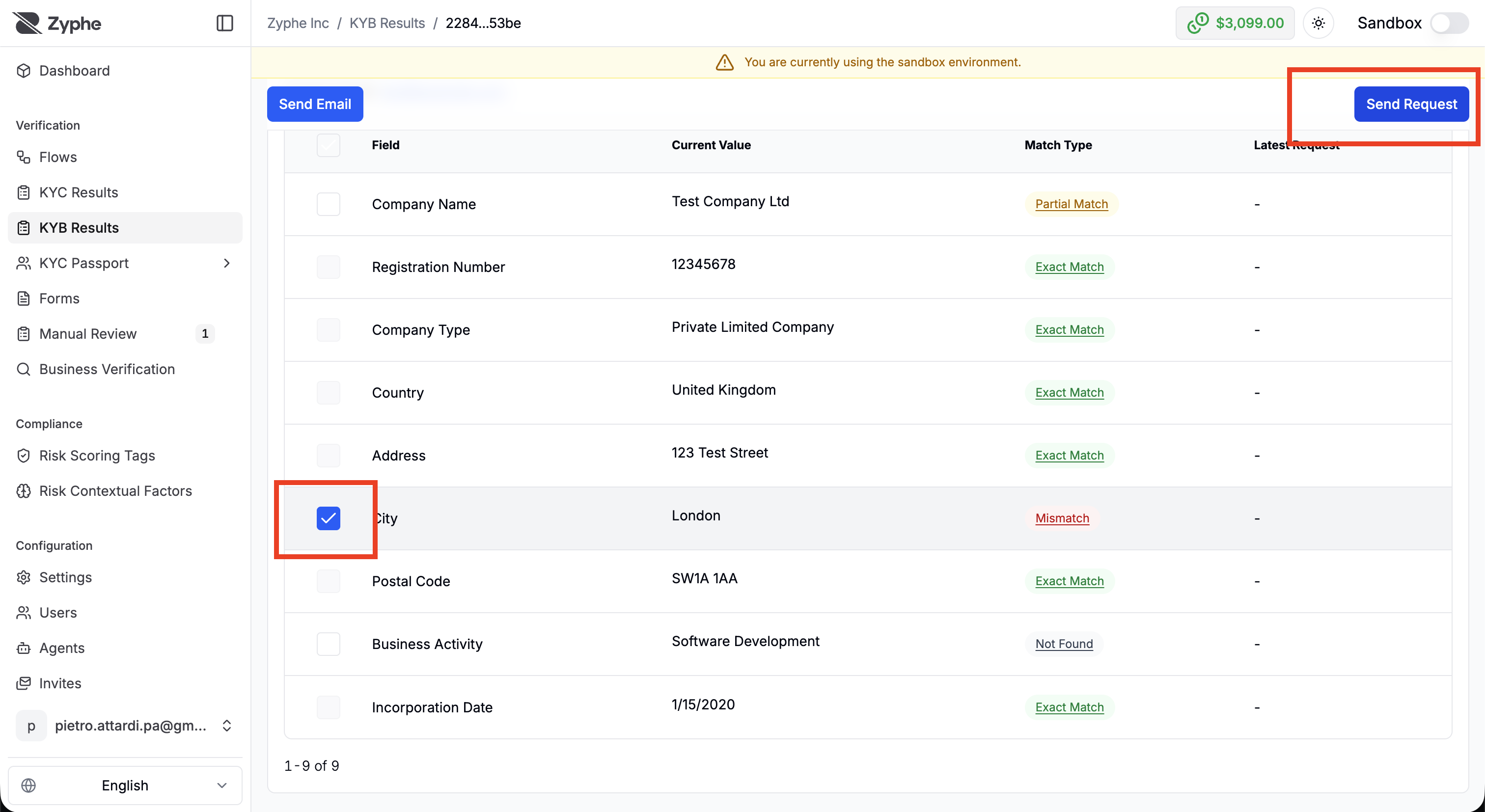
In the Send Change Request Email dialog, review the affected fields and add a description explaining the change you need, then Create Request.
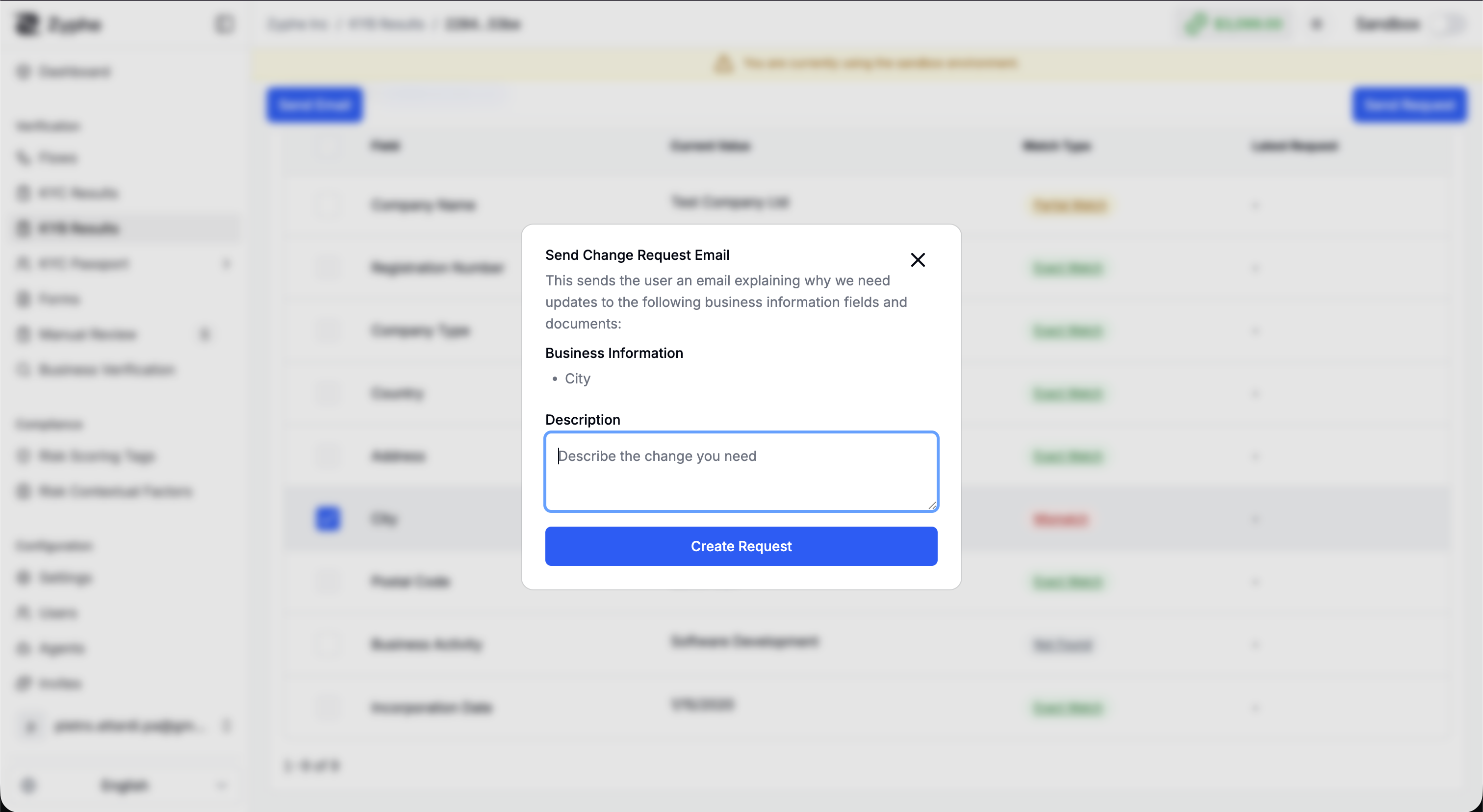
There are two request types. A clarification request asks the applicant to re-confirm or update specific business-information fields (shown here), while a standard request asks them to upload a named document.
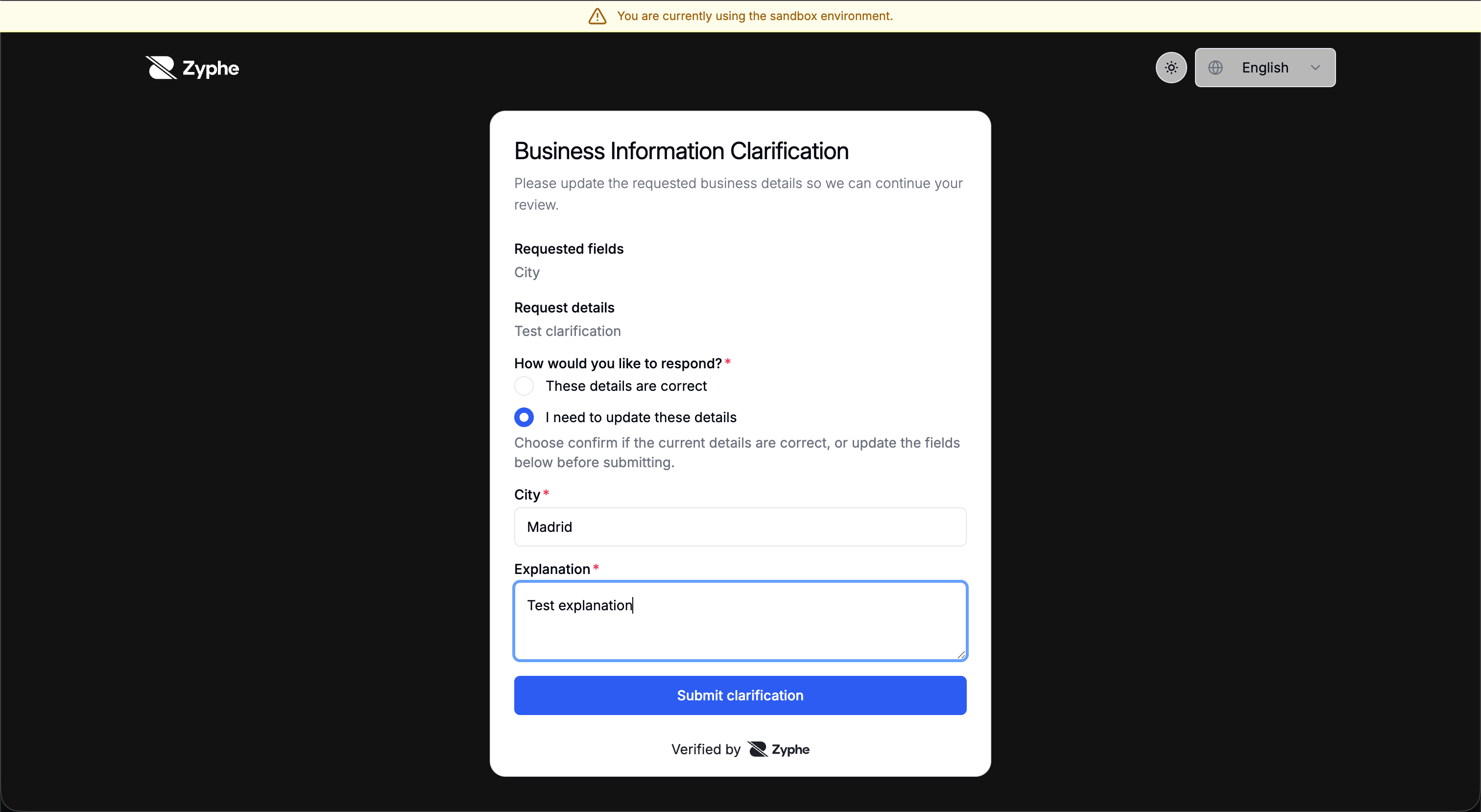
14. End-user clarification
The applicant receives the request and sees the Business Information Clarification screen. They choose These details are correct or I need to update these details, edit the requested value, add an explanation, and submit.
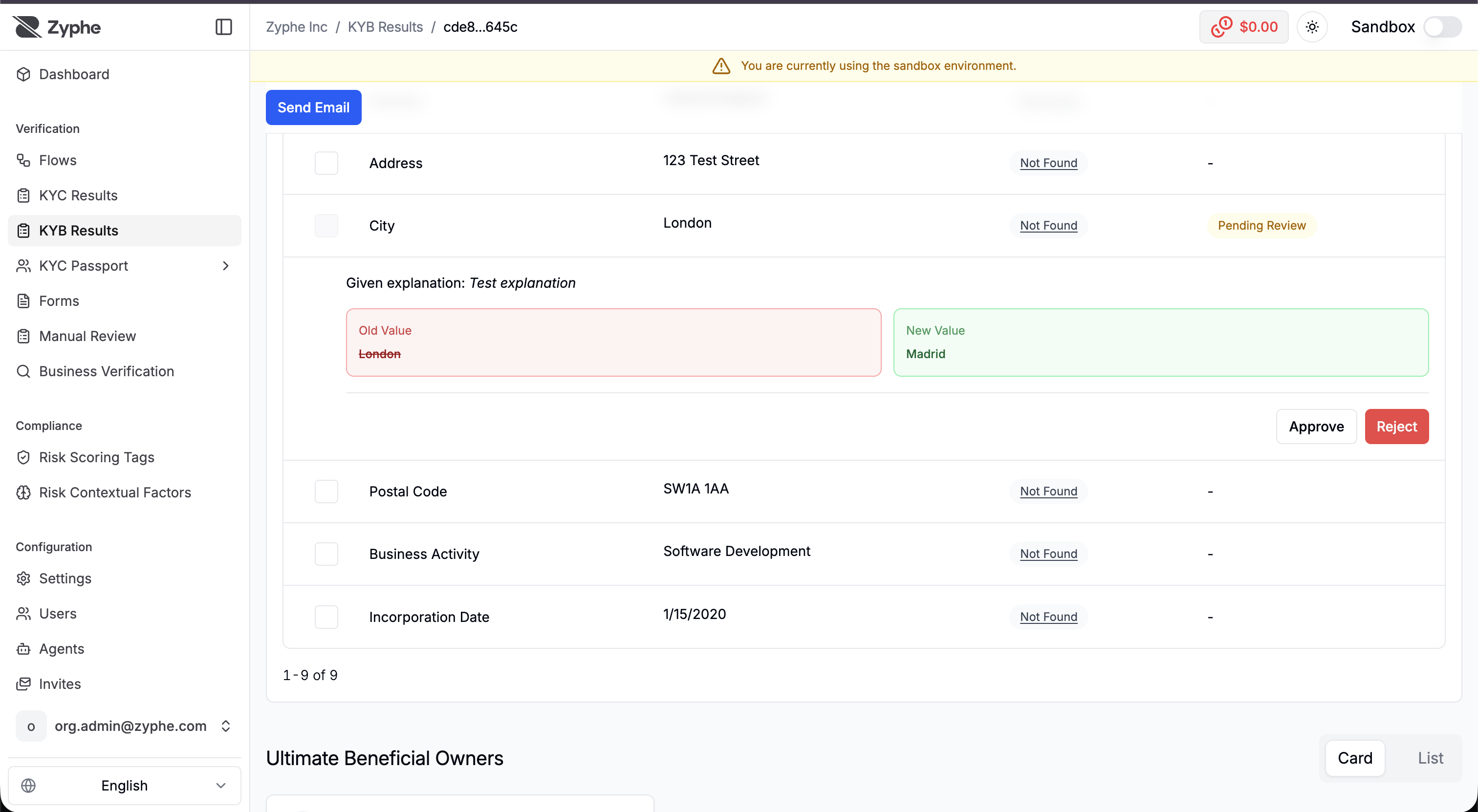
15. Review the response
The operator sees the Old Value and New Value side by side, with the applicant's explanation, and can Approve or Reject the change per field. Until reviewed, the field shows a Pending Review status.
16. UBO & director compliance and audit trail
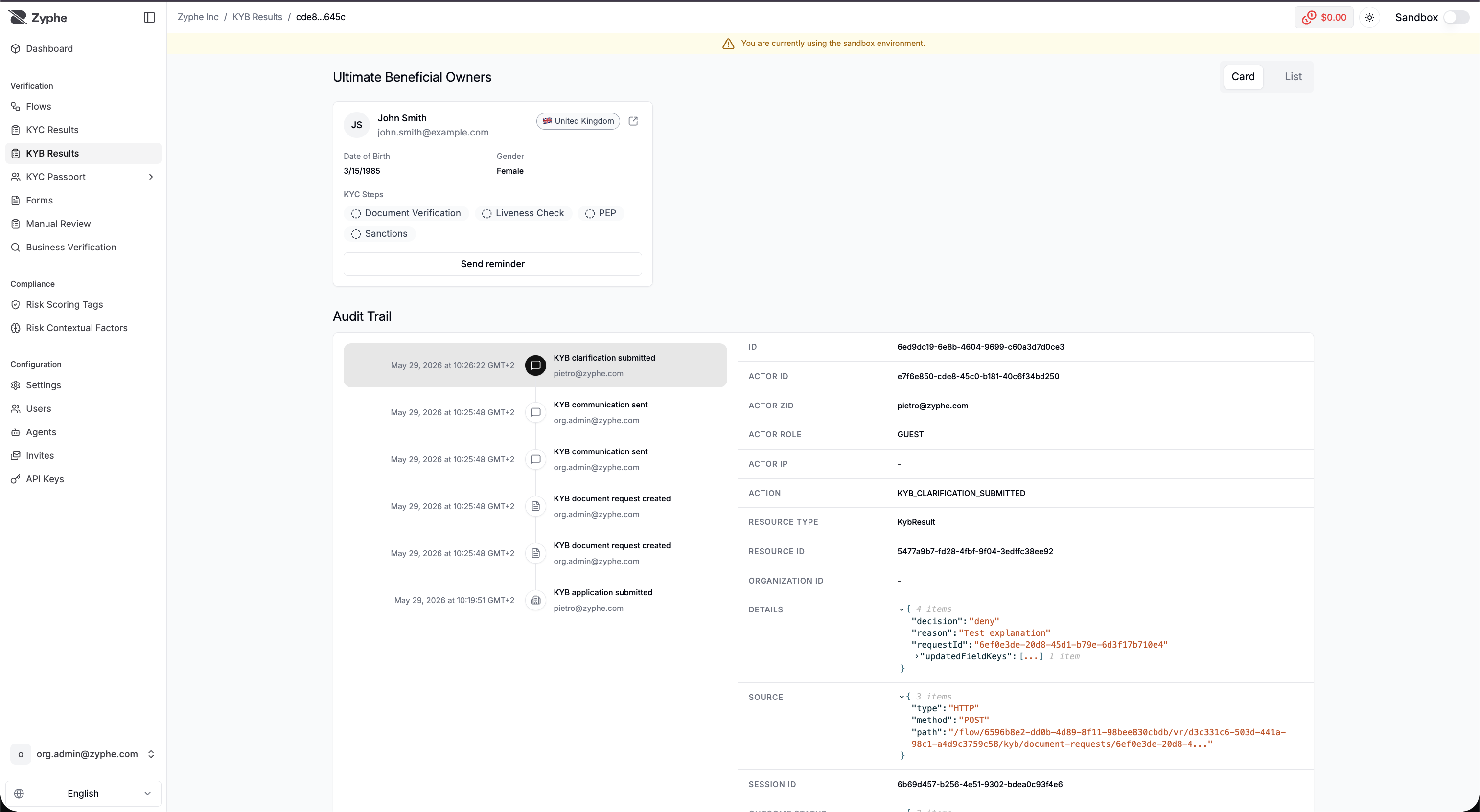
The result page lists the Ultimate Beneficial Owners and, when directors were collected, a separate Directors section. Both are shown the same way: a card per person with their KYC steps (Document Verification, Liveness Check, PEP, Sanctions) and a Send reminder action to prompt them to complete their KYC.
The Audit Trail records every KYB event — application submitted, clarification submitted, document and communication requests, and status changes — with the actor, action, and event details for full compliance traceability.
Statuses
A KYB result moves through several statuses during its lifecycle:
| Status type | Values |
|---|---|
| Moderation status | ACQUIRING, PENDING_MODERATION, REVIEW_REQUIRED, SUCCESS, FAILED |
| PEP & sanctions | PENDING, IN_PROGRESS, REVIEW, SUCCESS, FAILED |
| Next action / stage | CLIENT, RM, COMPLIANCE, SUPPORT, FUNDED, DENIED |