Inviting Partner Organizations
This guide walks you through the process of inviting partner organizations to access KYC verification results from your flow.
Prerequisites
Before inviting partners, ensure you have:
- An active flow created on the Zyphe platform
- Admin access to your organization
- Partner organization's admin email address
- Partner organization's name
Step 1: Navigate to Your Flow
Log in to the Zyphe Dashboard and navigate to the Flows section. Select the flow you want to share results from.
Step 2: Access the Partners Section
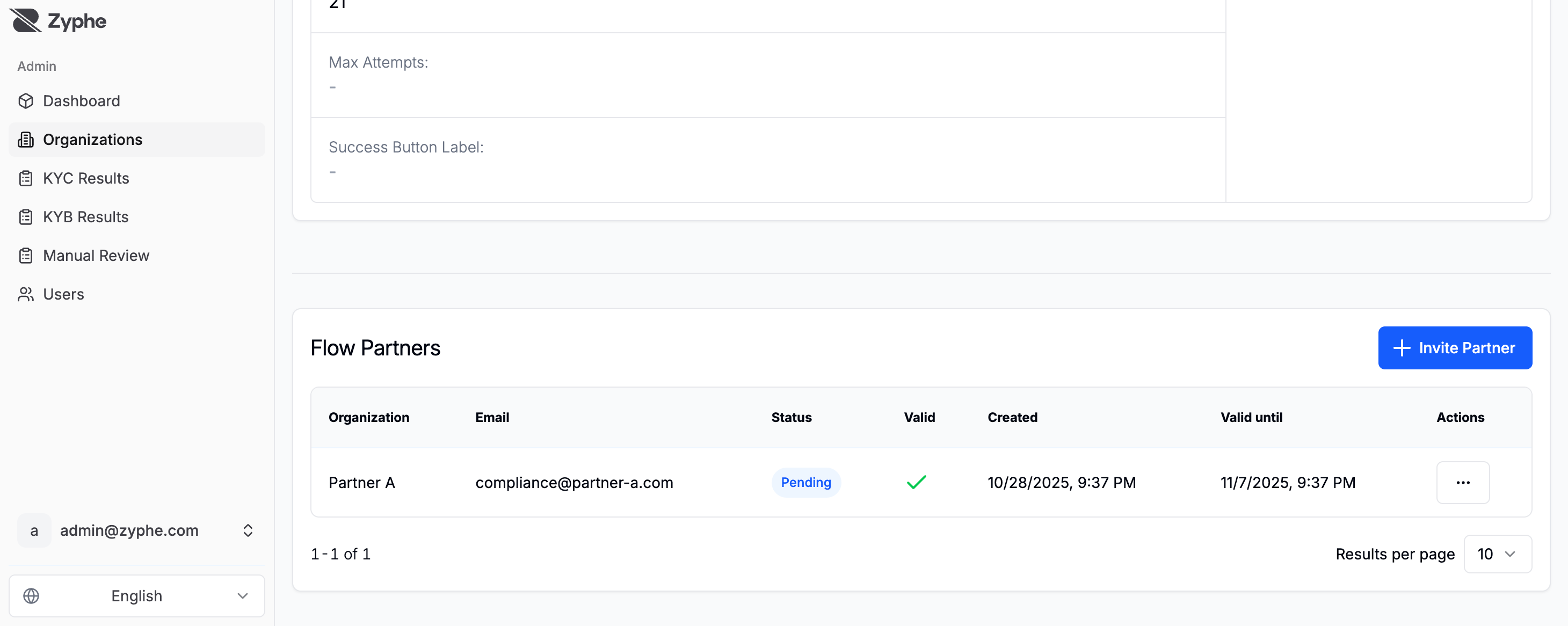
In the flow details page, locate the Partners section. This is where you can manage all partner invitations for this specific flow.
Step 3: Invite a New Partner
Click the Invite Partner button or use the action menu to open the partner invitation dialog.
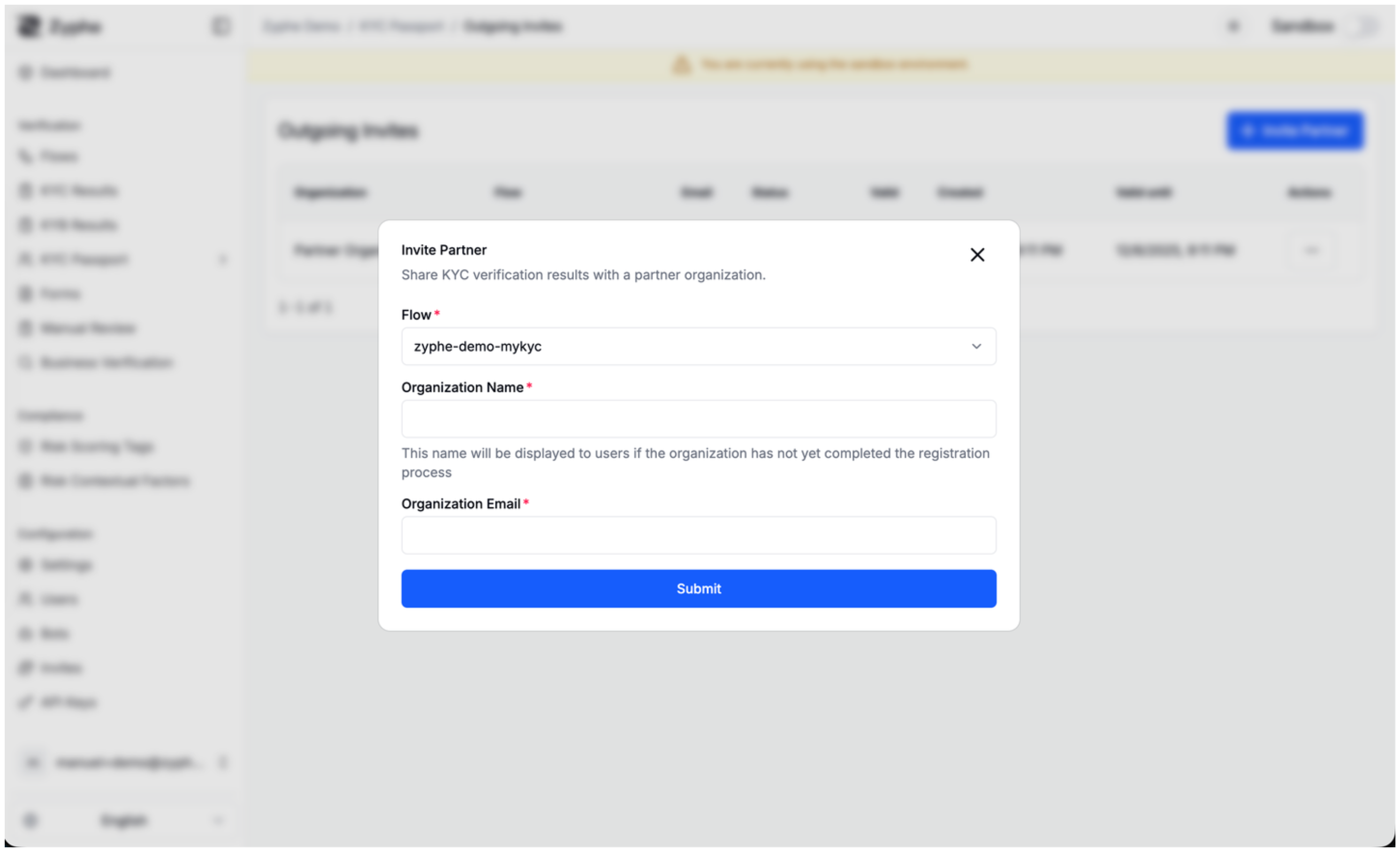
Step 4: Fill in Partner Details
In the invitation dialog, provide the following information:
- Partner Admin Email: The email address of the partner organization's administrator who will receive the invitation
- Organization Name: The name of the partner organization (this will be displayed to users during consent)
Step 5: Send the Invitation
Click Send Invitation to send the invite. The partner will receive an email with:
- A secure invitation link
- A verification code (OTP)
- Instructions on how to accept the invitation
What Happens Next?
For New Organizations
If the invited partner doesn't have an account on the Zyphe platform:
- They receive an email invitation with a secure link and verification code
- Clicking the link directs them to the organization registration process
- During registration, they'll use the verification code to confirm the invitation
- Once registered, the invitation is automatically accepted
- The new organization immediately gains access to shared flow results (from the invite creation date forward)
For Existing Organizations
If the partner already has an account:
- The admin receives the invitation via email and in-app notifications
- They can review the invitation details in their dashboard
- They can choose to Accept or Reject the invitation
- If accepted, they gain access to all flow results from the moment the invite was created
- If rejected, no data is shared and the invitation is closed
Data Access for Partners
Once a partner accepts the invitation and users provide consent:
- Partners can view shared flow results through their dashboard
- They access data through the Shared Flow Results section
- Partners can only access data from users who:
- Completed verification after the invite was created
- Explicitly consented to share data with the partner
Need Help?
If you encounter any issues or have questions about inviting partners:
- Check the FAQ for common questions
- Contact our support team
- Review the detailed KYC Passport technical documentation