Manage Users
Use the Users and Invites pages to add teammates to your organization, assign roles, and manage flow access for partner users.
Invite a New User
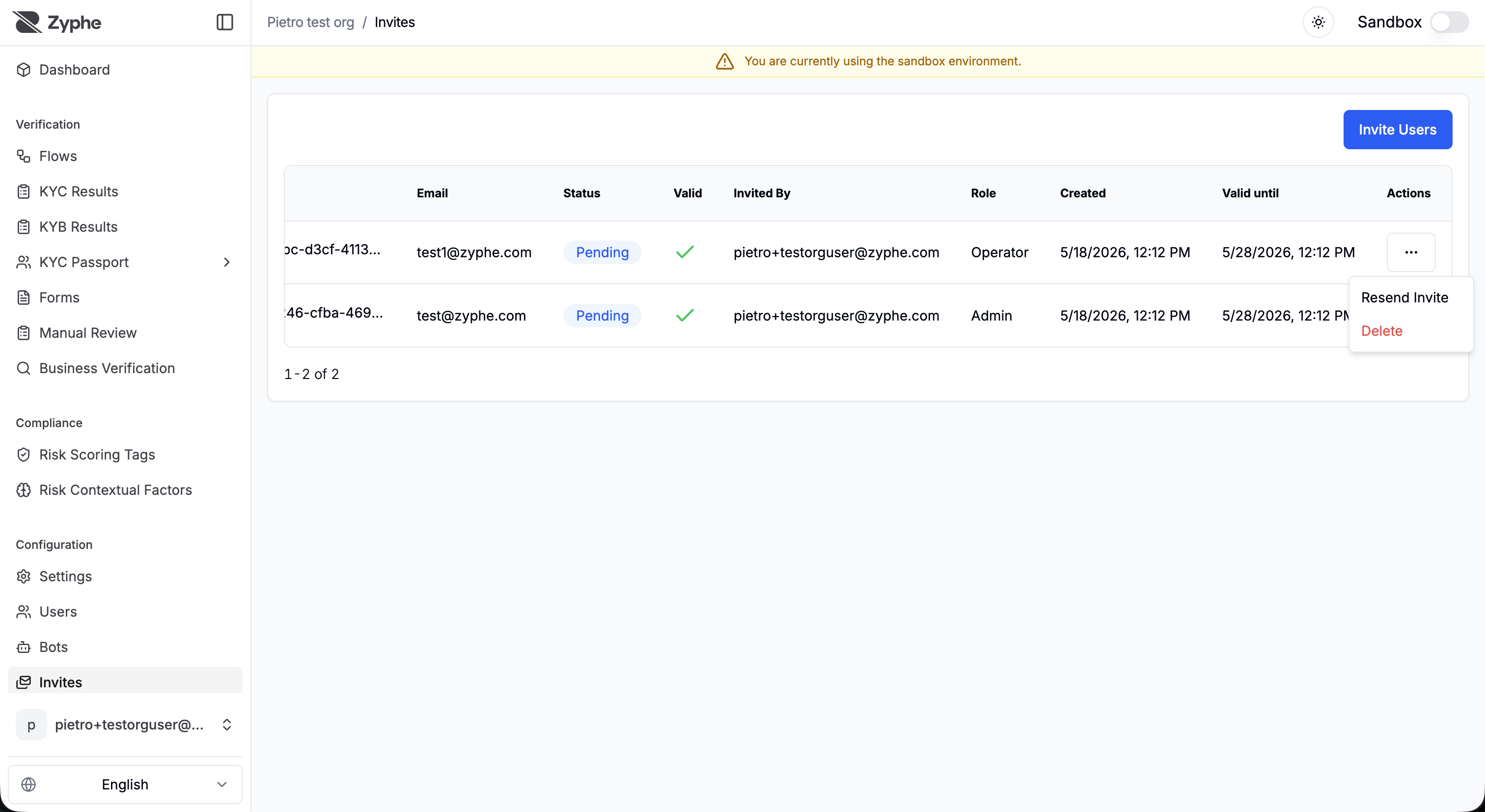
Open the Invites page from the sidebar to invite users to your organization.
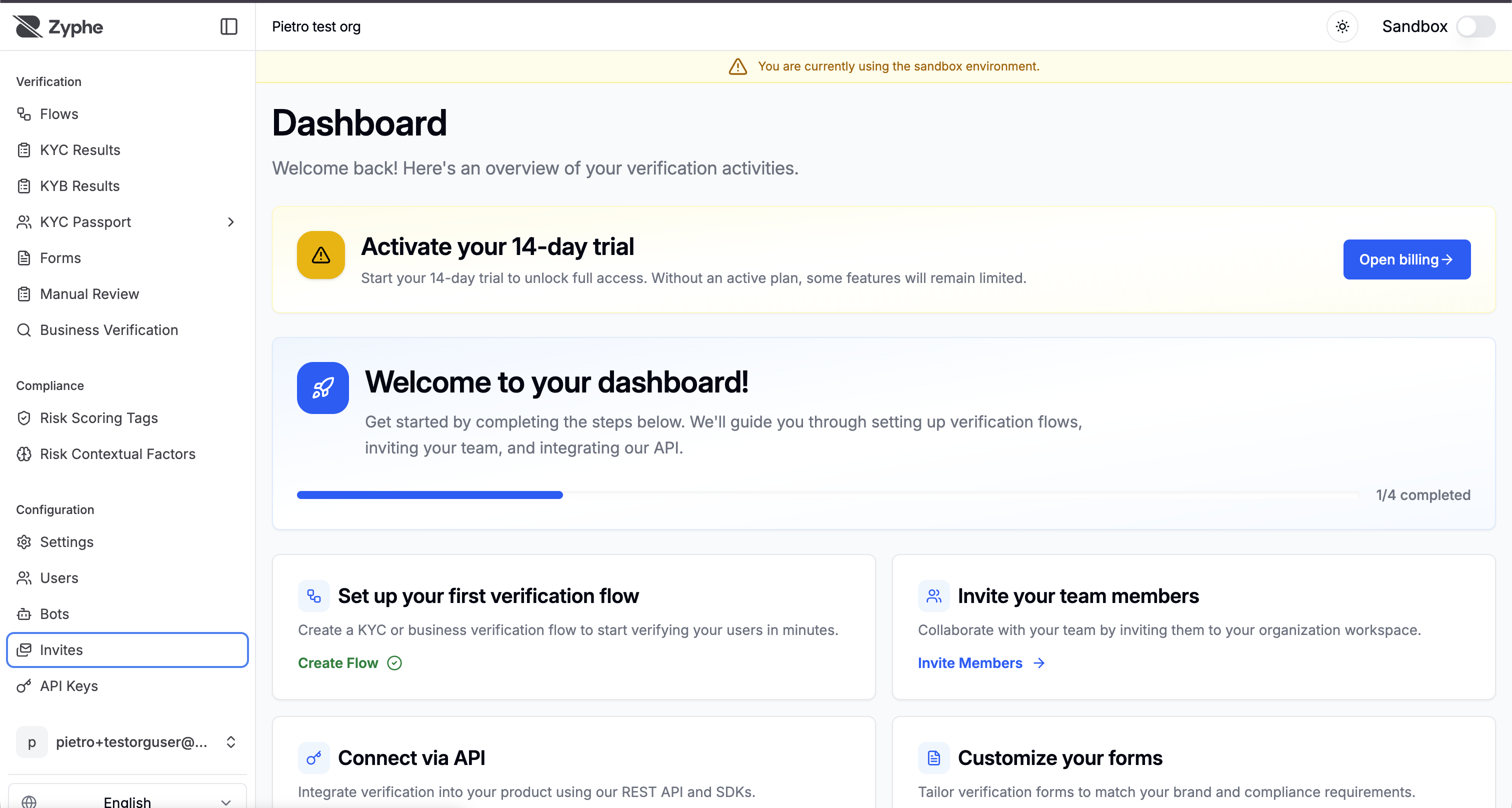
Click Invite Users to open the invitation dialog.
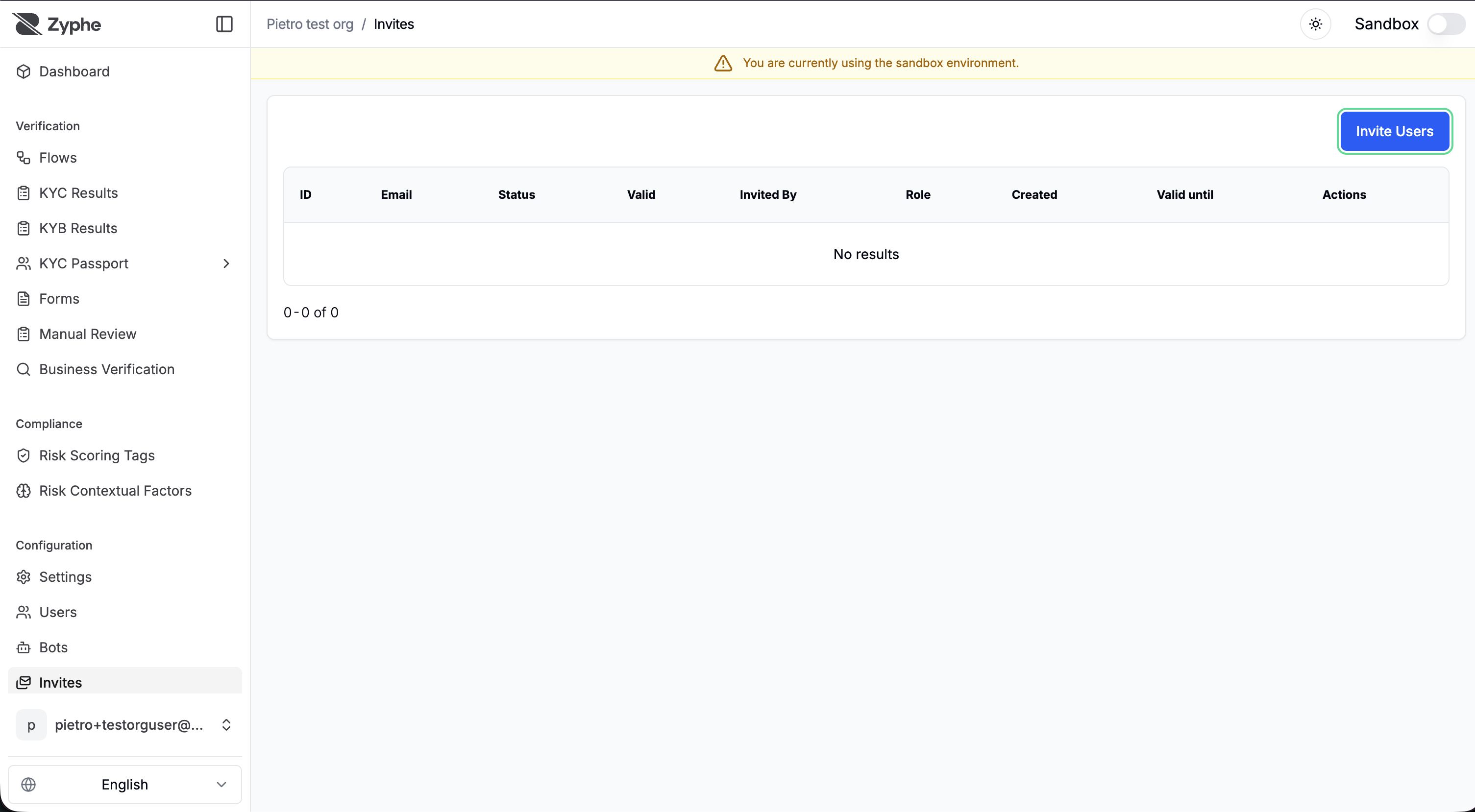
Add one or more email addresses, then assign a role to each invitee.
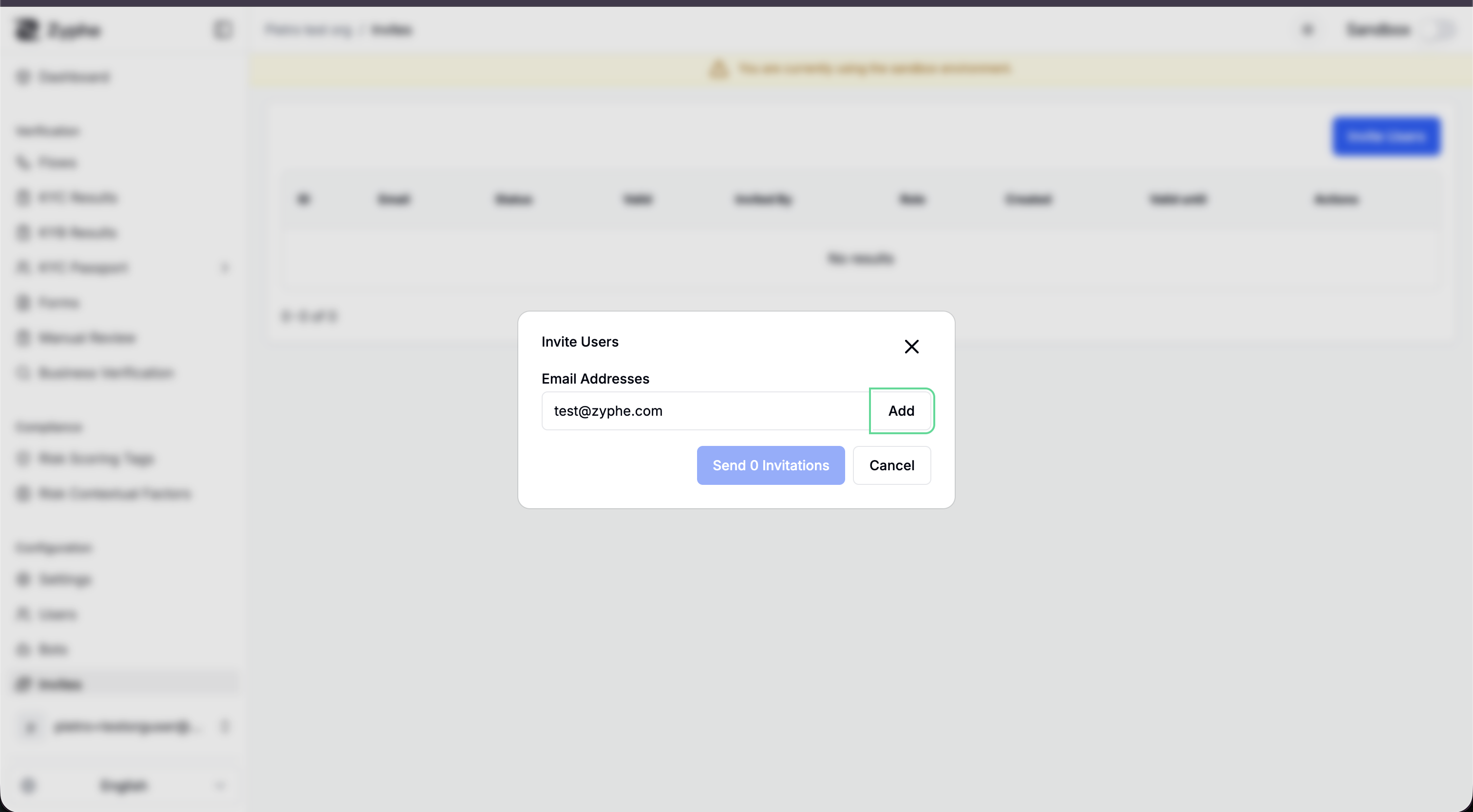
Review the permission summary before sending the invitations. The summary shows the effective permissions for each selected role.
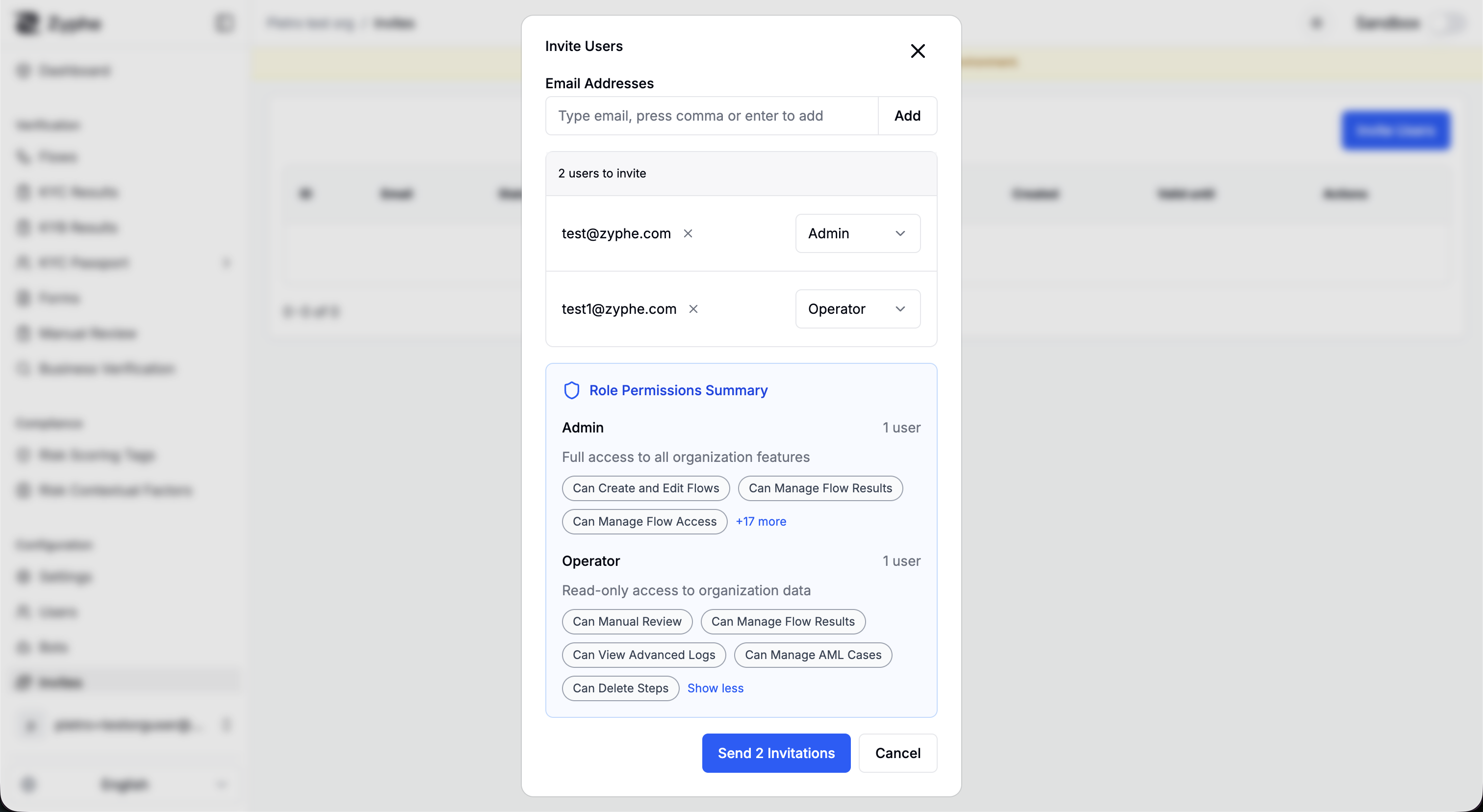
Pending invitations can be resent or deleted from the action menu.
Role Permissions
Zyphe roles are permission bundles. The main organization roles are:
| Role | Description | Main permissions |
|---|---|---|
| Admin | Full access to all organization features | Manage flows, flow results, flow access, users, API keys, bots, risk tags, partner invites, forms, organization settings, billing, webhooks, AML cases, and business verification. |
| Operator | Read-only access to organization data | Manual review, flow result management, advanced logs, and AML case management. |
| AML Officer | Access to AML monitoring and case management | Flow results, AML case management, and escalated AML cases. |
| Developer | Access to organization development features | Manage flows, API keys, bots, webhook triggers, and webhook secrets. |
| Partner | Access to shared flows only | Manage flow results for flows explicitly shared with the partner user. |
In sandbox, Admin and Operator users can also delete flow steps. This is intentionally limited to sandbox workflows.
Manage Partner Flow Access
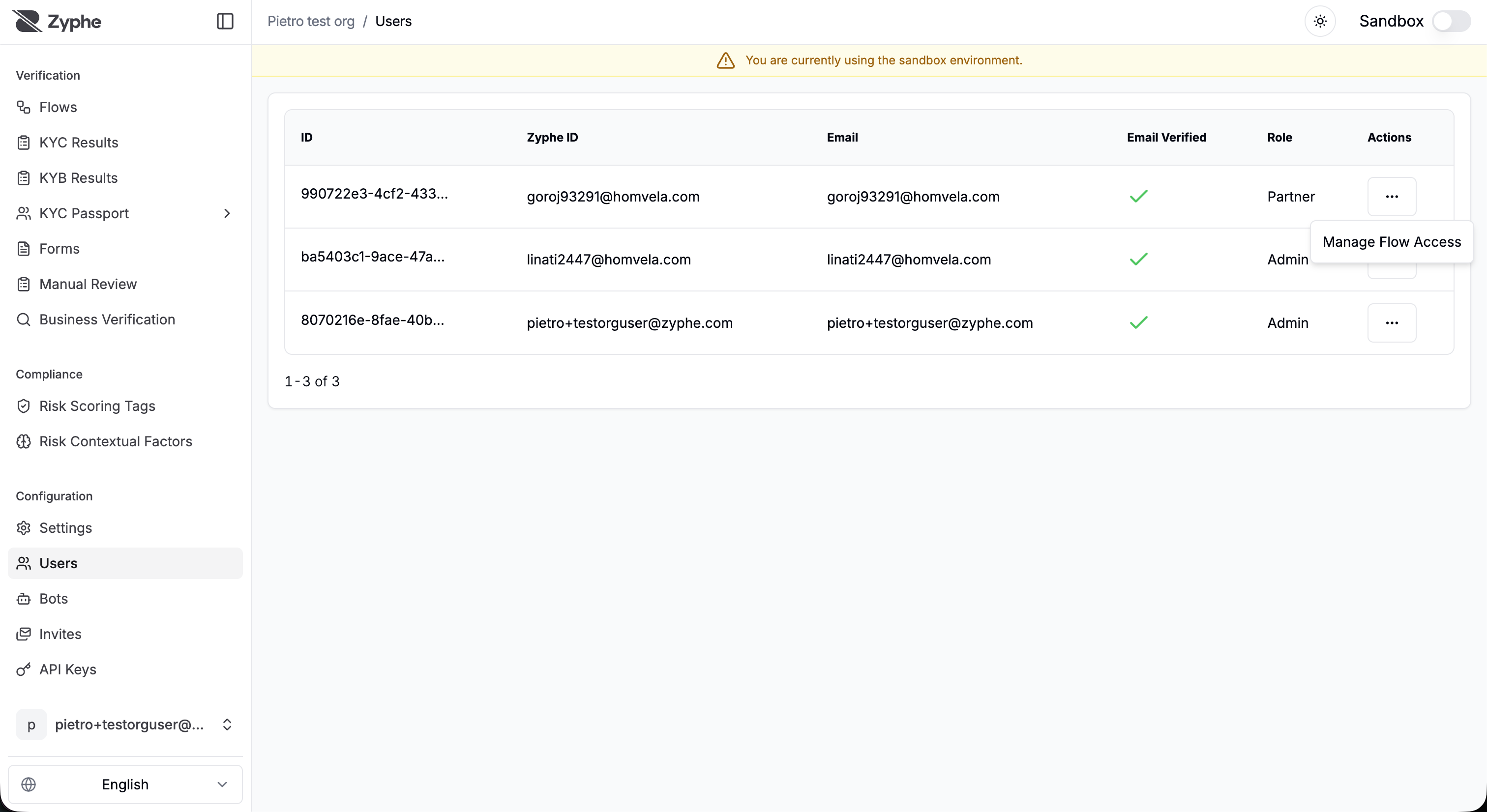
Open the Users page to review organization users. If a user has the Partner role, you can manage which flows they can access.
Flow access is granted per flow. You can grant access to specific flows and manage whether the partner has read-only or write access.
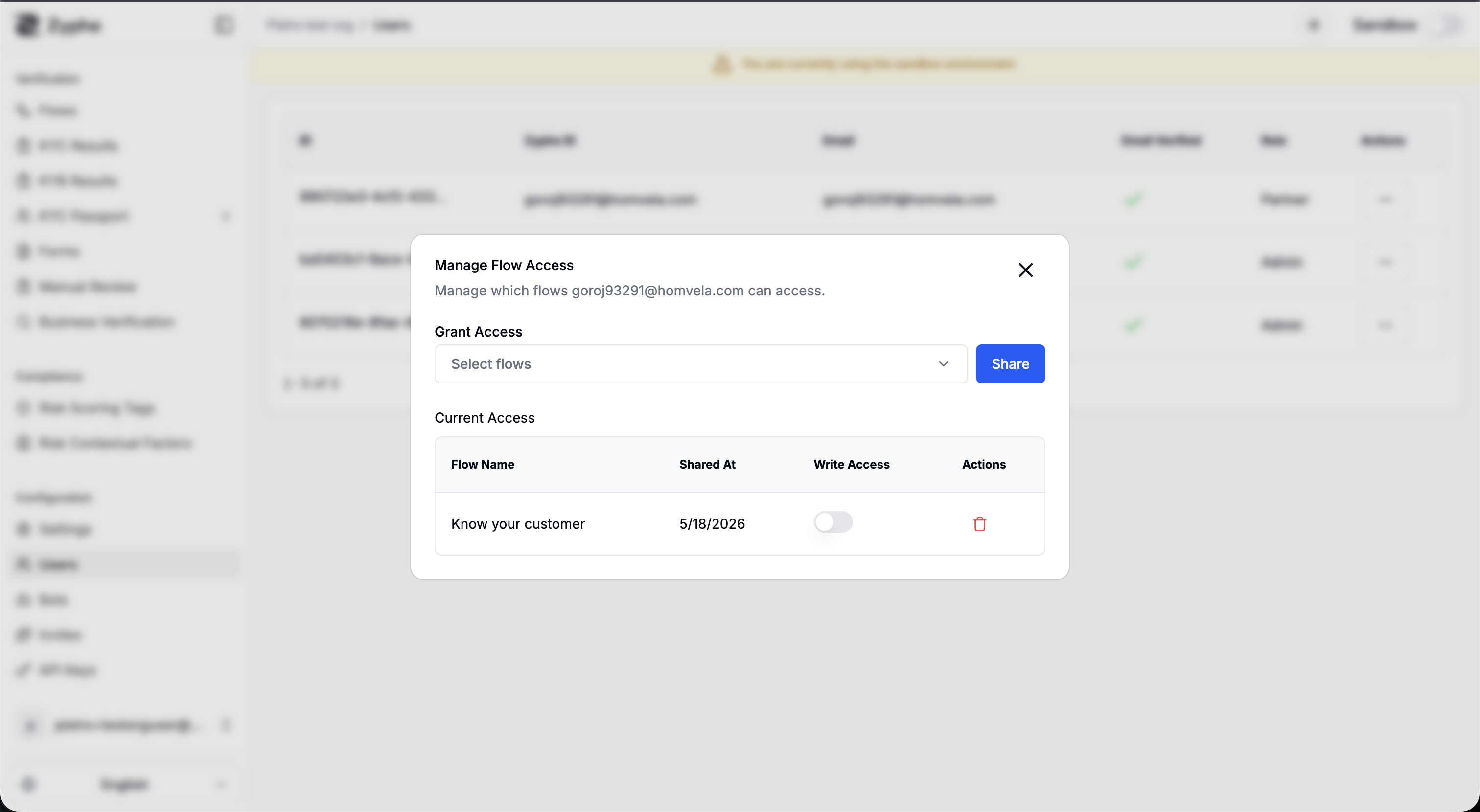
Partner flow permissions work as follows:
- Read access: lets the partner user view and manage results for the shared flow.
- Write access: lets the partner user write to the shared flow when write access is enabled and has not been revoked.
- Revoked write access: removes write permissions while preserving the existing shared-flow relationship.