Reviewing Scores
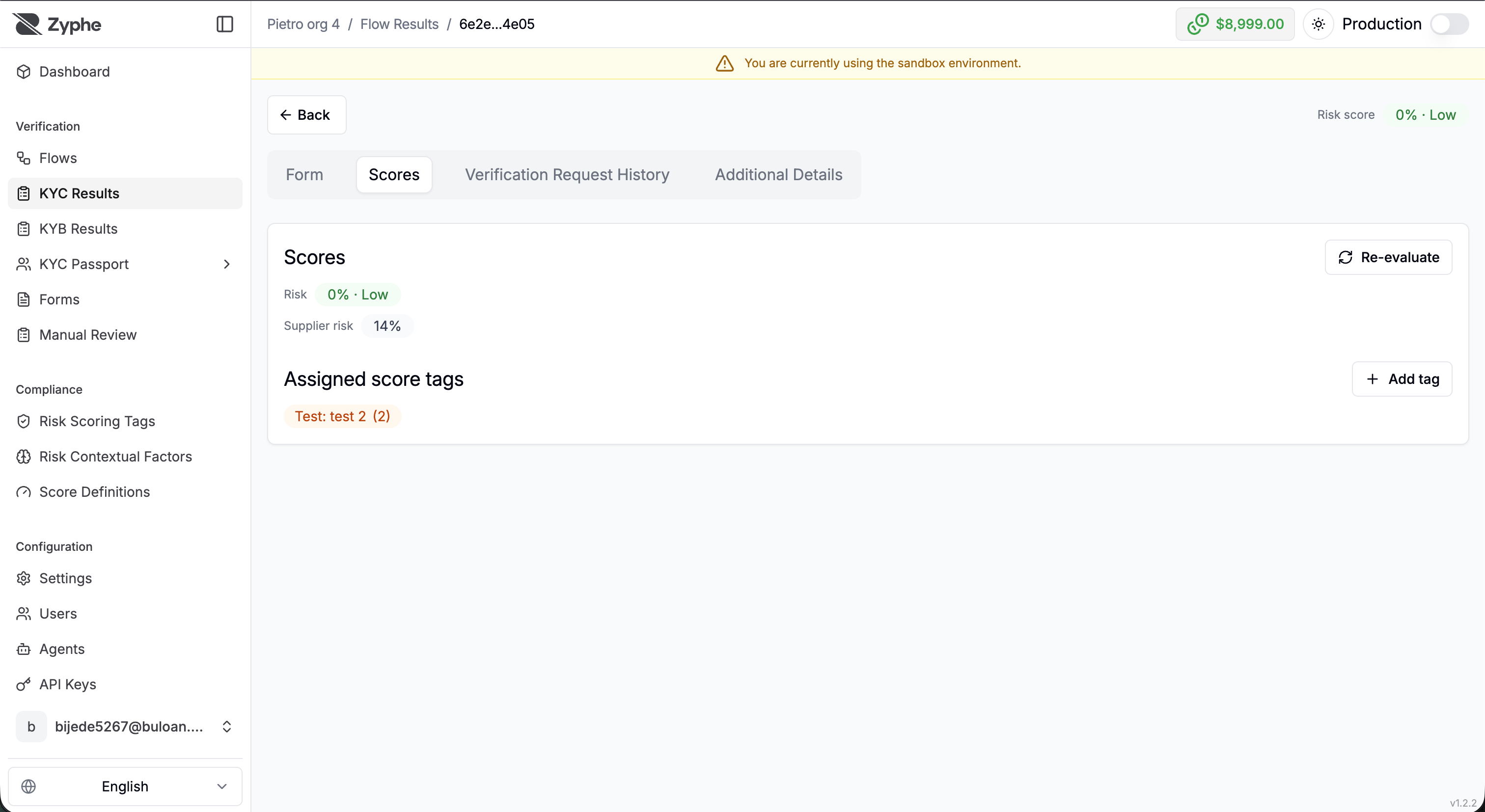
Computed scores are surfaced on the flow result detail page in the Zyphe Dashboard, in a dedicated Scores tab that appears once a result carries score tags.
Score badges
Each enabled score is displayed with its current value:
- The default Risk score is shown as a color‑coded badge with both percentage and level (e.g.
62% · High). - Custom scores are shown neutrally as a percentage, since their meaning is organization-specific.
- Scores fed by a specific form indicate the form they were computed from.
Assigned score tags
Below the badges, the Assigned score tags section lists every tag currently attached to the result together with its weight, whether it was emitted by a form answer, a workflow action, or a reviewer.
Reviewers with the appropriate permissions can:
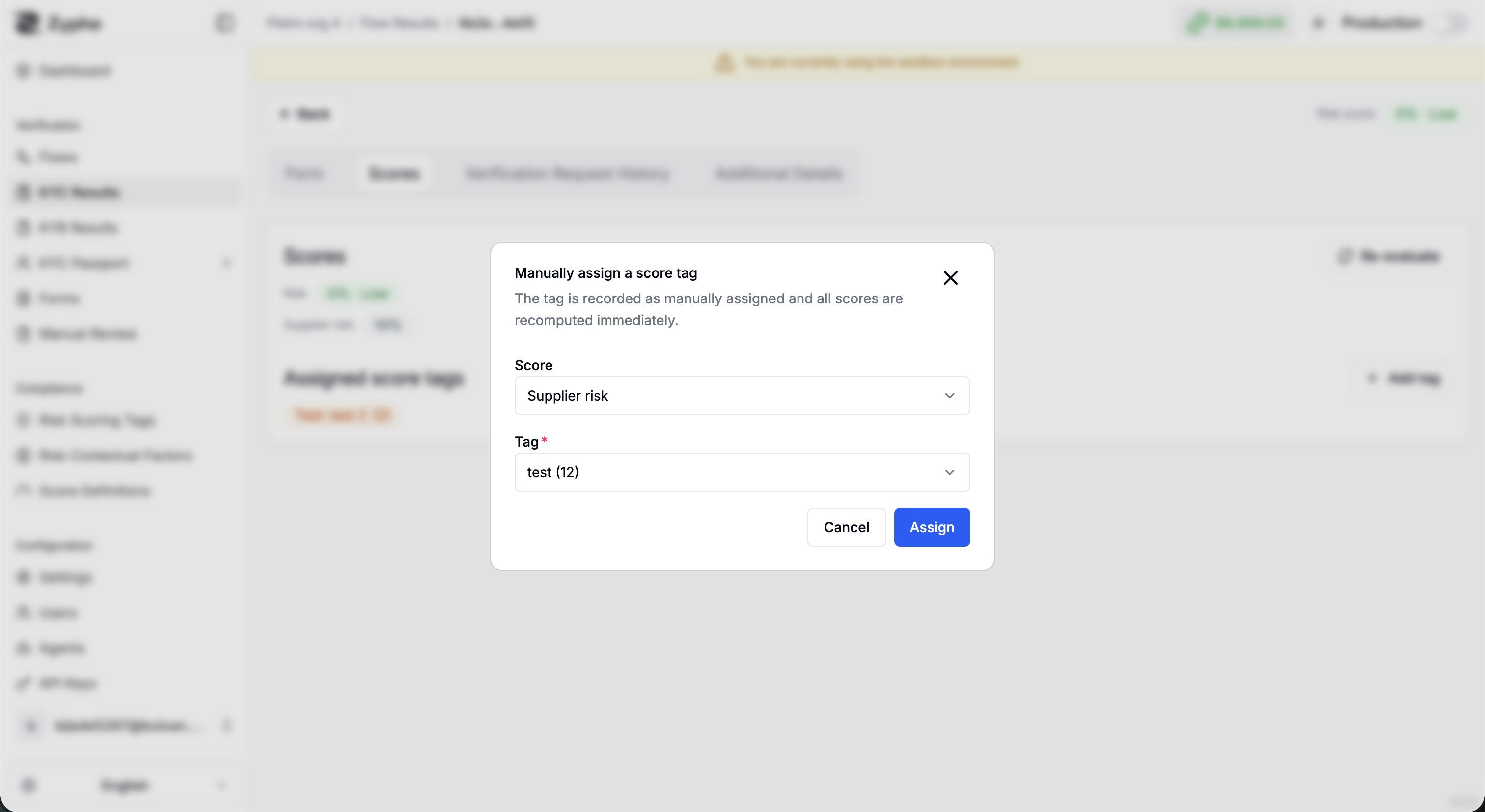
- Assign a tag manually — click Add tag, pick the score it feeds, then pick the tag. This is useful to encode findings from a manual check into the score.
- Retract a tag — remove a previously assigned tag from the result.
Re-evaluation
Scores are computed automatically when the flow completes, and recomputed when their inputs change — for example after an AML moderation decision or a manual tag assignment. Reviewers can also trigger a recomputation explicitly with the Re-evaluate button on the Scores tab.
When a re‑evaluation changes the overall score or the result's status, Zyphe can notify your registered webhook endpoint with the before/after values, so downstream systems stay in sync. See Webhook for the general webhook setup.
Viewing scores requires access to flow results; assigning or retracting tags manually is reserved to Admin users, and re-evaluation is available to Admin, Operator, and AML Officer users. See Manage Users.
Score tags are authored on the Score Definitions page and attached to questions in the form builder. The math behind the percentages is described in How Scores Are Computed.