AML Screening
AML Screening lets a member of your organization screen a person or a company against sanctions, politically exposed persons (PEP) and other watchlists on demand, outside any verification flow. Use it for a one-off check: a counterparty before a payment, a prospect before onboarding, a name that comes up during a review.
Each screening is kept with what was searched, who ran it and what was found, so it can be read again later. A screening is a lookup, not a case: its matches are not moderated, scored or monitored. Screening that runs inside a flow, with risk scoring and moderation, is described in AML.
Before you start
- The AML product must be enabled for your organization. If AML Screening does not appear under Compliance in the sidebar, contact the Zyphe team.
- Your role must allow it. Admins, Operators and AML Officers can run and read screenings. The full role matrix is maintained in Manage Users.
- Production screenings are charged. See Cost.
Run a screening
-
Open Compliance → AML Screening.
-
Select New screening.
-
Under Who are you screening?, choose Person or Company.
-
Fill in the details you have. Only the names are required; every other field makes the matching more precise.
Subject Fields Person First name and Last name (required), Middle name, Date of birth, Nationality, Country of residence, Passport number Company Company name (required), Registration number, Country, Address -
Select Run screening.
The dialog stays open until the screening finishes, so one screening runs at a time and a second one cannot be sent by mistake. When it finishes, the screening opens on its own page.
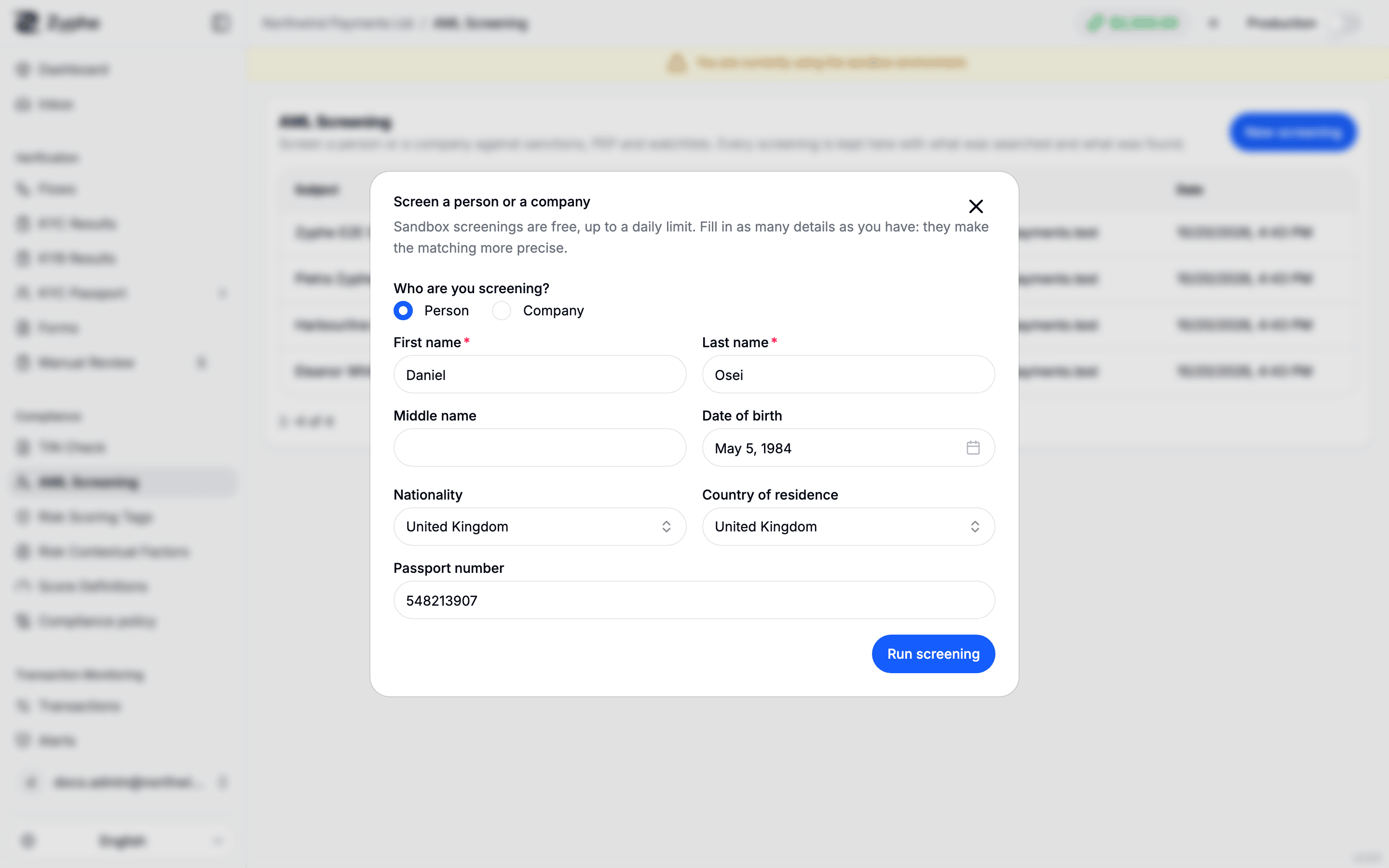
A name alone matches many people. Add a date of birth and a nationality for a person, or a registration number and a country for a company, to cut down the matches that refer to someone else.
Read a screening
The screening page shows:
- The subject's name, whether it is a Person or a Company, and the number of matches (or No matches).
- Search: every field that was searched, Run by, Date, and the Screening ID.
- Matches: one card per matched entry, with its match score, the topics it is listed under (for example sanctions or PEP), the names it is Also known as, its Countries, and the sanctions behind it with their sources.
A relative or close associate of a PEP is listed under the Close Associate topic. Treat it as a PEP match: Zyphe does the same when it scores and reviews screenings inside a flow. See Risk scoring.
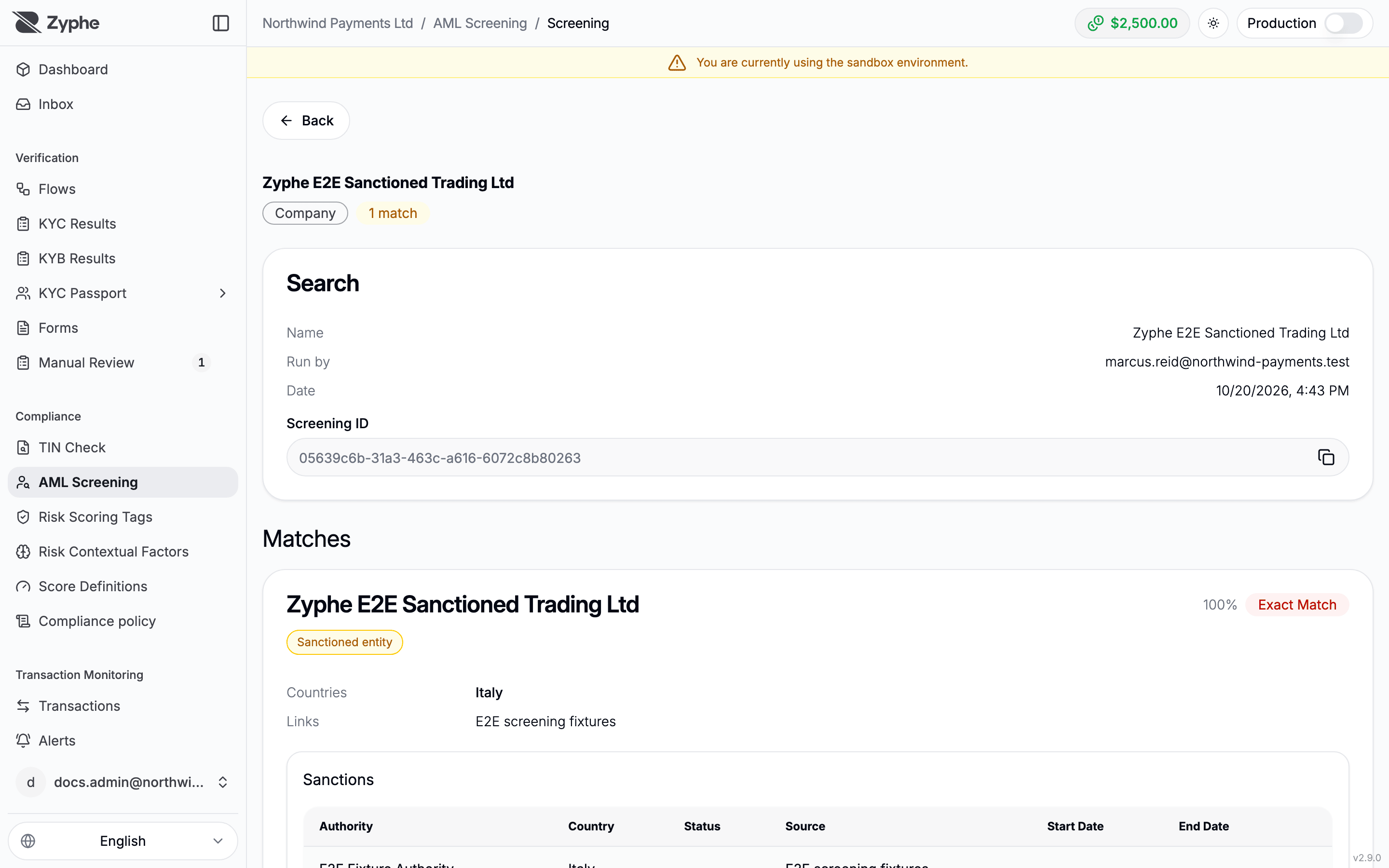
Matching is fuzzy. A match means an entry resembles the subject you searched for. Compare the date of birth, countries and other details before you act on it.
The list of screenings
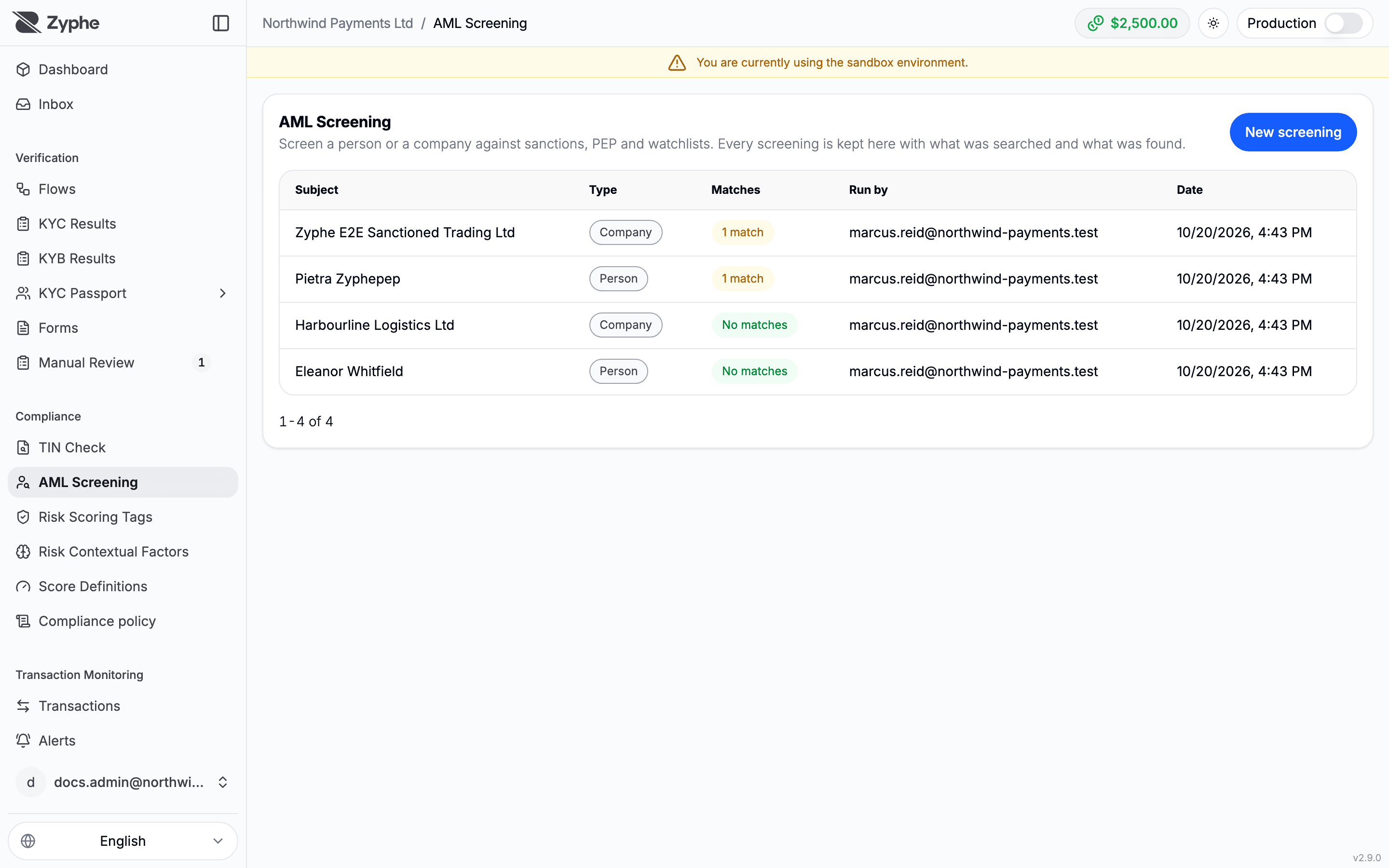
Compliance → AML Screening lists the screenings your organization has run in the current environment, newest first. Each row shows the Subject, its Type, the number of Matches, who ran it (Run by) and the Date. Select a row to open the screening.
Sandbox and production screenings are kept apart. Use the dashboard's sandbox toggle to switch between them.
Cost
- Production: each screening is charged to your organization, as the New screening dialog says before you run it. Usage appears with the other products on the Billing page.
- Sandbox: screenings are free, up to a daily limit per organization. Sandbox screenings run against the same lists as production.
- A screening that fails is neither stored nor charged.
Screen from your backend
Your backend can run the same screening with a Secret API key (zyphe_sk_) through POST /sdk/organizations/{organization_id}/aml/screen. It is charged like a dashboard screening and returns the matches, but it is not kept in the list. The request and response schemas are in the API reference.
Related documentation
- AML overview
- Risk scoring
- TIN Check, which also screens a US name against watchlists
- Manage Users
- Billing