Dashboard
The Zyphe Dashboard is where your team configures verification flows, works the cases they produce, and administers the organization: members, credentials, webhooks and billing. What each member sees depends on their role.
Get access
- New organization. Create an account with your work email and set up your organization yourself. See Sign up and create your organization.
- Joining a team. An Admin of your organization invites you from the Users page, and the invitation email links to the registration. See Manage Users.
- KYC Passport partner. An organization that shares a flow with you sends an invitation that creates your account and organization. See Accepting Partner Invitations.
Sign in
Sign in with any of the methods your account has:
| Method | How |
|---|---|
| Password | Email address and password. Forgot your password? sends a reset link. |
| Magic link | Sign in with a magic link emails a one-time sign-in link, no password needed. |
| Passkey | Sign in with Passkey uses your device's fingerprint, face or security key. See Passkey Authentication. |
If you turned on two-factor authentication, or your organization requires it, a password or magic-link sign-in then asks for the code from your authenticator app. A passkey sign-in does not.
Navigation
The sidebar shows only the pages your role can use, and hides a group with no page for you.
| Group | Pages |
|---|---|
| (top) | Dashboard, for Admins: the onboarding checklist and the verification statistics |
| Work | Inbox (see Inbox), Manual review, KYC results, KYB results, Transaction monitoring, External alerts, SAR, Directory, Screening tools (AML screening, TIN check), KYC passport |
| Build | Flows, Forms |
| Policies & risk | Compliance policy, Risk scoring, Guard policies |
| Insights | Metrics, Reports |
| Organization | Integrations, Developers (tabs API keys, Agents, Webhooks, Connections, Request logs), Settings, Users, Audit log |
AML screening, TIN check and the Transaction monitoring group appear only when the product is enabled for your organization, and External alerts once your organization has connected an alert provider.
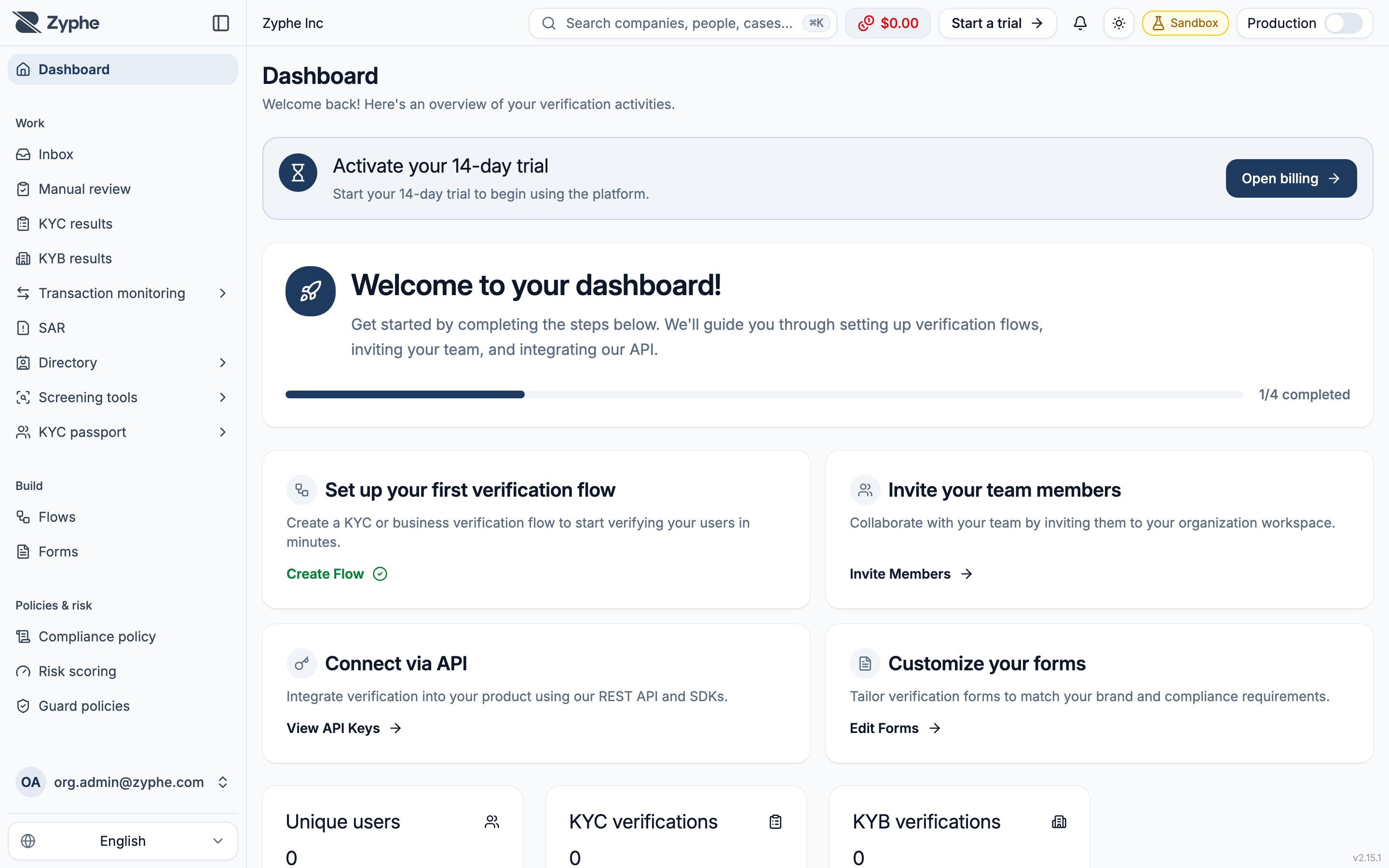
Where you land
Signing in opens the Inbox for Admins, Operators and AML Officers. Other roles land on the first page they can use: KYC results for Partners (and for Developers in sandbox), Flows for Developers in production.
Header
- Production switch: moves the whole dashboard between sandbox and production data. It stays disabled until your organization has production products. See Sandbox mode.
- Credit balance: what is left on the organization's balance, the same figure in both environments. Members who manage billing also see a button here while the organization still has to be activated. See Billing.
Account menu
Click your email address at the bottom of the sidebar:
- Play onboarding tour: replays the guided tour of the dashboard.
- Register passkey: adds a passkey to your account. Shown until you have one.
- Two-factor authentication: turns the second sign-in step on or off and manages your backup codes.
- Log out.
The language selector sits under the menu.
Security
Every request the dashboard makes is checked against the member's role by the backend. Admins can require two-factor authentication of every member, and actions on cases are written to the organization's tamper-evident audit trail. For the principles behind roles and personal data, see PII Access Control; for what is retained and where, see Privacy, consent and retention.
Related Documentation
- Inbox
- Manage Users
- Agents and API credentials
- Organization Data Access Flow: the architectural sequence behind a dashboard read