Home and Inbox
Home (the Dashboard entry at the top of the sidebar) summarizes the open work of your organization, and the Inbox lists every task that needs a person, oldest first. Both cover KYB cases, KYC manual reviews and transaction monitoring alerts, and both read the same scope filters, so a count on Home always opens the matching list in the Inbox.
Home and the Inbox are available to Admins, Operators and AML Officers. Other roles do not see them and land on their own first page instead (see Dashboard).
Home
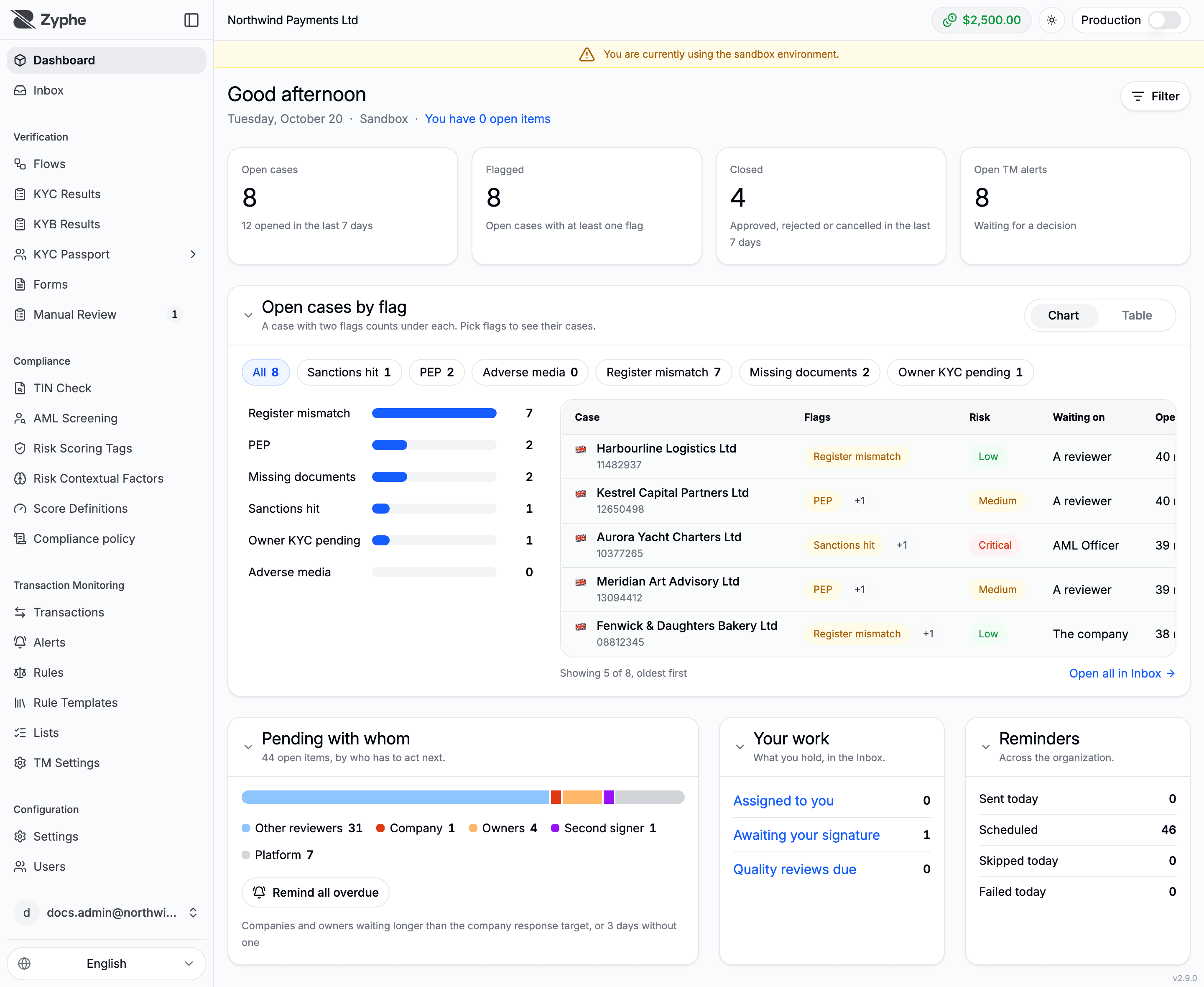
The header greets you with the date, the environment you are in, and a link to the items assigned to you.
Scope filters
Open Filter to narrow every widget on the page. A filter in force shows as a chip under the header; clear the chips to see everything again. Home remembers your choice.
| Filter | Options | Default |
|---|---|---|
| Whose work | Me, My team, Everyone | Everyone |
| Opened | Last 7 days, Last 30 days, Last 90 days, Last 12 months | Any time |
| Product | KYB, KYC, Transaction monitoring | Every product |
A product your organization does not have stays listed as Not active.
Summary tiles
| Tile | What it counts |
|---|---|
| Open cases | Open cases, with how many were opened in the last 7 days |
| Flagged | Open cases with at least one flag |
| Closed | Cases approved, rejected or cancelled in the last 7 days |
| Open TM alerts | Transaction monitoring alerts waiting for a decision. Shown when your organization has transaction monitoring |
| Assigned to you | What you hold that needs a reviewer. Shown in place of the alerts tile when your organization has no transaction monitoring |
Click a tile to open the Inbox filtered to what it counts.
While Zyphe is still counting newly opened cases, a Still counting notice says how many are left out of the numbers, usually for less than a minute.
Open cases by flag
The open KYB cases grouped by the flags they carry, as a chart or a table (Show as). A case with two flags counts under each. Pick one or more flags to list their cases, oldest first, with their risk, who they wait on and when they were opened; Open all in Inbox opens them in the Inbox.
Pending with whom
The open items split by who has to act next: you, other reviewers, the company, its owners, a second signer, an agent, a provider, or the platform.
Remind all overdue emails every company and owner that has waited longer than your Company response SLA target, or 3 days when no target is set. The dialog lists each recipient, the company and since when they have waited. Each person gets one email listing what they still owe, and anyone reminded about the same case in the last 24 hours is left out. Reminding many people at once asks for a second confirmation. If the list changes while the dialog is open, nothing is sent and the dialog shows the new list.
Your work and Reminders
- Your work links to what you hold in the Inbox: Assigned to you, Awaiting your signature, Quality reviews due.
- Reminders counts, across the organization, the reminders Sent today, Scheduled, Skipped today and Failed today.
Billing banners
Members who manage billing also see, above the work, what the organization still has to do to be activated or funded: add a card, verify the business, top up, or start a trial. See Billing.
Inbox
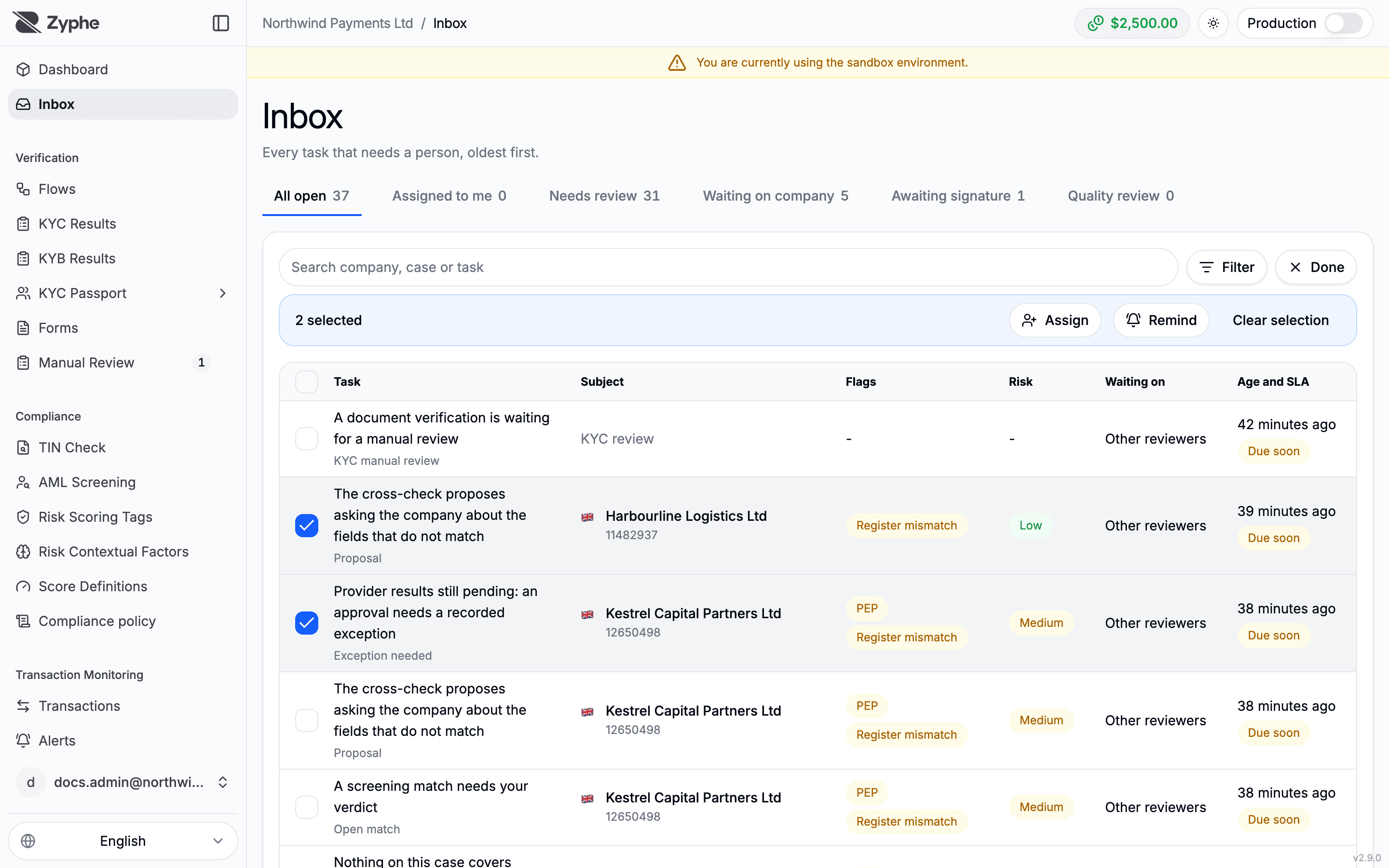
The Inbox: one row per task, with its subject, flags, risk, who it waits on, its age against the SLA and its owner.
The Inbox reads the same Whose work, Opened and Product filters as Home, and opening it from Home keeps the scope you were looking at.
Tabs
| Tab | Tasks |
|---|---|
| All open | Every open task a person can move. The tab the Inbox opens on |
| Assigned to me | Tasks on subjects assigned to you by name, and the alerts assigned to you |
| Needs review | What a reviewer owes, other than a second signature |
| Waiting on company | What the company or its owners owe |
| Awaiting signature | Proposed decisions waiting on a second signature |
| Quality review | Decisions drawn for quality review |
Each tab shows its count under the filters in force.
Kinds of task
| Task | Where it comes from |
|---|---|
| Case to review | A KYB case waiting on a decision. See Reviewing KYB cases |
| Document to review | A document the company sent on a KYB case |
| TM alert | A transaction monitoring alert waiting for a decision. See Alert Queue |
| KYC manual review | A document verification waiting for a manual review. See Manual Review |
Open a task to work it on its own page.
SLA badges
The Age and SLA column shows how long a task has waited and, when your organization has set an SLA target for its stage, a badge: On track, Due soon or Overdue. Hover the badge to see the due date. A stage with no target never shows as overdue.
Search and filters
Search by company, case or task, and open Filter for:
| Filter | Narrows to |
|---|---|
| Type | One or more kinds of task |
| Flag | Cases carrying the chosen flags |
| Risk | Cases at the chosen risk ratings |
| Waiting on | Tasks waiting on the chosen party |
| SLA | Overdue, or Due within 24 hours |
Bulk actions
Click Select, tick the rows, then:
- Assign: assigns each selected subject to a member (Admin, Operator or AML Officer) or to a role, with a reason. A case's company is assigned once, however many of its tasks you selected. An alert can only go to a person, not to a role.
- Remind: emails whoever the selected cases wait on.
Clear selection unticks every row; Done leaves selection mode.
Related Documentation
- Reviewing KYB cases
- Compliance policy: SLA targets
- Manual Review
- Alert Queue
- Manage Users: who can see Home and the Inbox