Sign up and create your organization
You can open a Zyphe organization yourself, without contacting sales. Signing up takes three steps: create your account, verify your email, then describe your company. You land on the dashboard as the organization's Admin.
Joining an organization that already exists works differently: ask one of its Admins to invite you (see Manage Users). If a partner invited you through KYC Passport, follow Accepting Partner Invitations.
1. Create your account
Open Create account and enter your email address and a password (8 or more characters, with upper and lowercase letters, a number and a symbol, and no spaces).
Use your work email. Personal and disposable addresses are not accepted at signup: the form answers Please use your work email. Personal email addresses aren't accepted. The rule applies to self-serve signup: a teammate invited by an organization is not asked for a work email.
2. Verify your email
Zyphe emails you a verification link. Open it, then sign in with the address and password you chose.
3. Describe your company
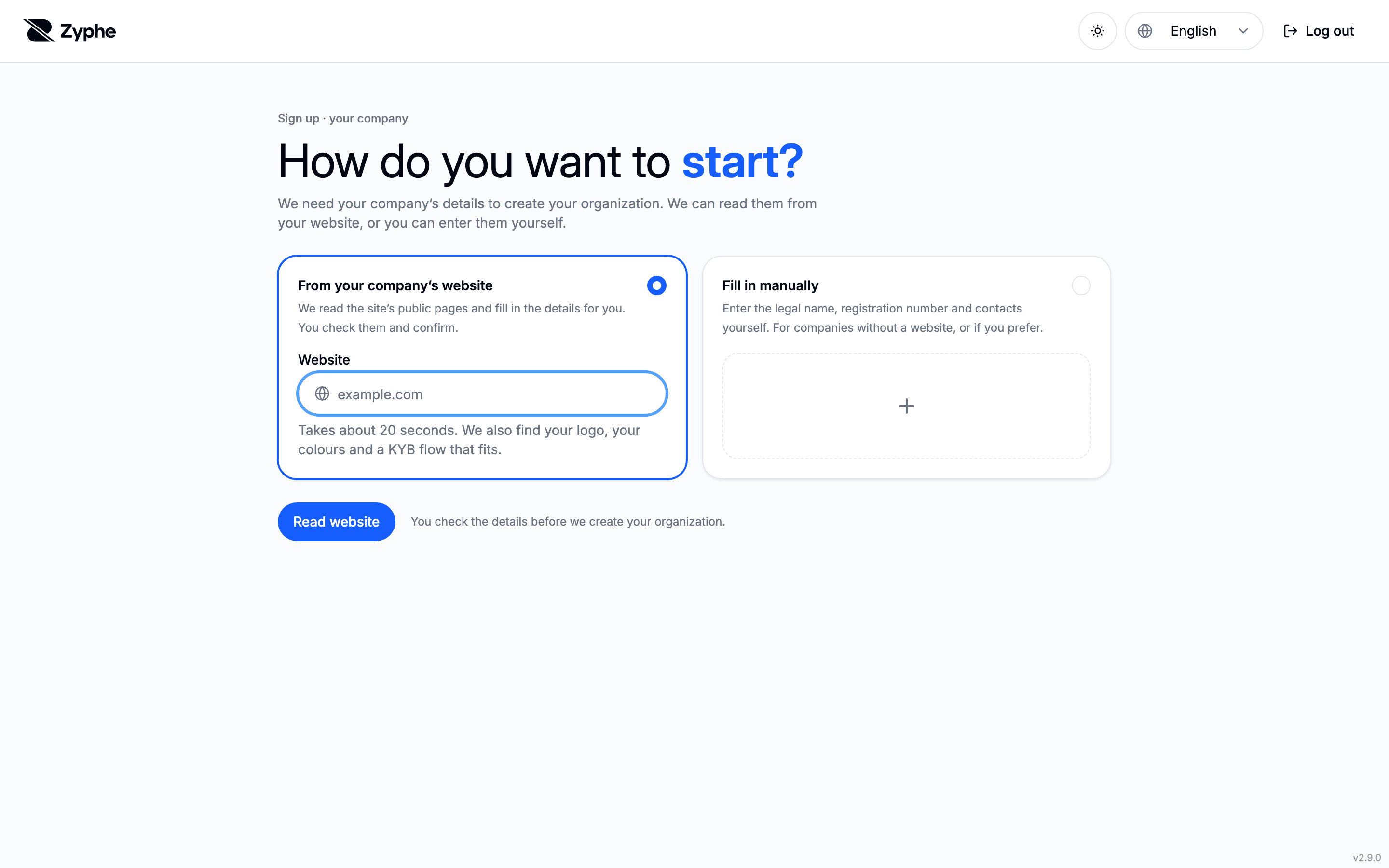
The first sign-in asks How do you want to start? (where reading websites is not available, the company form opens directly):
- From your company's website. Enter the website address and click Read website. Zyphe reads the site's public pages, which usually takes 15 to 25 seconds, and fills in the legal name, registration number, registered office and what the company does. It also finds your logo and main colour and suggests a first KYB flow. You can Fill in manually without waiting at any point.
- Fill in manually. Enter the legal name, registration number and contacts yourself. Use it for a company without a website, or if you prefer.
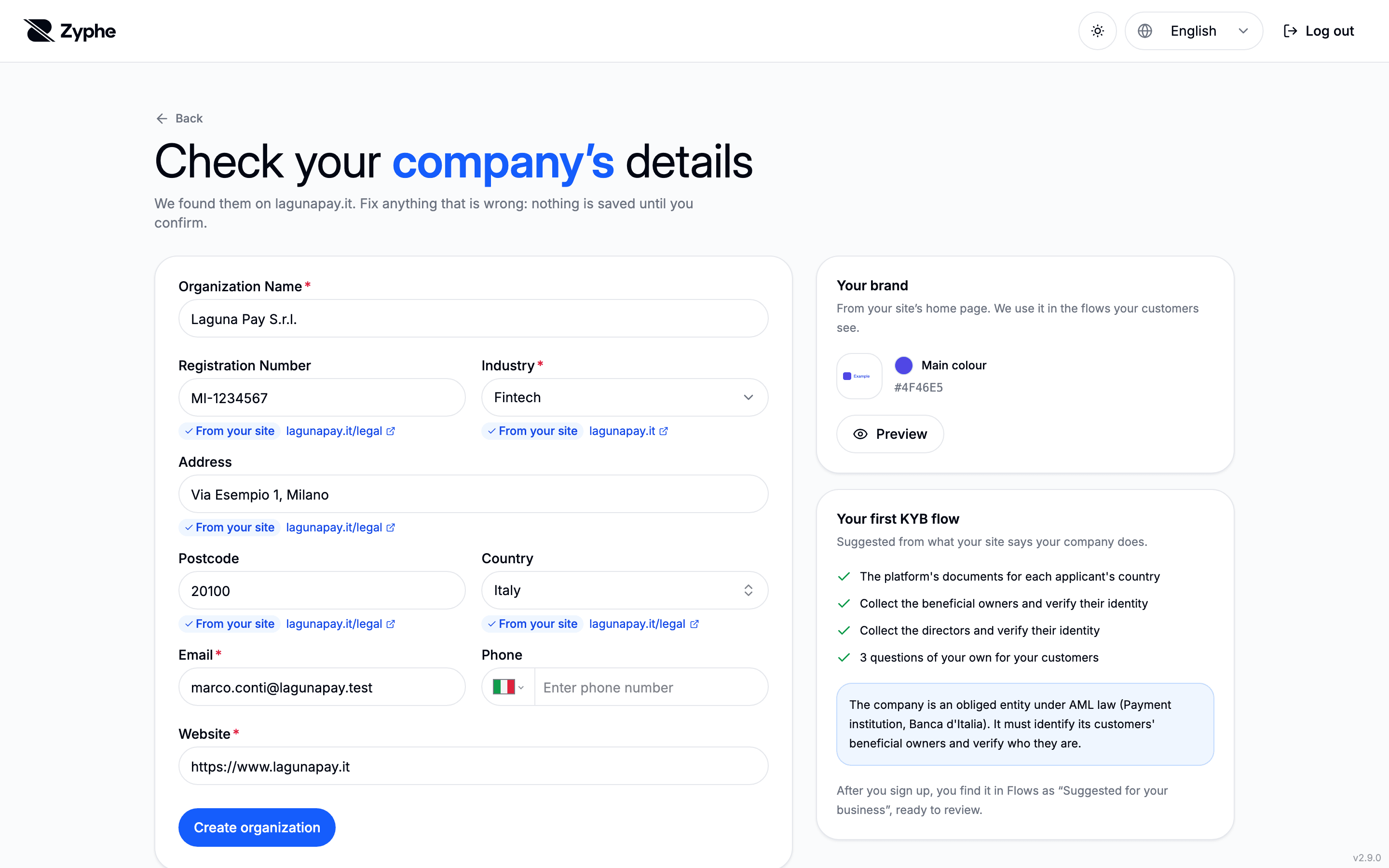
Either way you check the details before anything is saved, then click Create organization.
When the details came from your website, the page also shows what Zyphe suggests beyond them:
- Your brand: the logo and main colour found on your site, with a Preview of what your customers will see in light and dark mode. They are applied to your default theme in sandbox and production, and you can change them later.
- Your first KYB flow: suggested from what your site says your company does, with questions of your own for your customers. After signup you find it in Flows as Suggested for your business, ready to review.
Create a passkey
While the website is read, or beside the form, Zyphe offers to Create passkey so you can sign in next time with your fingerprint or face. It never holds up the signup: choose Later to skip it, and add one afterwards from the account menu. See Passkey Authentication.
4. Open the dashboard
Creating the organization takes you straight to the dashboard, where you can start building flows, invite your team and create API keys.
Activate your organization
Until the organization is activated, its flows can't be opened, shared or run, in sandbox as well as production. Home and the header show what to do next, and the Billing page holds the details. Depending on the offer your organization signed up under, you activate it by one of:
- Add a card. Nothing is charged when you save it. On a signup-credit offer, the card brings the signup credit, which never expires; on a trial offer, it starts the trial.
- Verify my business. On a signup-credit offer, Zyphe can verify your company instead of a card, and grants the signup credit once the verification is approved. Your company's registration number must be in the organization's details first.
- Top up. Buy credits to activate the organization straight away, without the signup credit.
Once activated, your flows can be shared and you pay for what you use from your credit balance.
Related Documentation
- Dashboard
- Billing
- Sandbox mode
- Theming
- Manage Users: invite your team