Two-factor authentication
Two-factor authentication (2FA) adds a second step to your dashboard sign-in: after your password or magic link, you enter a code from an authenticator app (any time-based, TOTP app such as Google Authenticator, 1Password or Authy). Each member can turn it on for their own account, and an Admin can require it of every member of the organization.
The code is asked for when you sign in with a password or a magic link. A passkey sign-in does not ask for it: the passkey is already bound to your device and unlocked by your fingerprint, face or PIN. See Passkey Authentication.
Turn it on
- Open the account menu (your email address at the bottom of the sidebar) and choose Two-factor authentication.
- Click Set up.
- Confirm it's you with your Password, or Use a passkey. Accounts that sign in by magic link only skip this step.
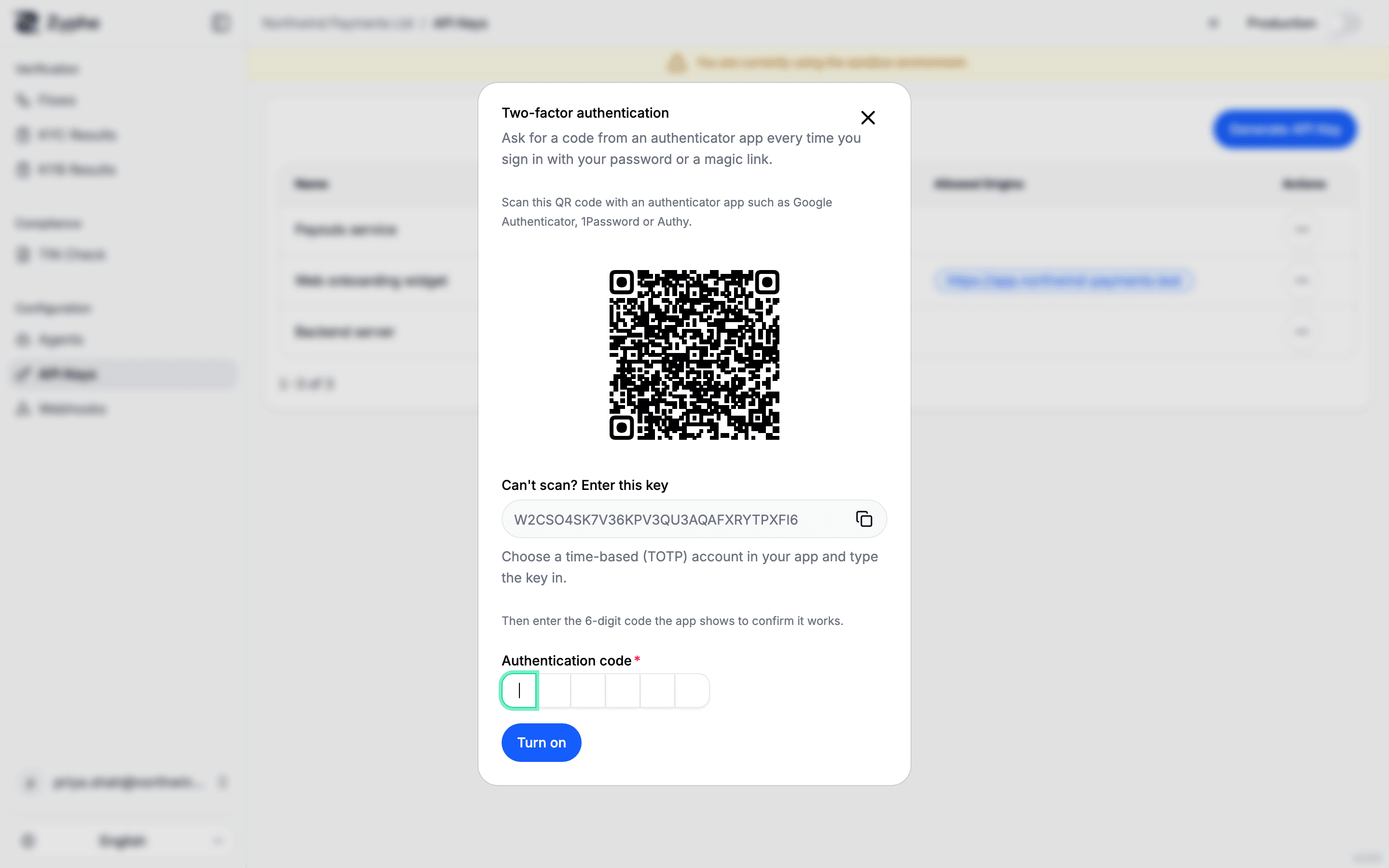
- Scan the QR code with your authenticator app. If you can't scan it, choose a time-based (TOTP) account in the app and type in the key shown under Can't scan? Enter this key.
- Enter the 6-digit code the app shows, and click Turn on.
- Save your Backup codes: Copy codes or Download them, tick I have saved these codes, and click Done.
Backup codes
You get 10 backup codes, in the form XXXXX-XXXXX. Each one works once, in place of an authenticator code, if you lose access to your app. They are shown only once, so keep them somewhere safe.
The Two-factor authentication dialog shows how many you have left (Backup codes left) and warns when you are running low. New backup codes asks for a code, then replaces the whole set: the old codes stop working.
Sign in with a code
After your password or magic link, the Two-step verification screen asks for the Authentication code from your app. Click Verify to finish signing in.
Lost your phone? Choose Use a backup code instead and enter one of your backup codes. Too many wrong codes in a row lock the second factor for a while.
Turn it off
Open Two-factor authentication from the account menu, click Turn off and enter a code from your app or a backup code. Your account is then protected by your password alone.
You can't turn it off while an organization you belong to requires it.
Require it for your organization
An Admin can require two-factor authentication of every member:
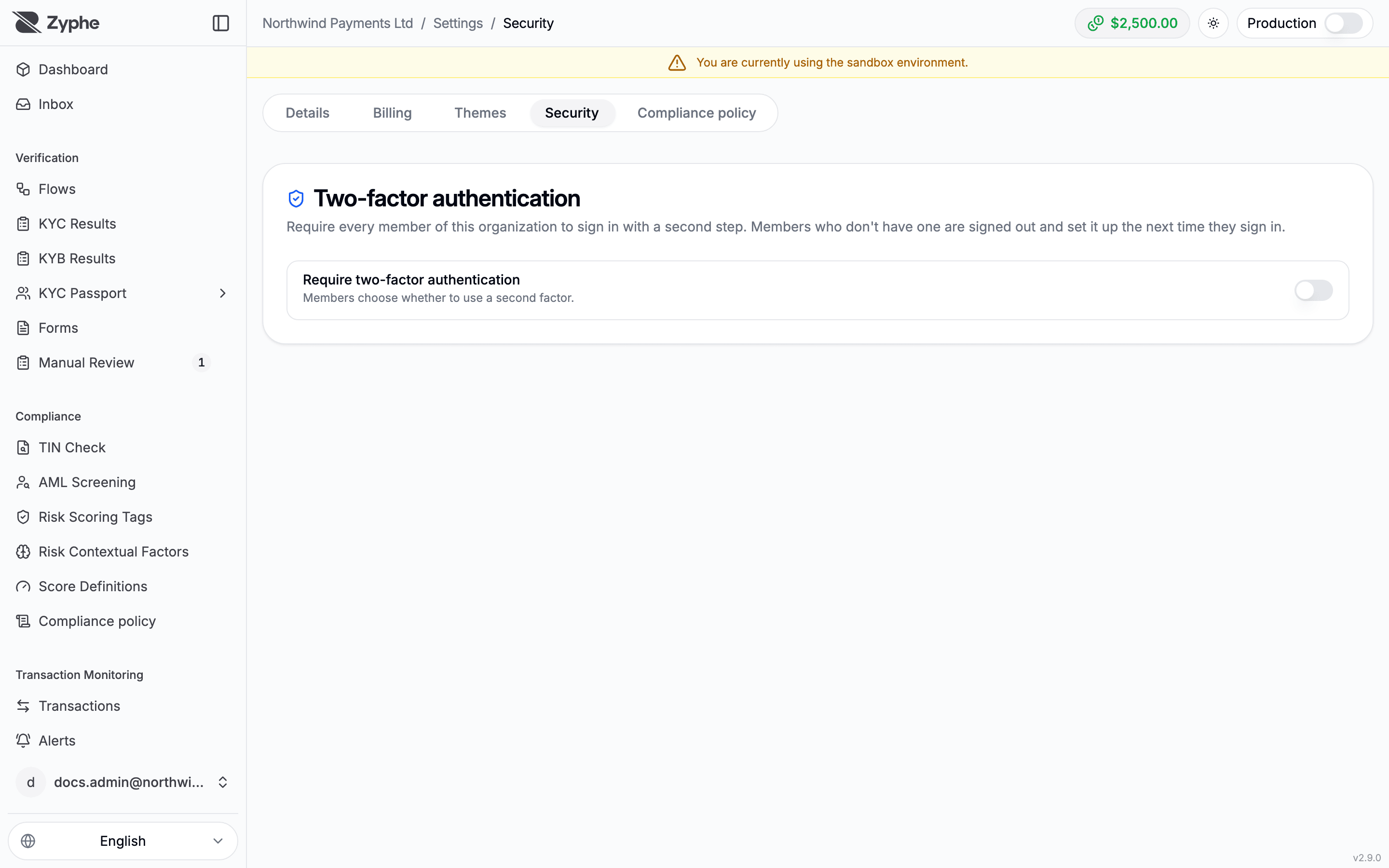
- Open Settings, then the Security tab.
- Switch on Require two-factor authentication.
You need two-factor authentication on your own account before you can switch the requirement on.
Members who don't have a second factor yet are signed out, and set one up the next time they sign in: after their password or magic link, the sign-in shows Set up two-factor authentication and walks them through the same QR code, code and backup codes before letting them in. Members who already use 2FA are not affected.
The Users page shows who has a second factor in its Two-factor column.
Reset a member's second factor
If a member loses both their authenticator app and their backup codes, an Admin can remove their second factor: on the Users page, open the member's action menu and choose Reset two-factor, then confirm. The member is signed out. If the organization requires two-factor authentication, they set up a new one at their next sign-in.
An Admin can't reset their own second factor this way; they turn it off from the account menu, with a code.