KYB Overview
KYB verifies businesses, where KYC verifies individuals. A KYB flow collects a company's business information and documents, captures its Ultimate Beneficial Owners (UBOs) and, optionally, its directors, and cross-checks what the applicant declared against the documents and the official company register. Owners and directors are verified through a linked KYC flow or screened by name, the company and its people are screened for PEP, sanctions, and adverse media, and a reviewer takes the final decision.
Every KYB submission is handled as a KYB case: one record that tracks what has been checked, what is still owed and by whom, the risk rating, and the decision. The case keeps the same ID as the KYB result, for its whole life.
Short product explainer: How KYB works. Register cross-check, UBO unwrapping, and agent modes in the wider control map: Antifraud controls.
KYB outcomes are delivered to your organization's webhook endpoints. On current payloads the case is under data.kybCase (status, due-diligence level, and decision); the full KYB result is still under data.kyb, which is deprecated. See Webhook Payload.
The dashboard, the decision rules, and the statuses changed. KYB dashboard migration guide lists what moved where. For API integrations, see the SDK migration guide.
How a KYB case works
A case moves through these statuses:
| Status | What it means |
|---|---|
OPEN | The applicant is still filling in the flow. Nothing billable runs yet. A draft left idle for 30 days is cancelled; the applicant's next save resumes it. |
PROCESSING | The applicant submitted. Zyphe runs the checks in the background: register lookup, ownership discovery, cross-checks, document checks, screening, and KYC invitations to the officers. |
WAITING_INPUT | A document request or clarification is open with the applicant. The case returns to PROCESSING once every request is answered, withdrawn, or expired. |
ACTION_REQUIRED | A person has to act, for example on a screening match that holds or on an escalation. |
READY_FOR_REVIEW | Every check has finished. A reviewer decides the case. |
APPROVED | Approved by a decision. |
REJECTED | Rejected by a decision. |
CANCELLED | Abandoned, or the company's country changed before submission. |
Three rules shape how cases behave:
- No automatic approval. A clean company is not approved on its own: it reaches
READY_FOR_REVIEWand a reviewer (or the KYB agent in Auto-pilot) decides it. - Decisions are final, cases are not. A decision is never rewritten. A case can still be reopened, under the same ID, when the applicant resubmits after a rejection, when a quality review disagrees with the decision, or when a periodic re-review is due. Each opening is an episode of the case.
- One decision path. The dashboard, the Node SDK, and the KYB agent all decide through the same rules: the case must be ready, blockers must be covered by an exception, and your organization's approval matrix says who may decide and whether a second signature is needed.
How to work a case, from the worklist to the decision: Reviewing KYB cases. How your organization sets the rules those decisions follow: Compliance policy.
Create a KYB Flow
1. Start a KYB flow
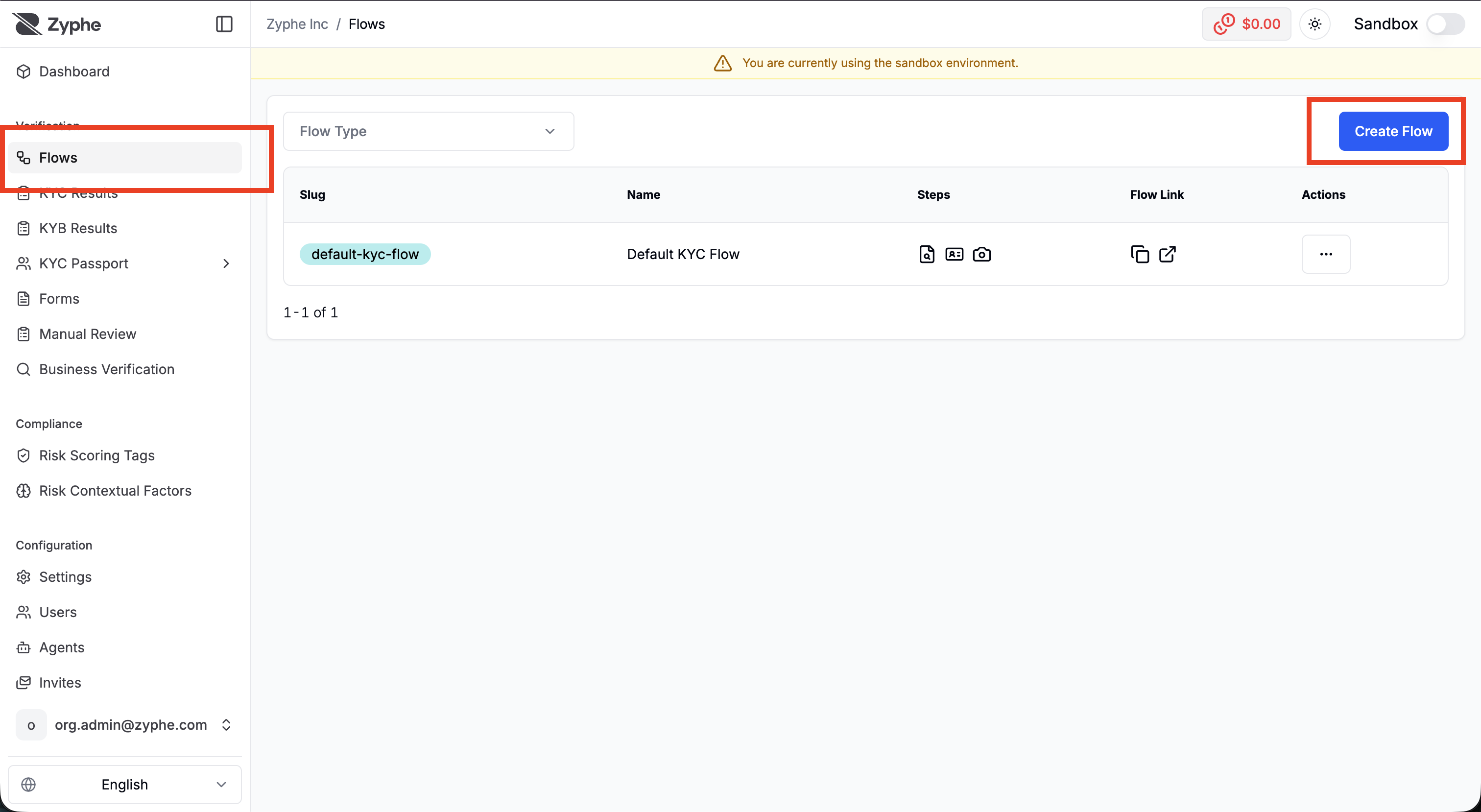
Log in to the Zyphe Dashboard, open the Flows section, and click Create Flow in the top right.
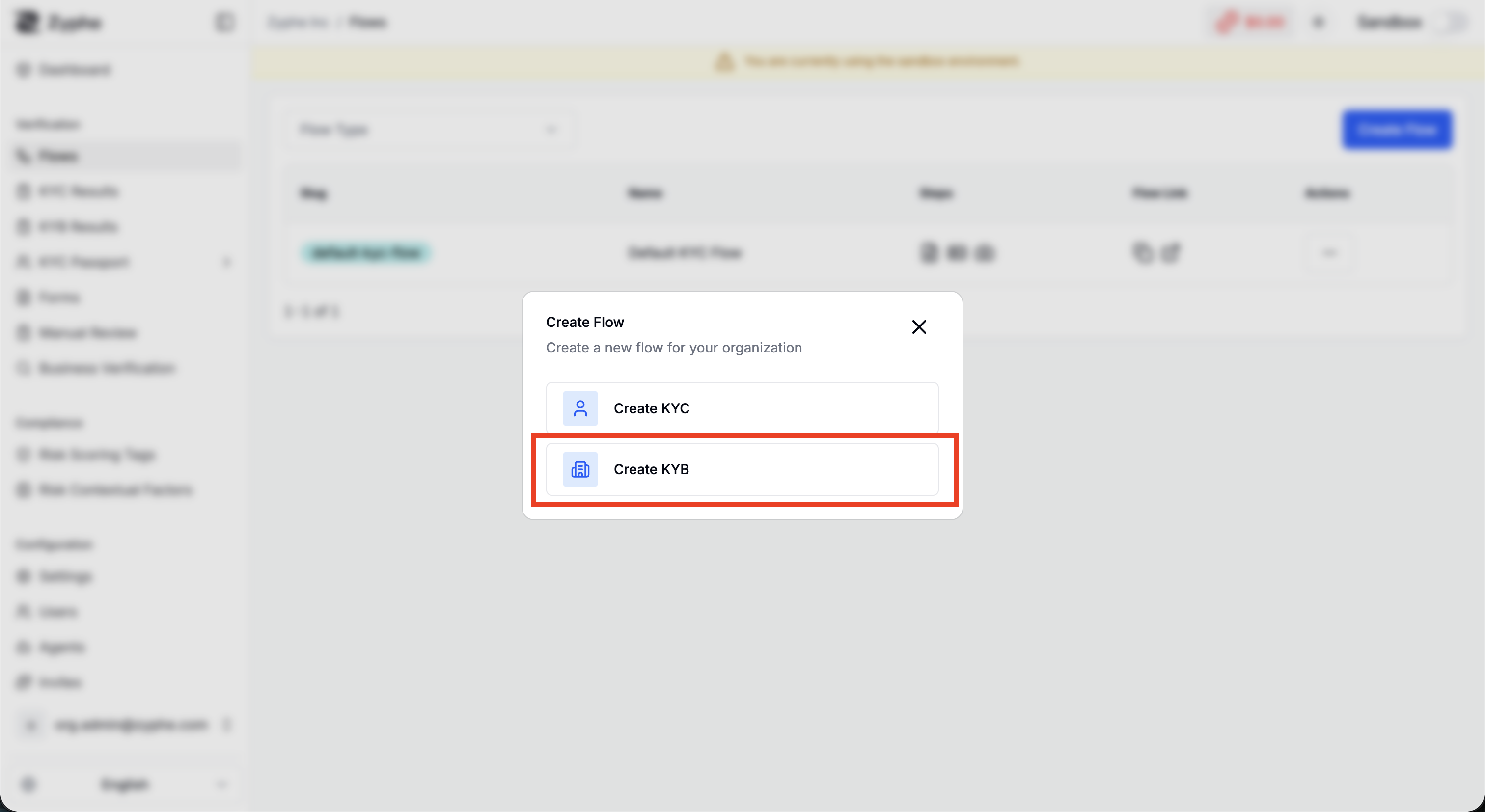
In the dialog, choose Create KYB.
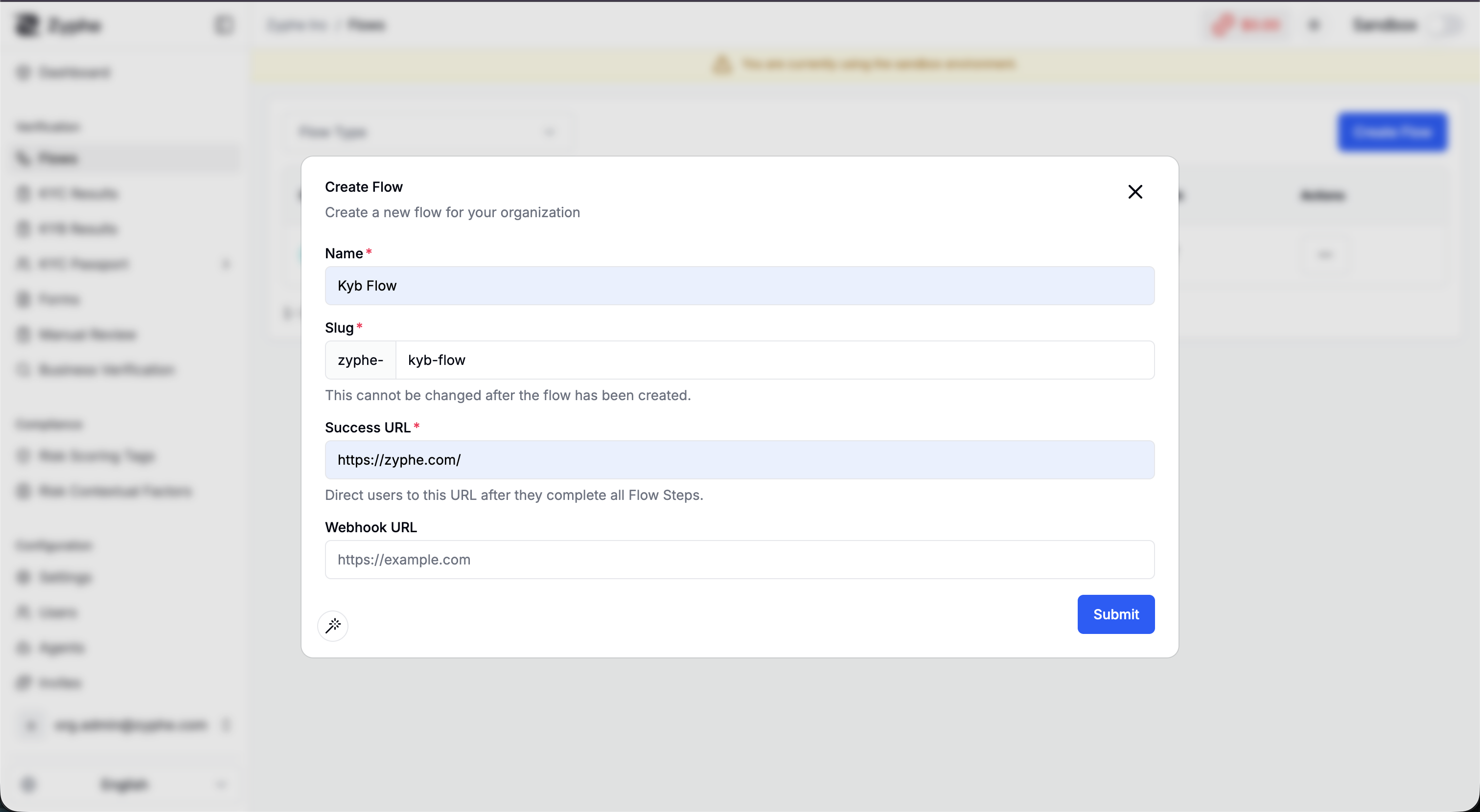
2. Configure the flow
Enter the flow's basic settings:
- Name: the name of the flow.
- Slug: a short identifier used in the verification link shared with end users. This cannot be changed after the flow is created.
- Success URL: where users are redirected after they complete all flow steps.
To receive KYB outcomes, create an organization webhook endpoint subscribed to verification.kyb.submitted, verification.kyb.review, verification.kyb.completed, and verification.kyb.failed, scoped to this flow or to every flow you own. When each one is sent is described under Webhook lifecycle.
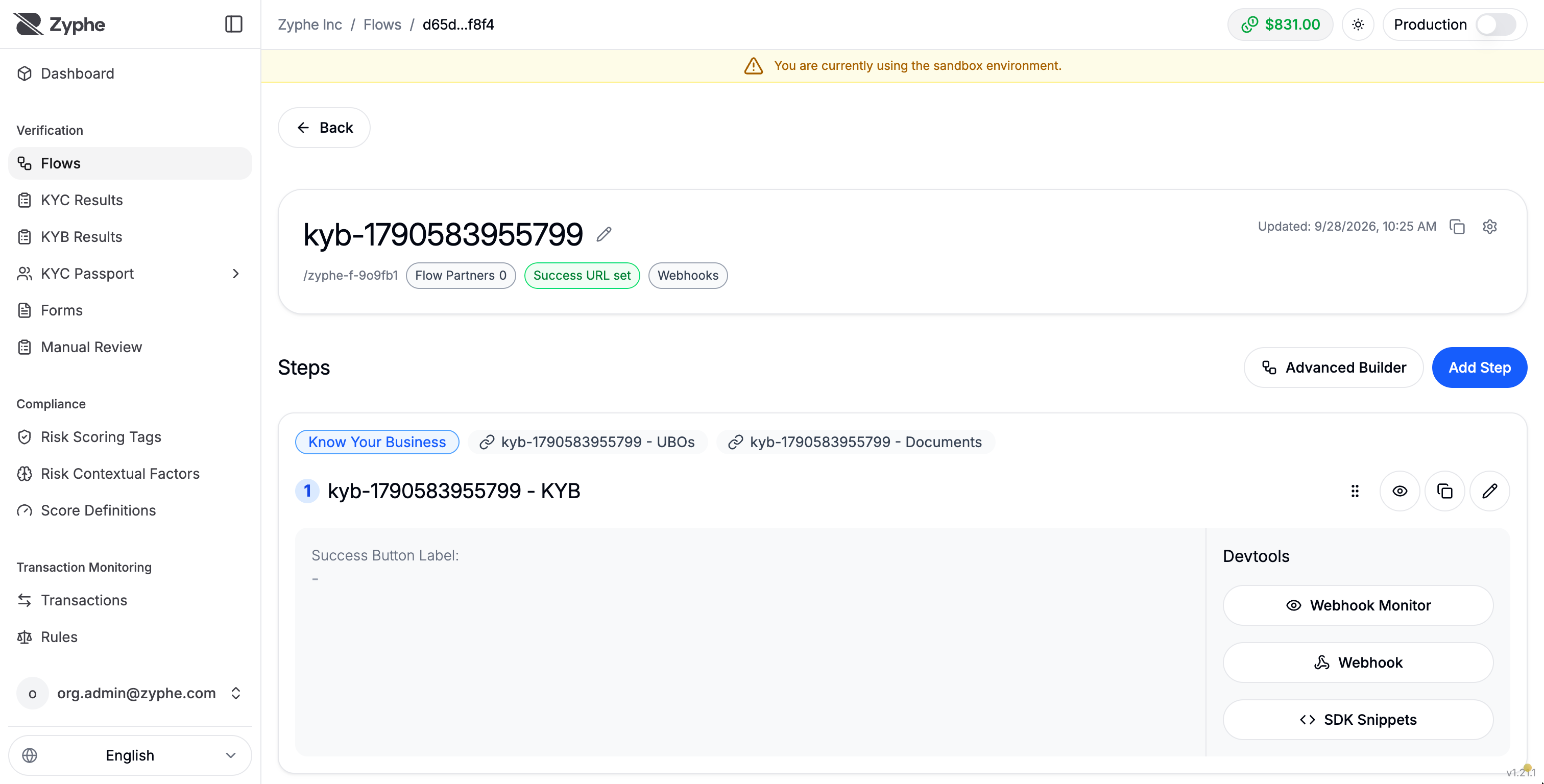
3. The KYB steps
A KYB flow is built from a Know Your Business step, which collects the business information, plus optional steps linked to it: Business Document Collection, UBO Collection, and Director Collection. All of them write into the same case. A part is collected only if its step is in the flow: to collect directors, add a Director Collection step.
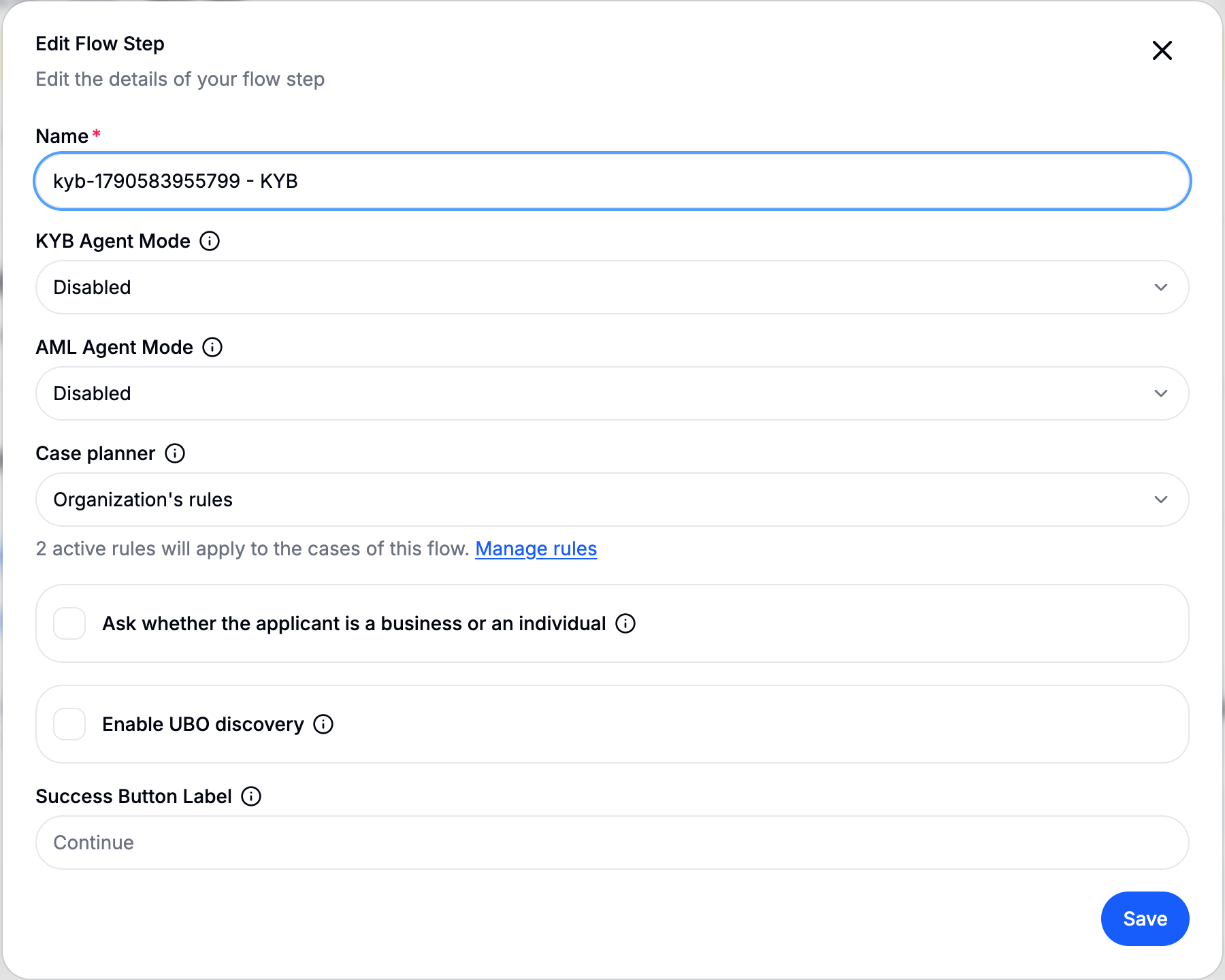
Open the Know Your Business step to configure how cases of this flow are worked:
- KYB Agent Mode: how far the KYB agent acts on the case. See KYB Agent Mode below.
- AML Agent Mode: how the AML agent handles screening matches (disabled, suggest-only, or auto-pilot). See AML Agent Mode.
- Case planner: which checks a case runs, and in what order.
- Fixed order: every case runs the standard set of checks.
- Organization's rules: your KYB orchestration rules propose extra steps for the cases they match.
- AI proposals: an AI planner reads each case against your written procedure and proposes stricter changes. AI planner mode decides whether a reviewer accepts them (Suggest, the default) or they apply on their own (Auto-pilot). See Proposed changes.
- Ask whether the applicant is a business or an individual: shows the applicant a first question to choose between the business path and the individual (sole proprietor) path.
- Enable UBO discovery: Zyphe finds the beneficial owners from official registers instead of asking the applicant, within a per-verification Discovery budget. See Ownership discovery and the covered jurisdictions in Country coverage.
- Check the EIN of US businesses: asks a business registered in the US for its EIN and matches it with the company name on IRS records before the business information is accepted. Offered to organizations with the TIN Check product. See Checking a US business's EIN.
- Let the agent research on its own: lets the KYB agent consult extra sources during its review, within a research spend and a number of web searches per review. Off by default.
- Success Button Label: the label of the button shown to the user on completion.
The linked steps carry their own settings:
- Business Document Collection: which documents are requested per country, and how many extra files the applicant may attach. See Required documents.
- UBO Collection and Director Collection: the KYC Flow each person completes, the maximum number of people, and Require KYC. With Require KYC off, people are collected by name and screened for PEP and sanctions only. See Collecting people without KYC. On the UBO step, Auto-send UBO KYC invitations emails each owner their KYC link on submission.
The field-by-field reference, including the API names, is in KYB steps and configuration.
KYB Agent Mode
The KYB agent reviews the case: it cross-checks every business-information field against the documents and the official register, grades each one Exact Match, Partial Match, Mismatch, or Not Found with a one-sentence explanation and a suggested value, and reaches a recommendation for the case. Behind it runs a multi-role agentic review engine: analytic roles argue the case, a deterministic guard arbitrates, and a tool-constrained actuator enacts one audited outcome. The mode controls how far that goes:
- Disabled: the agent is not invoked. Fields still receive a match type, and reviewers do everything by hand.
- Suggest: the agent runs and records its reasoning and recommendation. It may ask the applicant for a clarification or escalate the case, but an approval stays a suggestion for a reviewer to follow or not.
- Auto-pilot: the agent may also approve, through the same decision rules as a person: the case must be ready, blockers must be covered, and the approval matrix must allow it. A case whose screening coverage is incomplete is escalated, not approved.
For how the engine reaches and enacts each outcome (the analytic roles, the deterministic guard, the audited action, and the safety guarantees), see KYB Agentic Review Engine.
4. Required documents
Zyphe keeps a catalog of company documents per country (for example, the chamber-of-commerce extract and the articles of association for an Italian company), plus a general list for countries without a dedicated entry. On the Business Document Collection step you can adjust it:
- mark a document required or optional, or turn it off;
- mark a document on demand: it is not asked upfront, and a reviewer (or your backend) can request it later from the case;
- add your own documents, globally or for a given country. A country with its own list uses only that list.
Documents grouped as alternatives are satisfied by any one of them. The applicant can attach up to the configured number of extra files on top of the required ones.
For general flow settings, advanced flow building, and SDK snippets, see Create a Flow. For webhook destinations, see Webhook endpoints.
Ownership structure and recursive UBO discovery
Zyphe can discover Ultimate Beneficial Owners automatically by building and traversing the company's ownership structure. Starting with the company being verified, the system follows corporate shareholders through every available ownership tier until it reaches natural persons and calculates each person's effective ownership across the full chain. A person with at least 25% direct or indirect ownership is identified as a UBO candidate and can then complete the KYC and AML checks configured in the linked KYC flow.
For indirect ownership, each stake along a path is multiplied. For example, a person who owns 50% of a holding company that owns 60% of the subject company has 30% effective ownership (50% × 60%) and meets the 25% threshold.
The traversal records the source of every relationship and makes unresolved branches visible when registry coverage or available evidence does not permit the chain to be completed. This gives reviewers both the result and the evidence path used to reach it.
In this anonymized example, the traversal covers six ownership tiers. The highest identified natural person has 23.2% effective ownership, so no individual meets the 25% ownership test. A separate branch represents 30.2% effective ownership, but ends at a corporate entity where registry coverage is unavailable; it is retained as a UBO proxy rather than incorrectly reported as a natural-person UBO.
When the ownership test does not identify a UBO
When no natural person reaches the threshold, Zyphe can apply the alternative determination methodology required by the applicable regulatory framework. Depending on the configured policy and available evidence, this can include assessing control through other means and, when appropriate, using the company's senior managing officials or directors as the fallback subjects.
Under the director fallback, the selected directors are run through the configured AML checks, including PEP and sanctions screening. The system preserves the determination basis, unresolved ownership branches, and screening results so the reviewer can see and audit why the fallback was used.
The 25% ownership test and the available fallback methodology must be applied in line with the regulations and internal policy relevant to your organization and the company being verified.
Turning it on, and what it costs
Discovery is off by default and is enabled per flow, on the Know Your Business step, together with a per-verification credit budget. With it on, the applicant never walks the UBO and director steps: discovered people are added to the case and screened automatically. If discovery cannot finish, Zyphe reopens those steps with a declaration request instead.
Once the automatic traversal has spent its budget, a reviewer can continue individual branches of the graph from the case page, previewing what each node would cost before paying for it.
→ Ownership discovery covers the configuration, the declaration fallback, per-node expansion, and how discovery is charged in credits.
The end-user KYB experience
The following steps are what an applicant goes through after opening the KYB flow link.
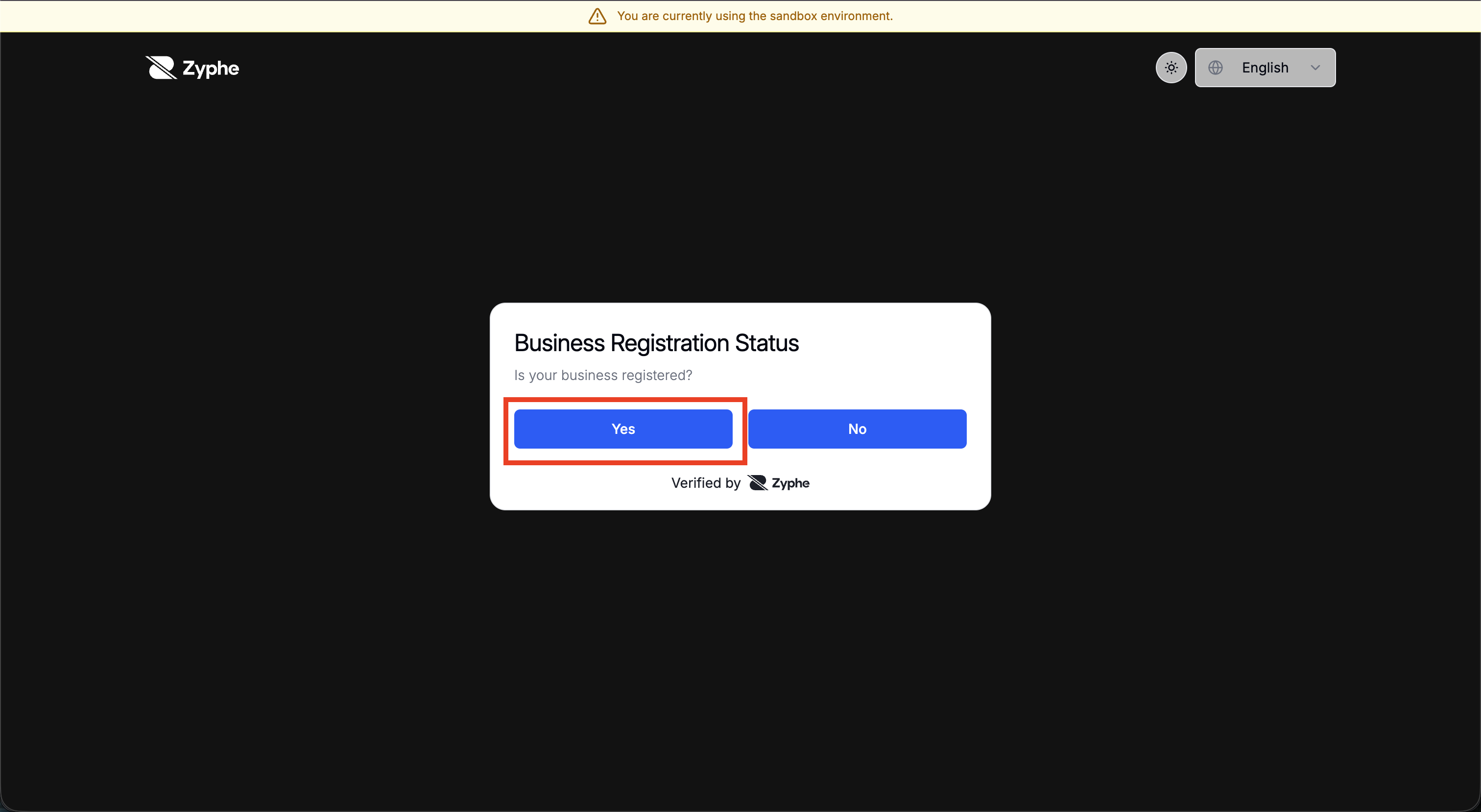
5. Business registration status
When the flow asks it, the applicant first says whether the business is registered.
- Yes: the applicant continues to the business information and document steps (the registered-business path).
- No: the flow skips the company details and collects a single owner directly (the unregistered / sole-proprietor path).
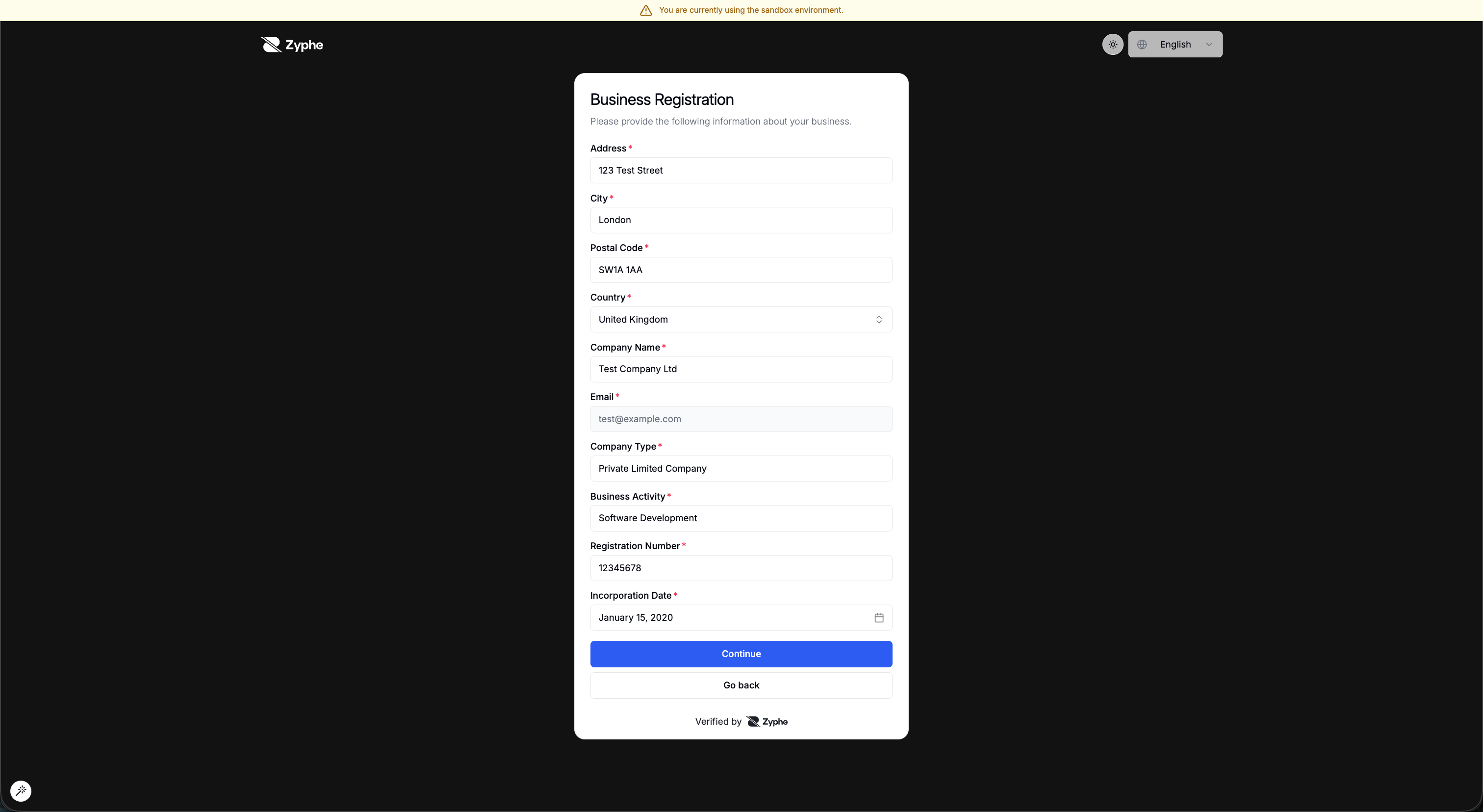
6. Business information
The applicant provides the company details: Address, City, Postal Code, Country, Company Name, Email, Company Type, Business Activity, Registration Number, and Incorporation Date.
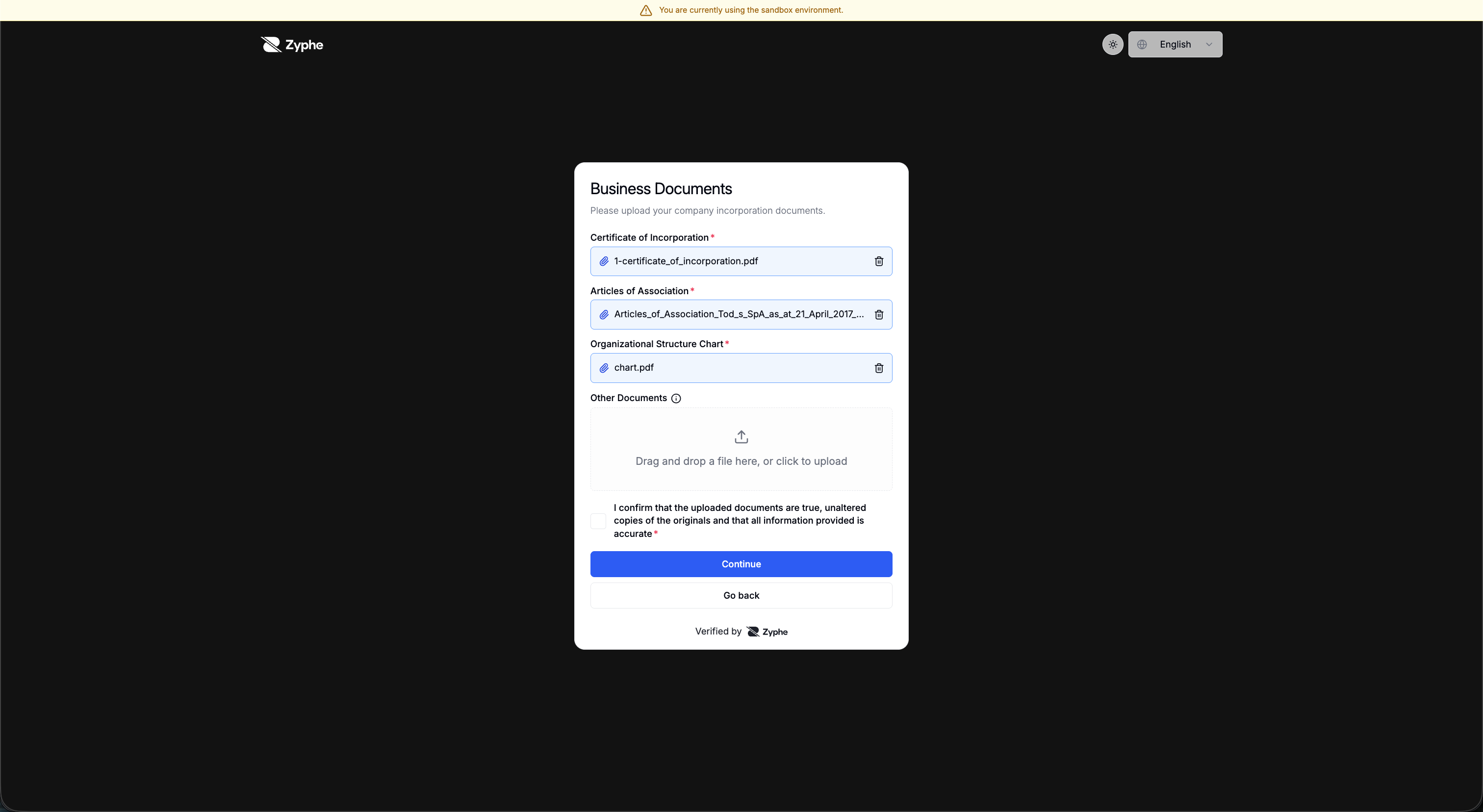
7. Business documents
The applicant uploads the documents required for the company's country, plus any Other Documents, and confirms the authenticity attestation before continuing. Each upload is classified and checked automatically (see Document checks).
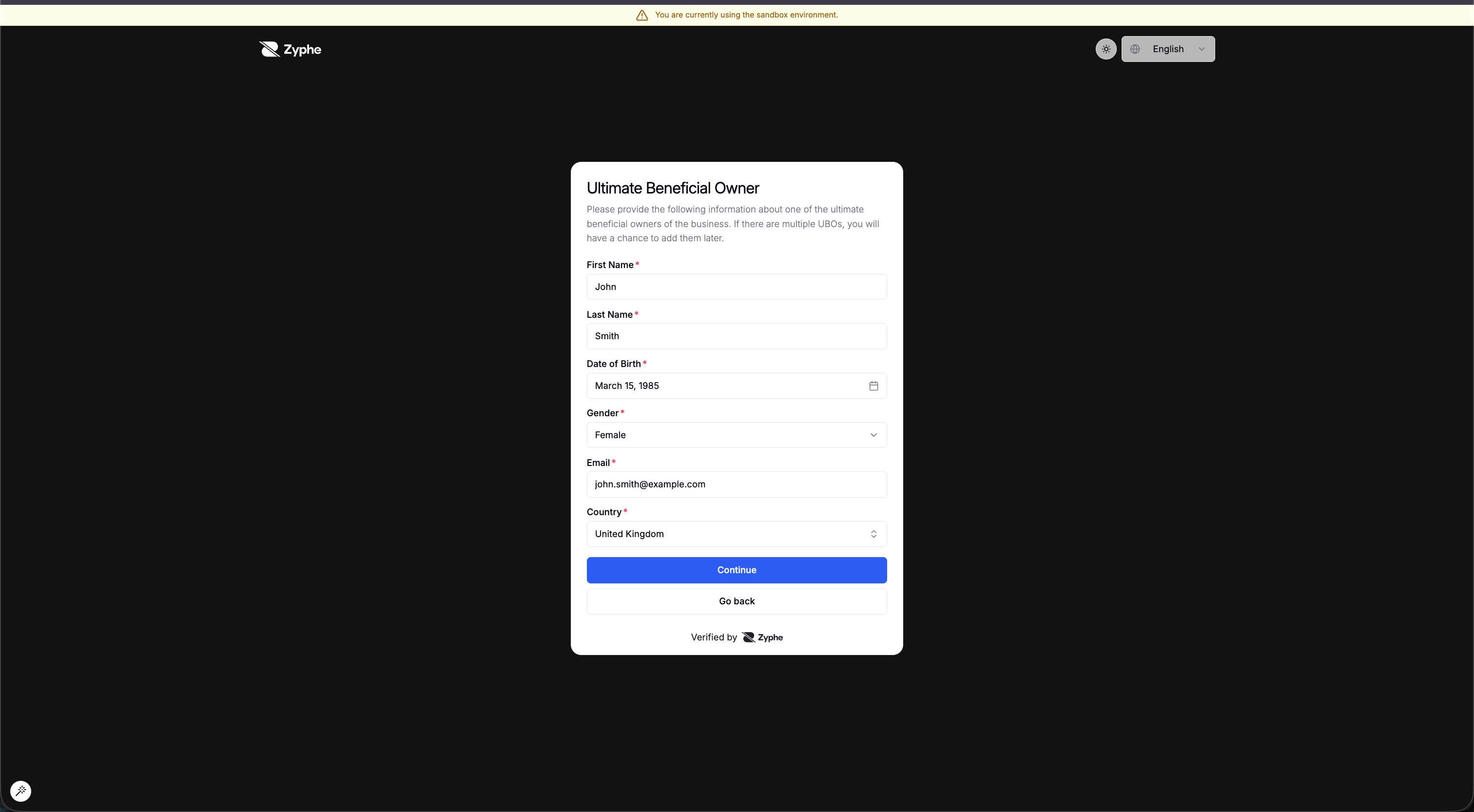
8. Ultimate Beneficial Owners
The applicant enters each Ultimate Beneficial Owner's details: First Name, Last Name, Date of Birth, Gender, Email, and Country.
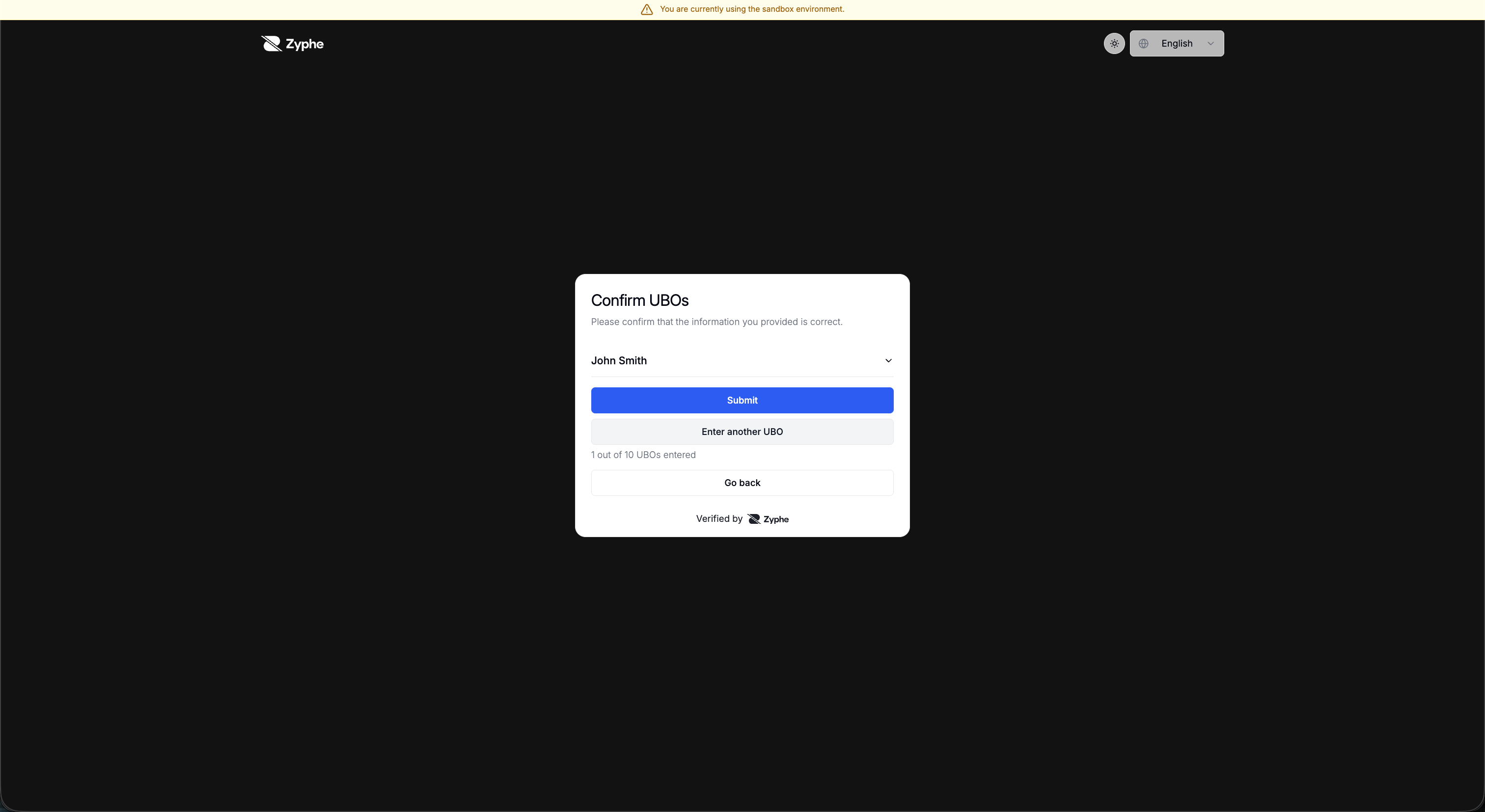
9. Confirm owners
The applicant reviews the owners they have added. They can choose Enter another UBO (up to the configured maximum) or Submit to continue.
10. Directors (when collected)
If the flow has a Director Collection step, an equivalent director sub-flow runs after the owners are confirmed:
- A director form with the same fields as the UBO form (First Name, Last Name, Date of Birth, Gender, Email, Country).
- A Confirm directors screen, where the applicant can choose Enter another director (up to the configured maximum) before submitting.
When directors are not collected, the flow submits right after the UBOs are confirmed.
After submission, each owner and director with an email receives the linked KYC flow. People without an email are screened by name only. Reminders can be sent from the case page (see People) or from your backend with the Node SDK KYB case helpers.
Reviewing KYB cases
Cases are worked under KYB Results in the Zyphe Dashboard, grouped by what they need from you: ready for review, action required, waiting for input, and processing. The case page shows what was declared and how it matched, what the case is waiting for, how each requirement was covered, the screening matches, the people, and the full audit trace, and it is where the case is decided.
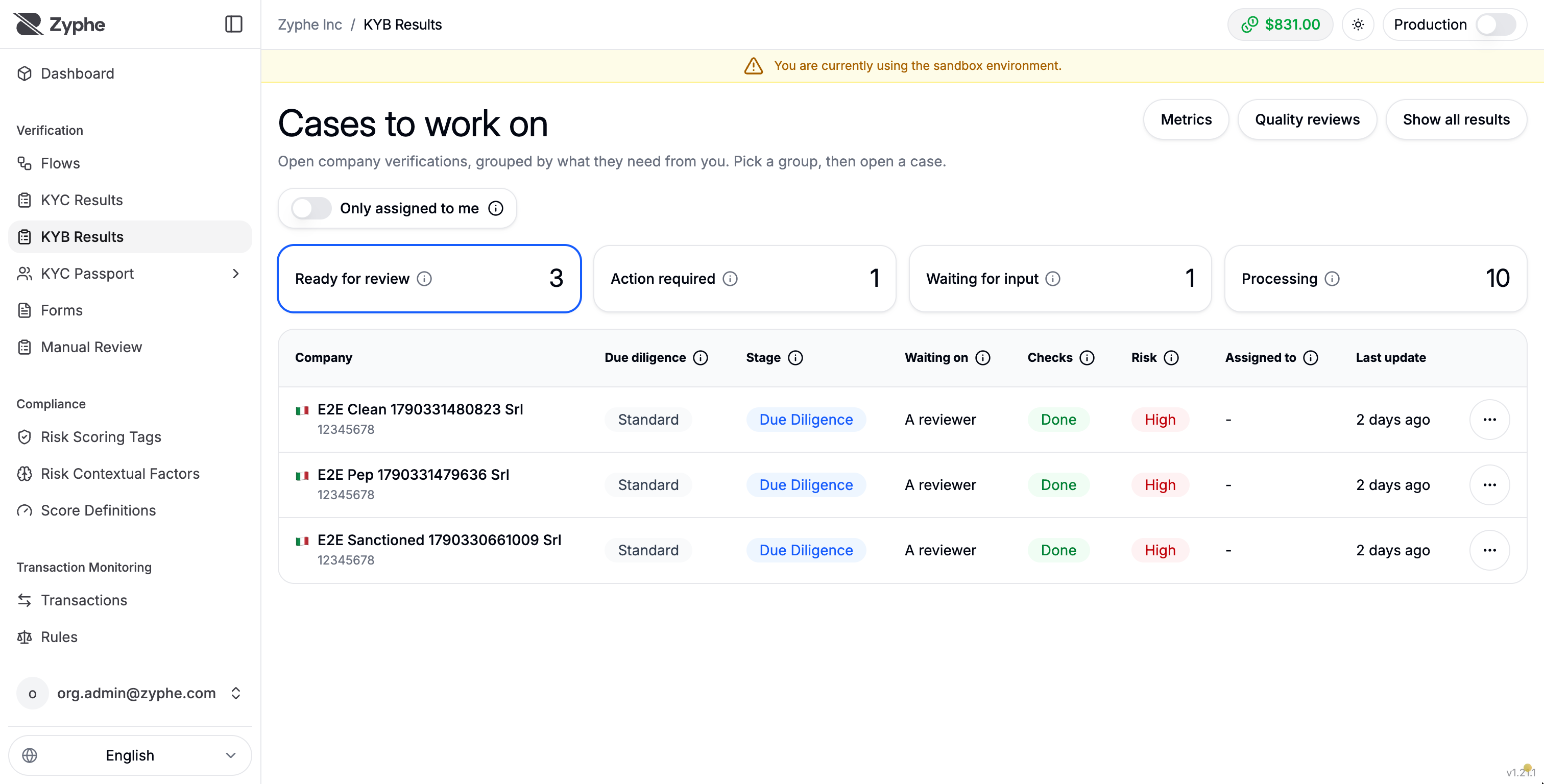
→ Reviewing KYB cases walks through the worklist, the case page, screening matches, exceptions, decisions, and quality reviews.
Statuses
A KYB case reports the case statuses above, plus:
| Field | Values |
|---|---|
| Rating | LOW, MEDIUM, HIGH, CRITICAL: the worst of the company's and its people's risk |
| Due diligence | SIMPLIFIED, STANDARD (default), ENHANCED |
| Waiting on | The applicant, a reviewer, the agent, a provider, or the platform |
| PEP & sanctions | PENDING, IN_PROGRESS, REVIEW, SUCCESS, FAILED |
The full vocabulary, including decision reason codes, is in Statuses and codes.
Webhook lifecycle
A KYB case sends these webhooks:
| When | Event |
|---|---|
| The applicant submits the last outstanding part | verification.kyb.submitted |
The case needs a person (ACTION_REQUIRED), is reopened, or is put back in READY_FOR_REVIEW by anything other than its own checks finishing | verification.kyb.review |
| The case is approved | verification.kyb.completed |
| The case is rejected | verification.kyb.failed |
submittedmeans nothing has been checked or decided yet: do not provision on it.completedis the event to onboard the business on. There is exactly one webhook per decision, whoever takes it (dashboard, SDK, or agent).reviewcan arrive more than once, or not at all. It is also sent when an already approved company is reopened by a quality review or a periodic re-review, so do not treat it as a new company.- A case that reaches
READY_FOR_REVIEWon its own, or is cancelled, sends no webhook.
The legacy event names (SUBMITTED, REVIEW, COMPLETED, FAILED) map one to one. The exact transition behind each event is in Statuses and codes.