Set up a KYB flow
A KYB flow is what you send a company to: it collects the business details, the company documents, the owners, and the directors, and opens a KYB case for each submission. This page covers creating one in the Zyphe Dashboard and the settings you change afterwards.
Flows are created by users with the ORG_ADMIN or ORG_DEVELOPER role. See Manage Users for the full permission matrix.
1. Start a new flow
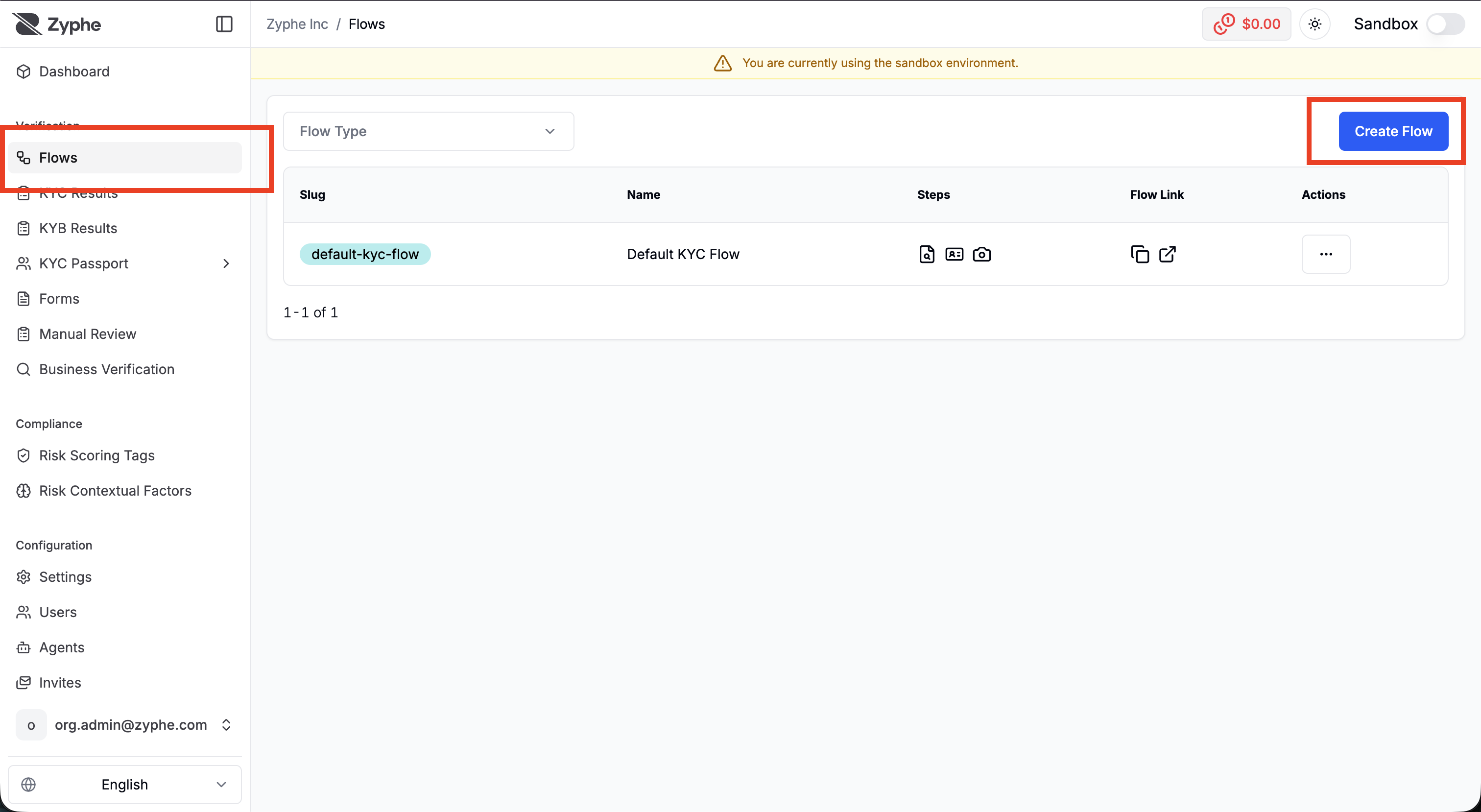
Open Flows in the sidebar and click Create Flow.
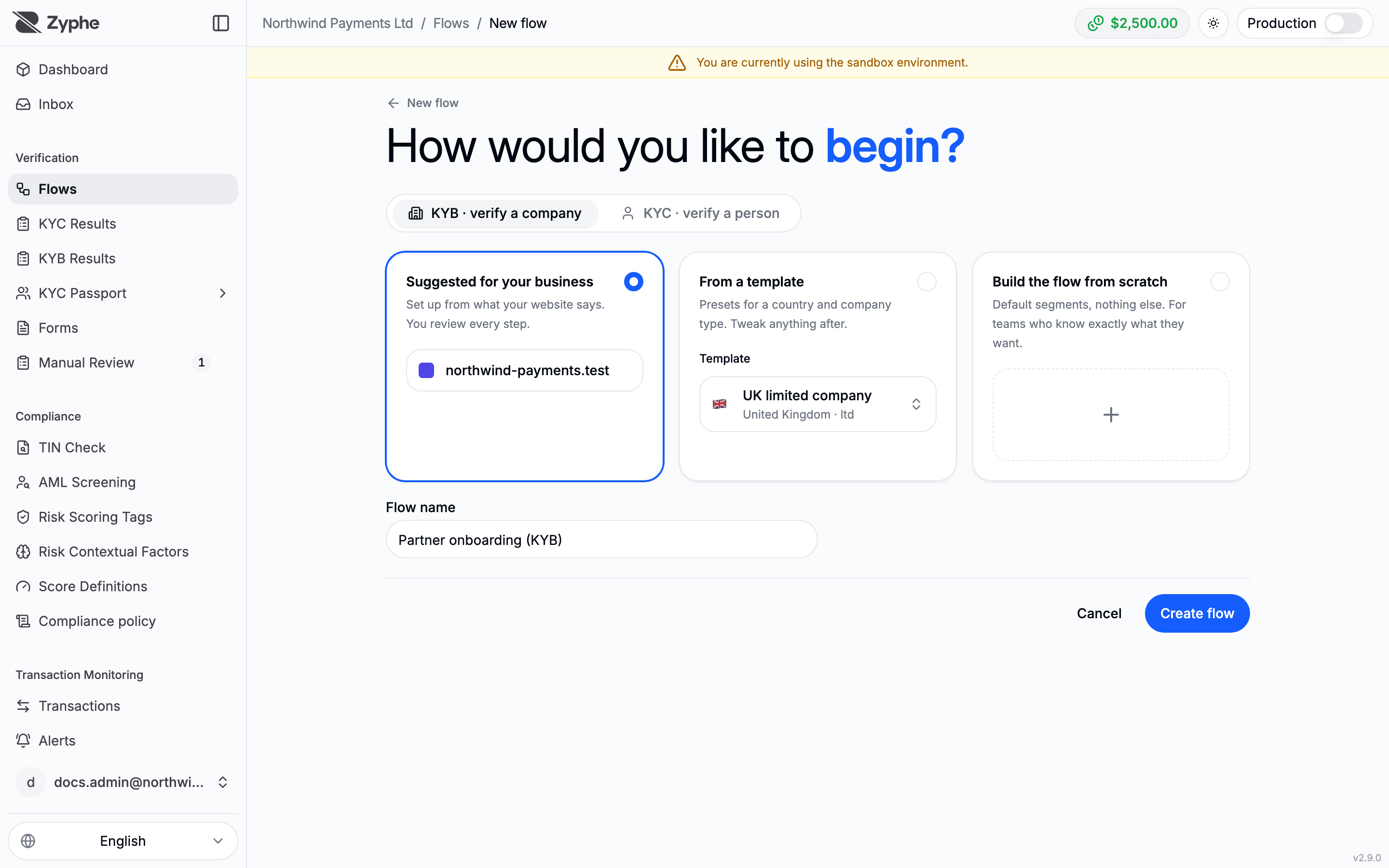
The New flow page opens. Choose KYB · verify a company, then how to start:
- Suggested for your business: a setup read from your organization's website. Offered when Zyphe has read the website; each page of the setup says why a choice was suggested, and you review every step.
- From a template: presets for a country and company type, offered to your organization. The flow is created at once and opens on its page, where you change anything.
- Build the flow from scratch: the default segments and nothing else.
Only a Flow name is asked. The slug used in the verification link is generated from it.
When no compliance policy is in force in the environment you are working in, Admin and AML Officer users see a banner with Open Compliance policy. The flow can still be created: its cases follow the platform's default policy until yours is in force.
2. The guided setup
A KYB flow started from the website suggestion or from scratch opens a guided setup, one page per segment:
- Business details: what the company is asked about itself. The fields of the standard form can be turned off, except the company name and registration number, which are always asked, and you can add your own questions. Use the standard form goes back to the default.
- Company documents: Collect company documents (the documents you ask for in each country, see Required documents) or Don't collect documents. A document can still be requested later from a case.
- Owners: Collect owners or Don't collect owners. When collected, choose how they are checked (screened by name, or verified with a KYC flow) and turn on Ownership discovery to look the owners up in company registers within a budget per verification. See Ownership discovery.
- Directors: Collect directors or Don't collect directors, and how they are checked.
- Agent: the Agent mode of the KYB agent (Auto-pilot, Suggest, or Disabled, see KYB Agent Mode), and whether it may Research on its own, within a spend and a number of web searches per review.
- Review: the whole flow and what the company goes through, with Edit on each segment. Publish flow creates the flow with every step at once and opens it.
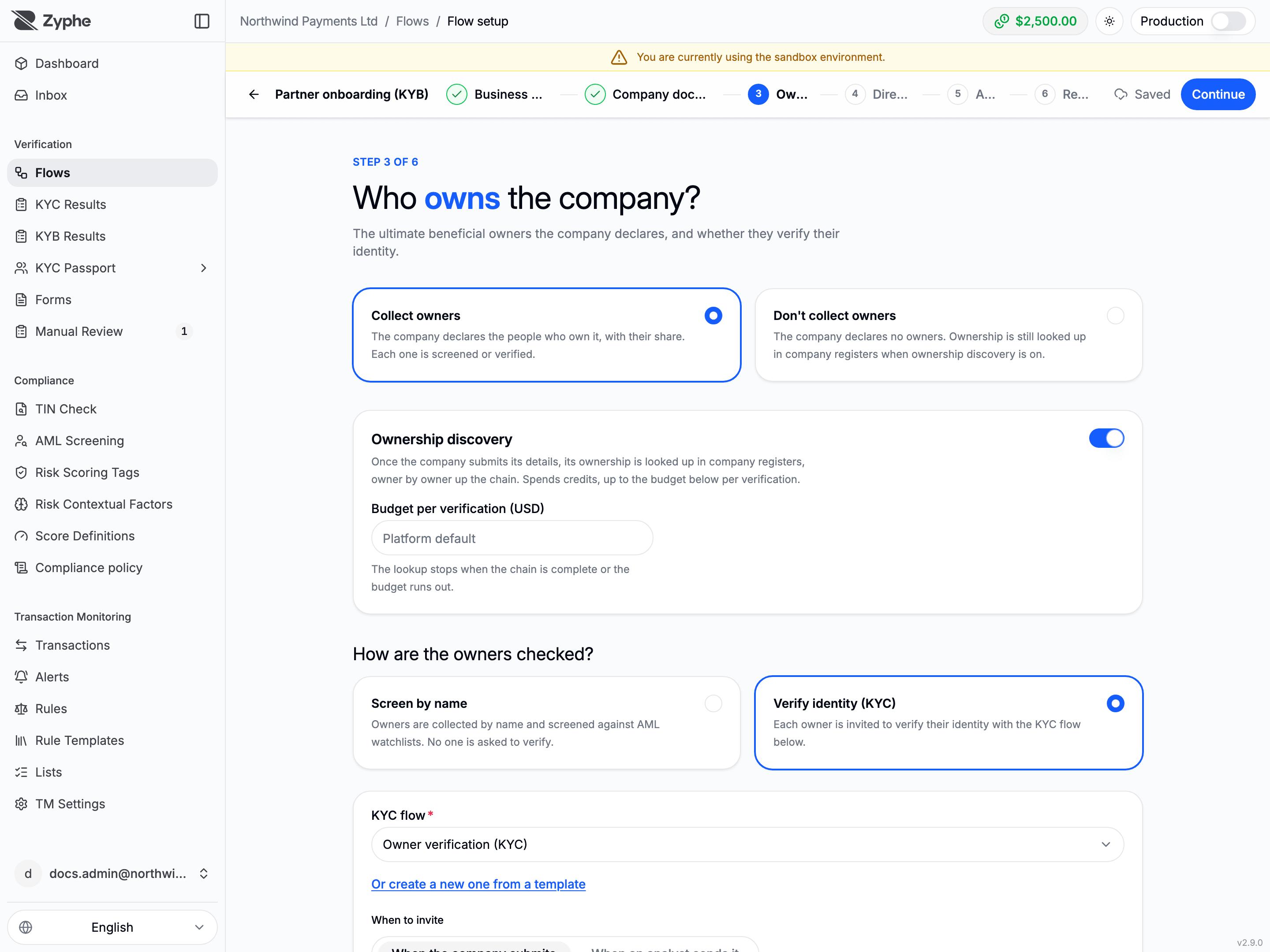
The setup saves as you go: nothing is published until you click Publish flow. A setup is kept per environment, sandbox or production.
Setups in progress
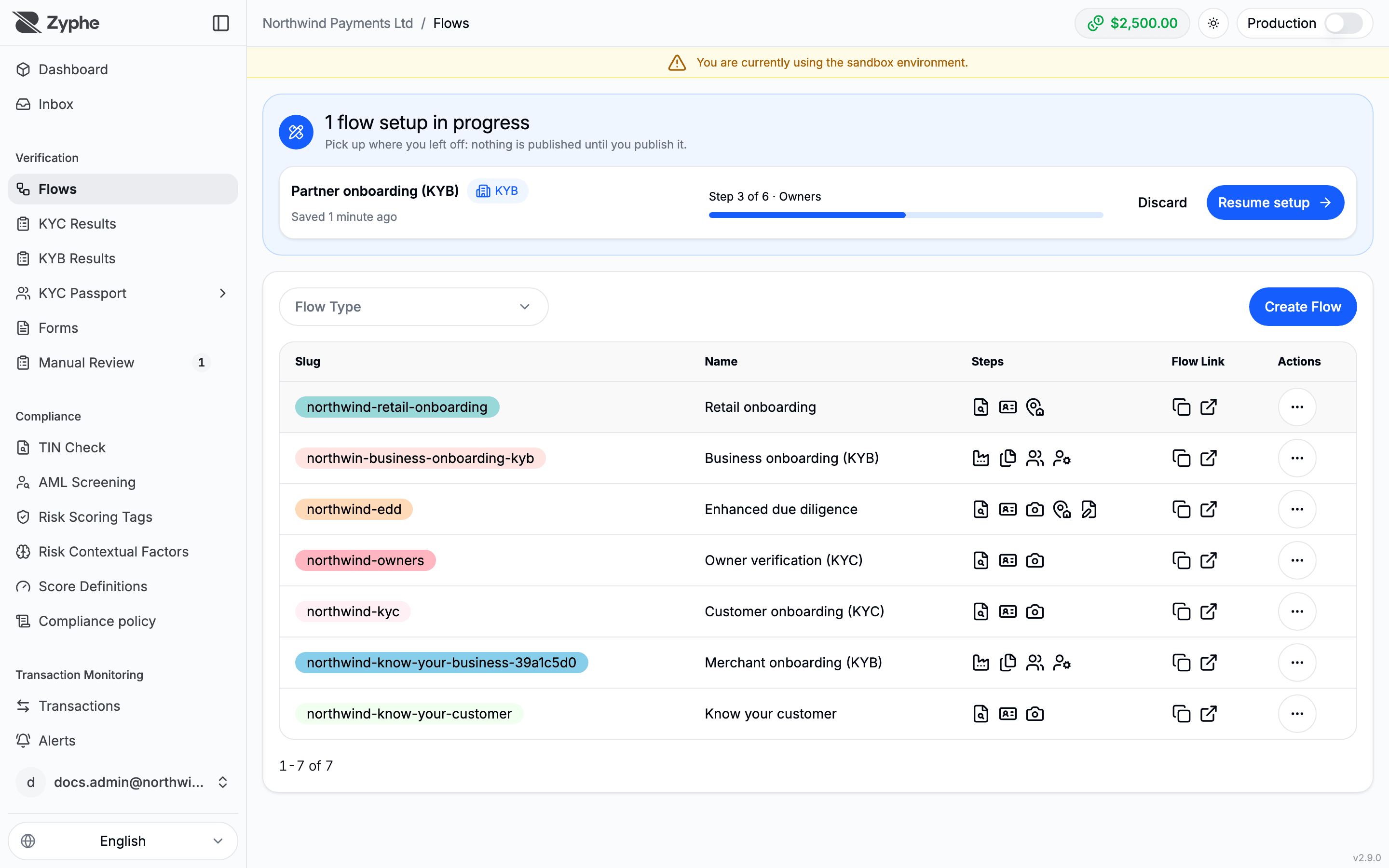
A setup you leave appears at the top of Flows under flow setups in progress, with the step it reached and when it was last saved. Resume setup opens it where you left off; Discard deletes it after a confirmation.
3. The flow's settings
Once the flow exists, its page holds the rest of the configuration. Open flow configuration in the flow header opens Flow configuration:
- Success URL: where the user is sent after they complete every step.
- Webhooks: KYB outcomes go to your organization's webhook endpoints. Subscribe one to
verification.kyb.submitted,verification.kyb.review,verification.kyb.completed, andverification.kyb.failed, scoped to this flow or to every flow. When each one is sent is described under Webhook lifecycle. - AML screening: the company and its officers are always screened as part of each KYB case. The one switch is Keep the company and its officers under ongoing monitoring; the dialog shows what monitoring costs. The flow header shows AML monitoring or No AML monitoring. See AML monitoring.
The KYB steps
A KYB flow is built from a Know Your Business step, which collects the business information, plus optional steps linked to it: Business Document Collection, UBO Collection, and Director Collection. All of them write into the same case. A part is collected only if its step is in the flow. The guided setup creates these steps for you; on the flow page you can change each one.
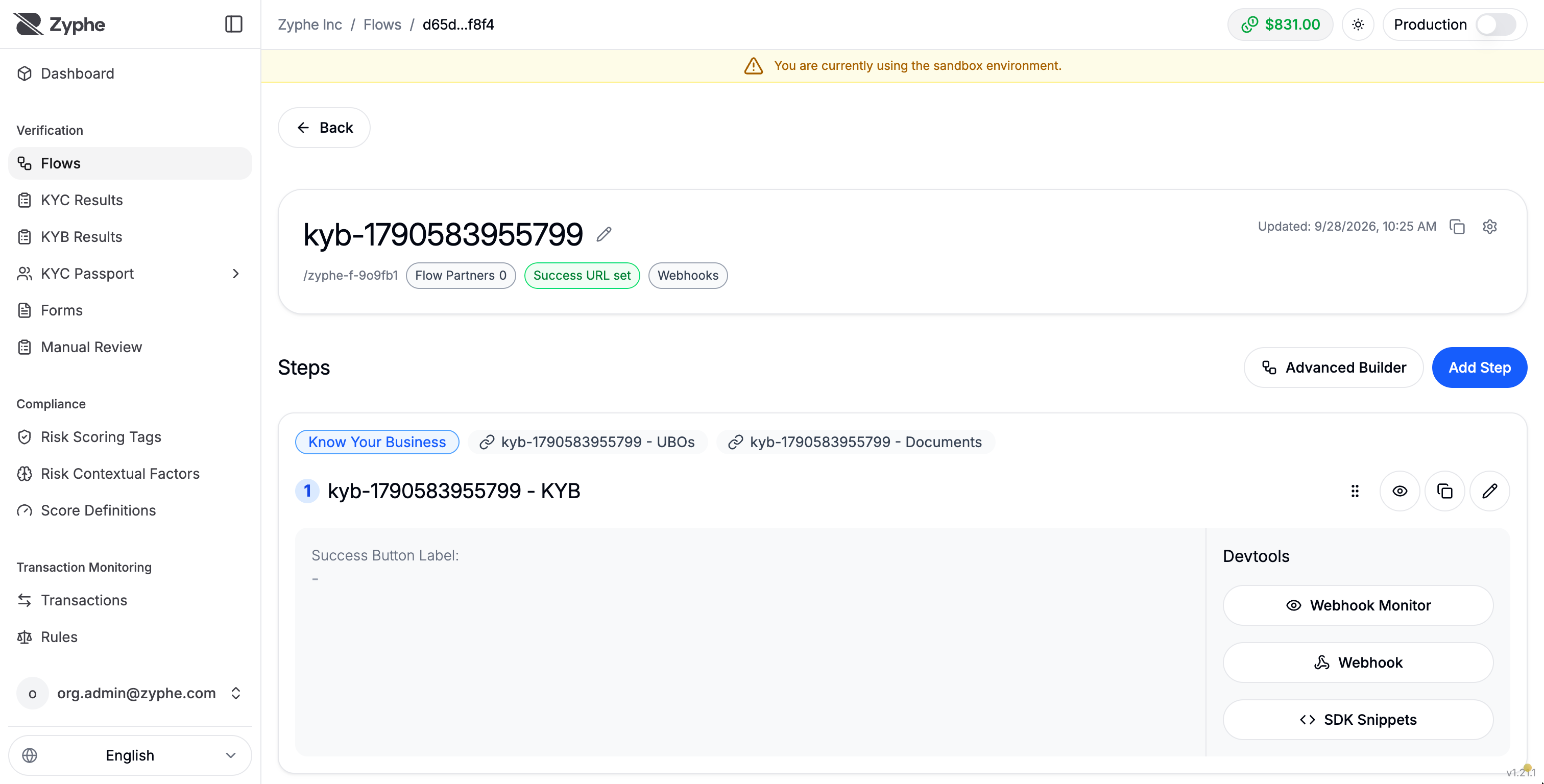
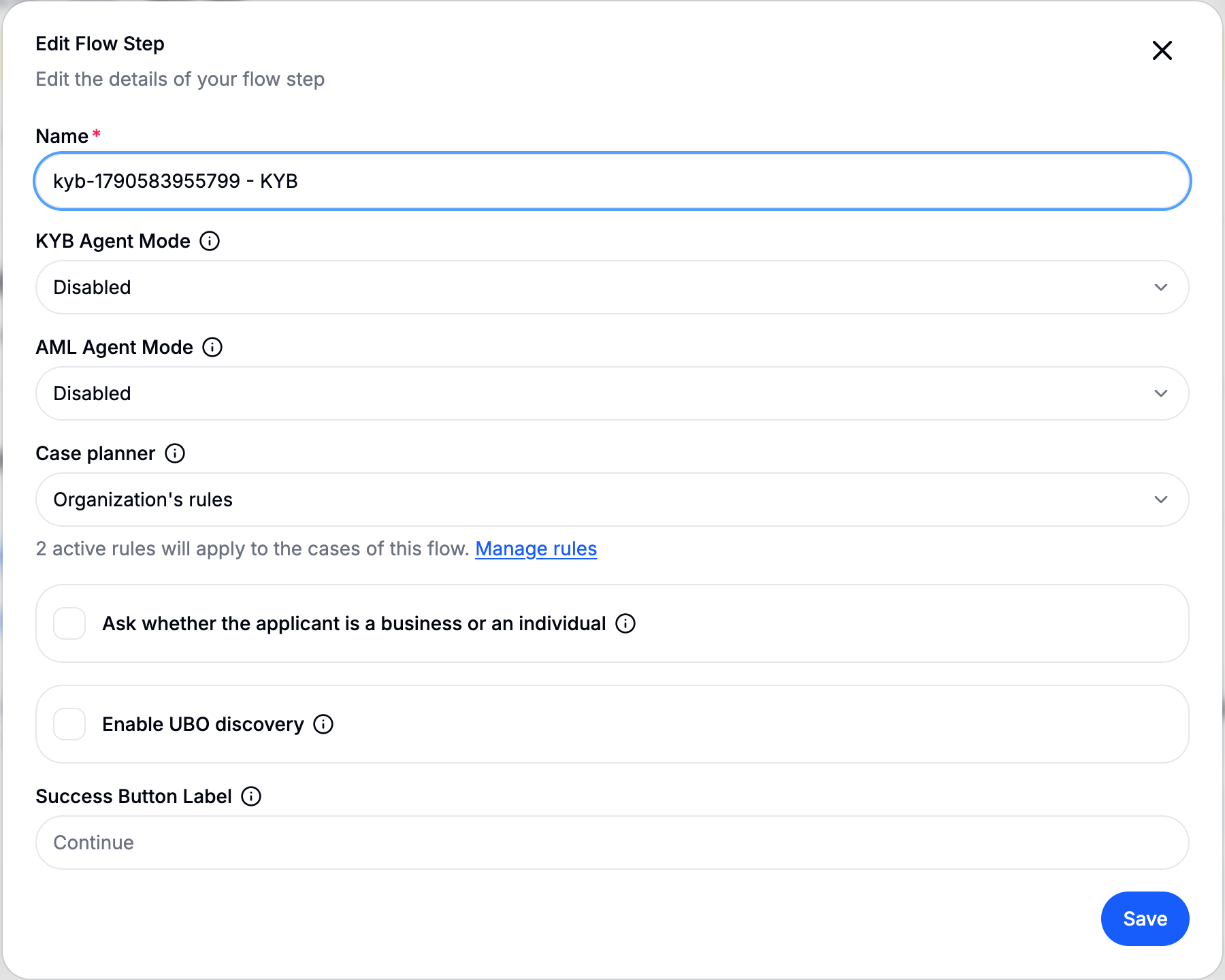
Open the Know Your Business step to configure how cases of this flow are worked:
- Business details form: the Standard form, kept up to date by Zyphe, or a form from your Forms library (see Form). A form of your own must ask the company name and registration number.
- KYB Agent Mode: how far the KYB agent acts on the case. See KYB Agent Mode.
- AML Agent Mode: how the AML agent handles screening matches (disabled, suggest-only, or auto-pilot). See AML Agent Mode.
- Case planner: which checks a case runs, and in what order.
- Fixed order: every case runs the standard set of checks.
- Organization's rules: your KYB orchestration rules propose extra steps for the cases they match.
- AI proposals: an AI planner reads each case against your written procedure and proposes stricter changes. AI planner mode decides whether a reviewer accepts them (Suggest) or they apply on their own (Auto-pilot). See Proposed changes.
- Ask whether the applicant is a business or an individual: shows the applicant a first question to choose between the business path and the individual (sole proprietor) path.
- Enable UBO discovery: Zyphe finds the beneficial owners from official registers instead of asking the applicant, within a per-verification Discovery budget. See Ownership discovery and the covered jurisdictions in Country coverage.
- Check the EIN of US businesses: asks a business registered in the US for its EIN and matches it with the company name on IRS records before the business information is accepted. Offered to organizations with the TIN Check product. See Checking a US business's EIN.
- Let the agent research on its own: lets the KYB agent consult extra sources during its review, within a Research spend per review and a number of Web searches per review.
- Success Button Label: the label of the button shown to the user on completion.
The linked steps carry their own settings:
- Business Document Collection: which documents are requested per country, and how many extra files the applicant may attach. See Required documents.
- UBO Collection and Director Collection: the maximum number of people, and how they are checked: Screen by name (collected by name and screened against AML watchlists, nobody is asked to verify) or Verify identity (KYC) with a KYC flow you pick or create from a template. On the UBO step, When to invite sends each owner their KYC link When the company submits or When an analyst sends it. See Collecting people without KYC.
The field-by-field reference, including the API names, is in KYB steps and configuration.
Required documents
Zyphe keeps a catalog of company documents per country (for example, the chamber-of-commerce extract and the articles of association for an Italian company), plus a general list for countries without a dedicated entry. On the Business Document Collection step you can adjust it:
- mark a document required or optional, or turn it off;
- mark a document on demand: it is not asked upfront, and a reviewer (or your backend) can request it later from the case;
- add your own documents, globally or for a given country. A country with its own list uses only that list.
Documents grouped as alternatives are satisfied by any one of them. The applicant can attach up to the configured number of extra files on top of the required ones.
For general flow settings, advanced flow building, and SDK snippets, see Create a Flow.
Try it in the sandbox
Every sandbox starts with a sample KYB case: a fictional company, marked Sample in KYB Results, that shows what a completed KYB review looks like. It is not billed and cannot be deleted. To run your own flow end to end, open its link with the dashboard in sandbox; see Sandbox mode.
Related
- KYB Overview: the case statuses, the agent modes, and what the applicant goes through.
- Open a KYB case yourself: a case started by an analyst, without sending the company a flow.
- KYB steps and configuration: the step types and every field.