Inviting Partner Organizations
This guide walks you through the process of inviting partner organizations to access KYC verification results from your flow.
Prerequisites
Before inviting partners, ensure you have:
- An active flow created on the Zyphe platform
- Admin access to your organization
- Partner organization's admin email address
- Partner organization's name
Step 1: Navigate to Your Flow
Log in to the Zyphe Dashboard and navigate to the Flows section. Select the flow you want to share results from.
Step 2: Open the Flow Partners Page
In the flow details header, click the Flow Partners badge (it also shows the current number of partners). This takes you to the Outgoing Invites page, pre-filtered for the selected flow.
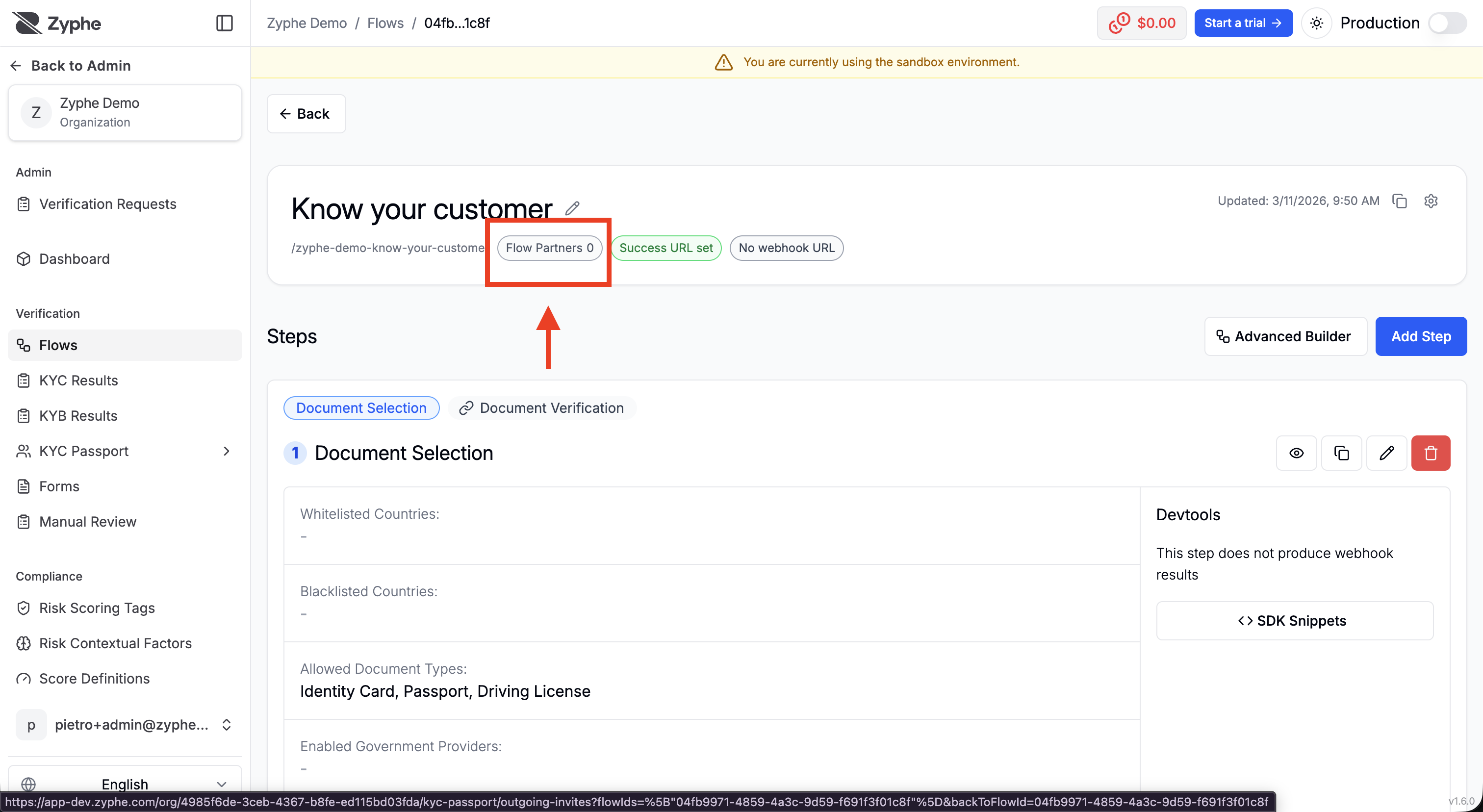
You can also reach the same page from the sidebar via KYC Passport → Outgoing Invites, where you can see invitations across all your flows and filter by flow.
Step 3: Invite a New Partner
On the Outgoing Invites page, click the Invite Partner button to open the partner invitation dialog.
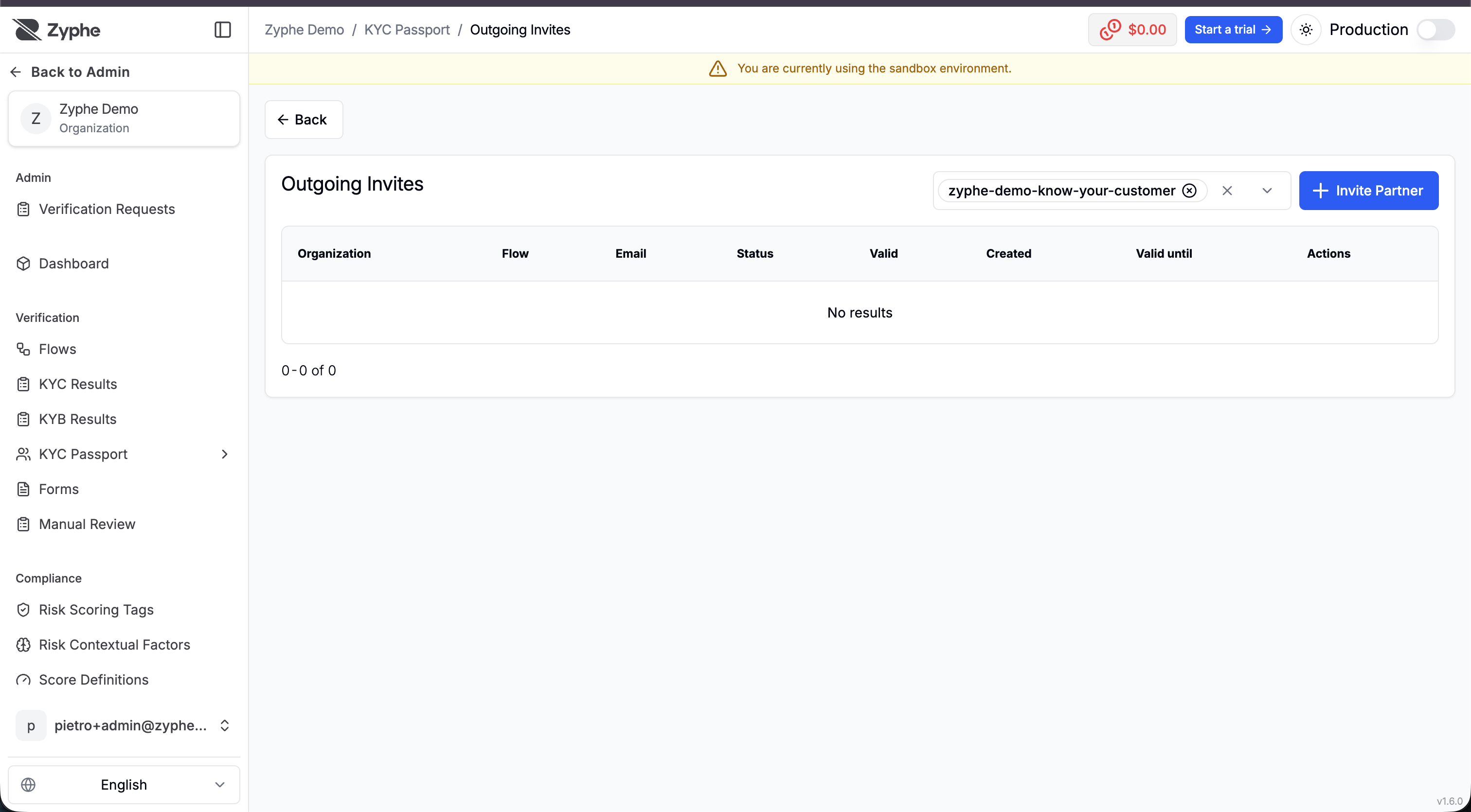
Step 4: Fill in Partner Details
In the invitation dialog, provide the following information:
- Flow: The flow whose results will be shared (pre-selected if you arrived via the Flow Partners badge)
- Organization Name: The name of the partner organization (this will be displayed to users during consent if the organization has not yet completed registration)
- Organization Email: The email address of the partner organization's administrator who will receive the invitation
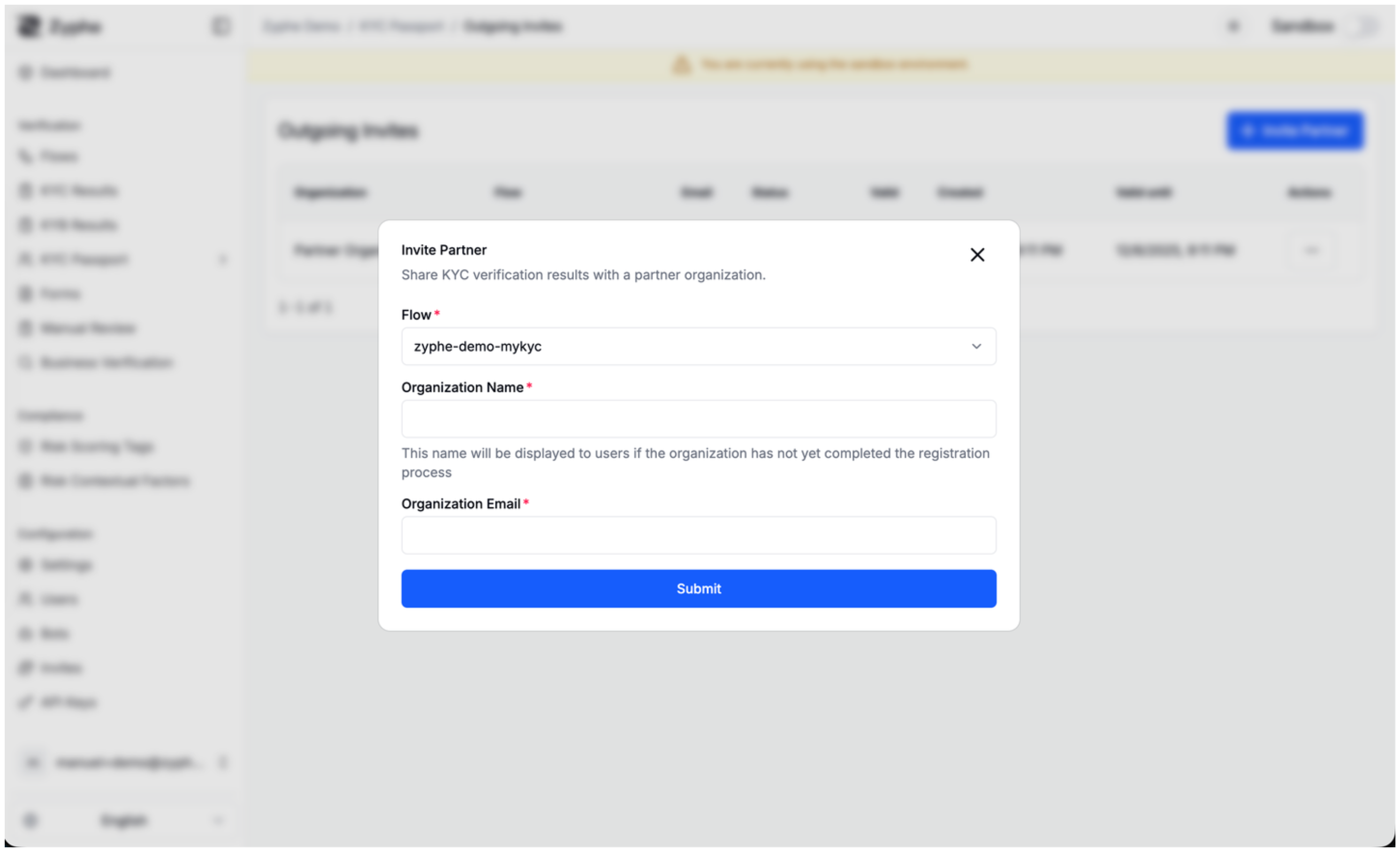
Step 5: Send the Invitation
Click Submit to send the invite. The partner will receive an email with:
- A secure invitation link
- A verification code (OTP)
- Instructions on how to accept the invitation
What Happens Next?
For New Organizations
If the invited partner doesn't have an account on the Zyphe platform:
- They receive an email invitation with a secure link and verification code
- Clicking the link directs them to the organization registration process
- During registration, they'll use the verification code to confirm the invitation
- Once registered, the invitation is automatically accepted
- The new organization immediately gains access to shared flow results (from the invite creation date forward)
For Existing Organizations
If the partner already has an account:
- The admin receives the invitation via email and in-app notifications
- They can review the invitation details in their dashboard under KYC Passport → Incoming Invites
- They can choose to Accept or Reject the invitation
- If accepted, they gain access to all flow results from the moment the invite was created
- If rejected, no data is shared and the invitation is closed
Data Access for Partners
Once a partner accepts the invitation and users provide consent:
- Partners can view shared flow results through their dashboard
- They access data through the KYC Passport → Flow Results section
- Partners can only access data from users who:
- Completed verification after the invite was created
- Explicitly consented to share data with the partner
Need Help?
If you encounter any issues or have questions about inviting partners:
- Check the FAQ for common questions
- Contact our support team
- Review the detailed KYC Passport technical documentation