Managing Partner Invitations
After sending invitations to partner organizations, you can track their status, resend invitations, and revoke access when needed.
Viewing Partner Invitations
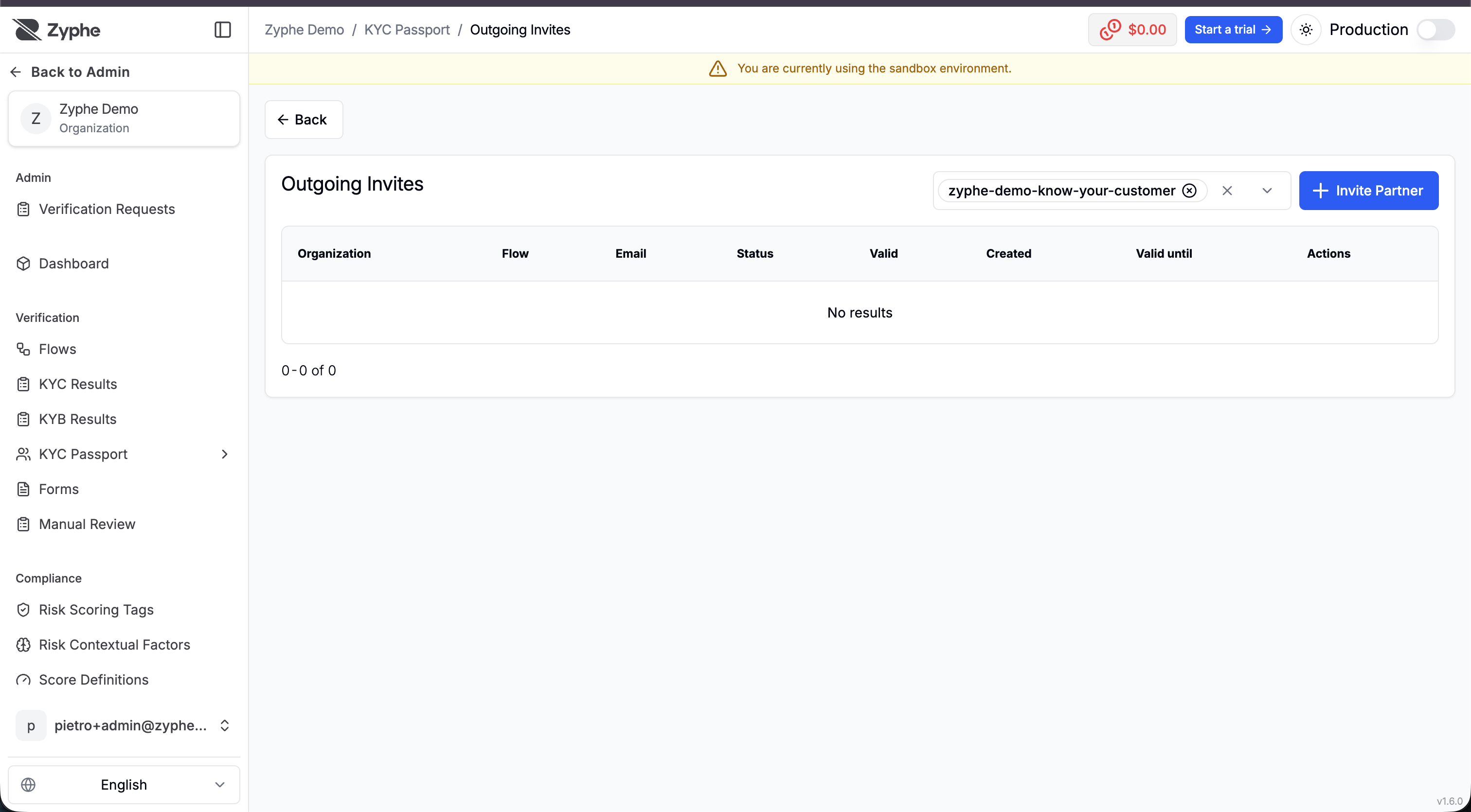
All partner invitations are visible on the Outgoing Invites page, under KYC Passport → Outgoing Invites in the sidebar. You can also open it by clicking the Flow Partners badge in a flow's details header, which pre-filters the list for that flow.
Invitation Statuses
The invitations list shows the status of each invitation:
- Pending: Invitation sent but not yet accepted by the partner organization
- Accepted: Partner has accepted the invitation and has access to flow results
- Rejected: Partner has declined the invitation (no data is shared)
Each invitation entry displays:
- Partner organization name
- The flow the invitation applies to
- Partner admin email
- Invitation status
- Whether the invitation is still valid (revoked or expired invitations are marked as not valid)
- Creation date and expiration date (Valid until)
Editing an Invitation
As long as an invitation hasn't been accepted or revoked, you can edit its details (e.g. fix the organization name or email):
- Find the invitation in the Outgoing Invites list
- Click the action menu (three dots) next to the invitation
- Select Edit and update the details
Resending Invitations
If a partner hasn't responded to an invitation, you can resend it with a new verification code.
When to Resend
- The partner hasn't received or can't find the original invitation
- The verification code has expired
- You want to send a reminder to the partner
How to Resend
- Find the pending invitation in the Outgoing Invites list
- Click the action menu (three dots) next to the invitation
- Select Resend Invite
- A new email with a fresh verification code is sent to the partner
Resending an invitation generates a new verification code. The previous code will no longer work.
Revoking Partner Access
You can revoke a partner's access at any time, immediately ending their ability to view shared flow results.
When to Revoke Access
- The partnership has ended
- The partner no longer needs access to the data
- Security or compliance concerns arise
- You want to limit the number of partners with access
How to Revoke
- Find the partner in the Outgoing Invites list (any status except rejected)
- Click the action menu (three dots) next to the partner
- Select Revoke Access
- Confirm the revocation in the dialog
What Happens After Revocation
- The partner immediately loses access to all shared data for that flow
- They will no longer see the flow in their Flow Results section
- The invitation is marked as no longer valid in the Outgoing Invites list, along with the revocation date
- Access to historical data they've already accessed remains until retention obligations are met
Revoking access is permanent. The partner organization will need to be invited again if access should be restored in the future. Note that if access is revoked, it remains available until the partner's data retention obligations are met.
Need Help?
If you have questions about managing partner invitations:
- Check the FAQ for common questions
- Contact our support team
- Review the KYC Passport technical documentation