Override Rules
An override rule adjusts the outcome of one score after the engine has computed it. Rules let you encode policy that a weighted sum cannot express on its own, for example "anything above 80 on the Risk score always goes to a human" or "a supplier score never reads higher than High".
Rules are authored per score definition, on its detail page. They work on the system Risk and AML scores as well as on your custom definitions, and the rules you author apply to your organization only.
Override rules are managed by Admin users, the same as score definitions and tags. See Manage Users.
Open a definition's rules
In the Zyphe Dashboard, open Score Definitions in the Compliance section and choose Manage rules from a definition's row menu. The detail page shows the definition's name, key, System or Custom badge and status, followed by the Override rules card.
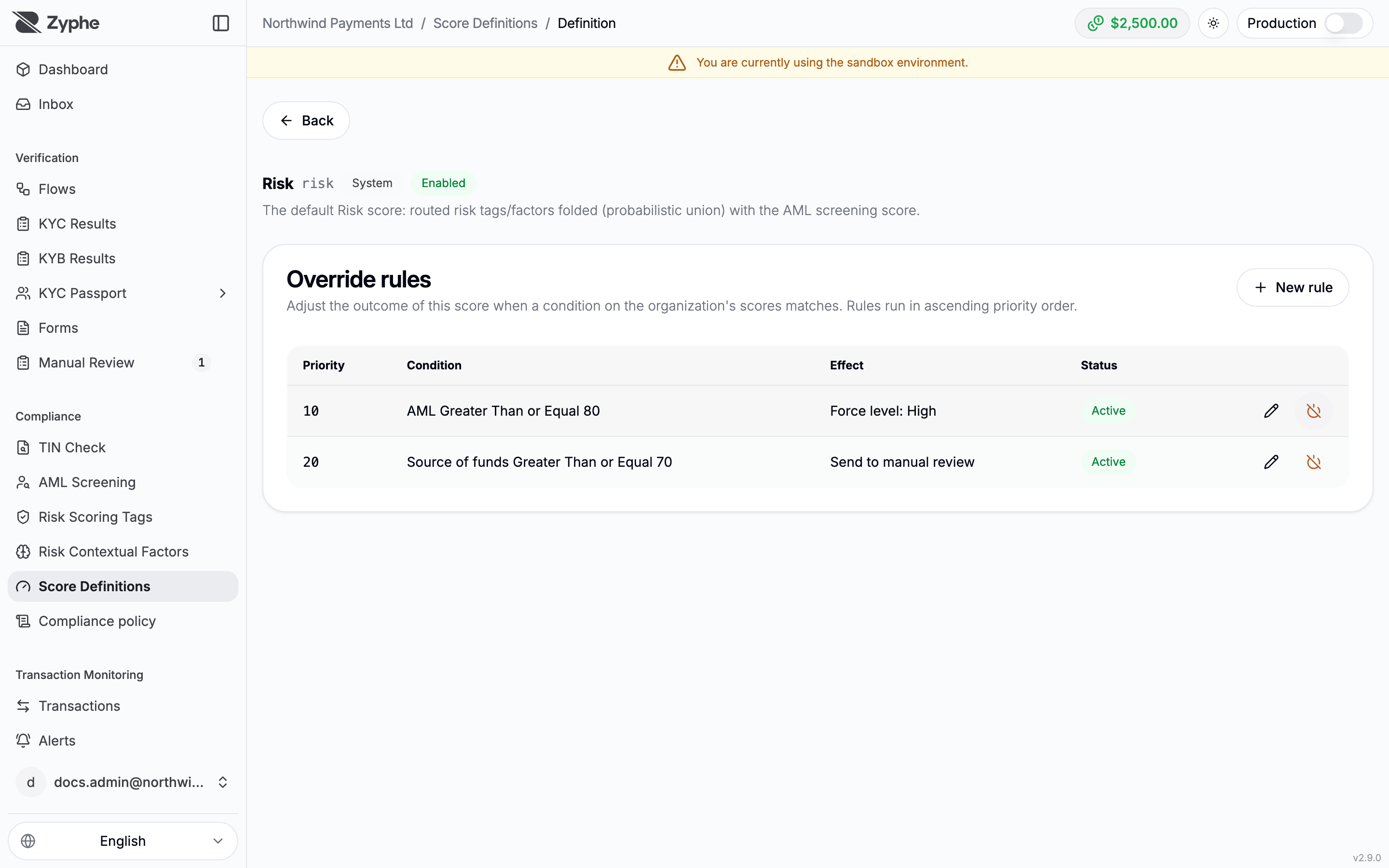
The table lists each rule's Priority, Condition, Effect, and Status. Active rules come first; deactivated rules stay listed as Inactive after them.
Create a rule
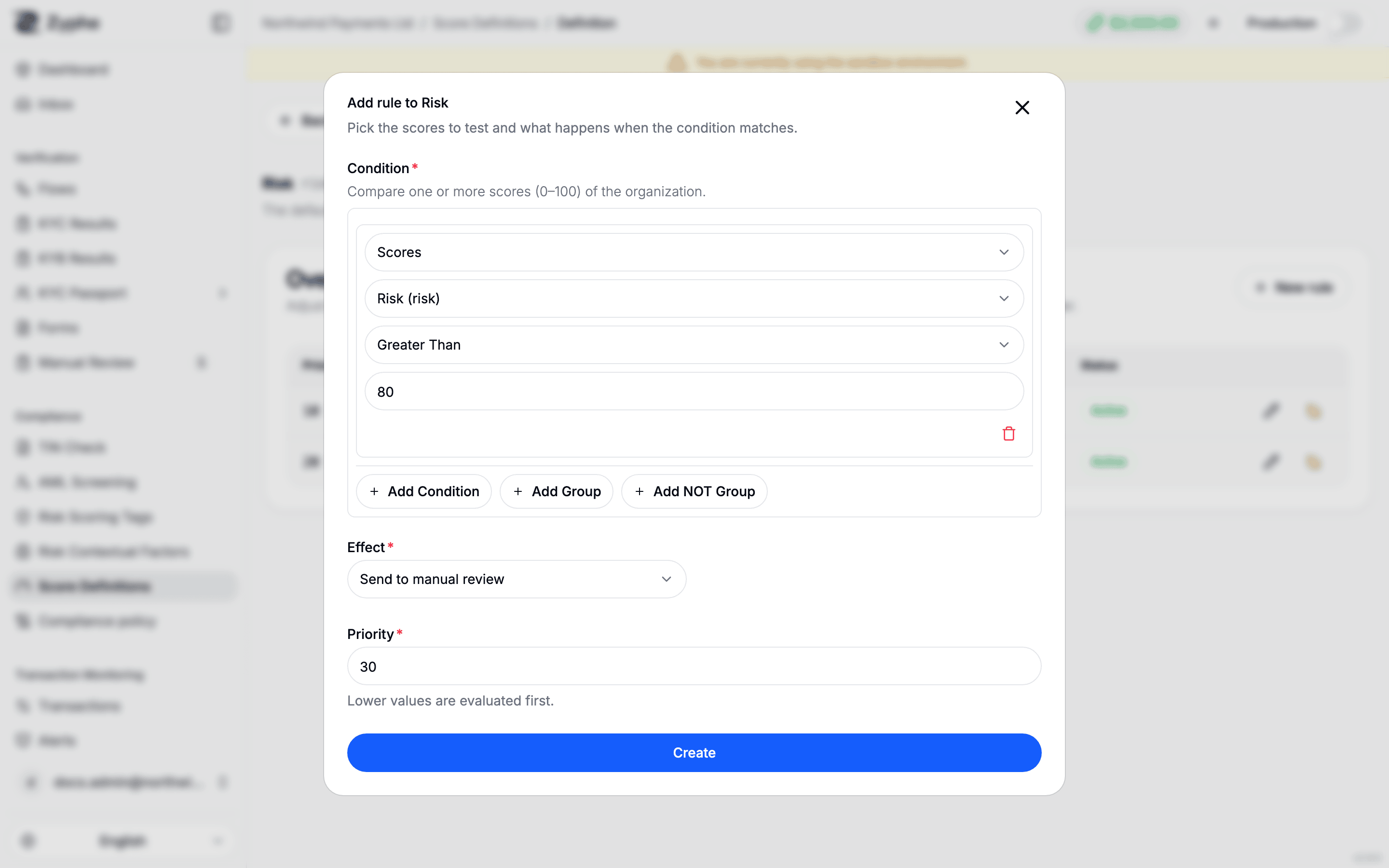
Click New rule and fill in:
- Condition: one or more comparisons on the organization's scores, each a value from
0to100. Pick a score, an operator (greater than, greater than or equal, less than, less than or equal, equal, not equal), and a number. Combine comparisons in groups with AND / OR. - Effect: what happens when the condition matches (see below). Force level and Cap level ask for a Level; Set score asks for a Score between
0and100. - Priority: an integer. Lower values are evaluated first.
Which scores a condition can read
A condition can compare the definition's own score and the scores of other enabled definitions that the engine computes before it. Definitions are computed in dependency order, so a score's sources are always available; a disabled definition, or one computed later, is not offered.
Effects
| Effect | What it does |
|---|---|
| Send to manual review | Holds the flow result for a human: when the flow completes, its status becomes manual review instead of completed. See Manual review. |
| Force level | Pins the level recorded on the score outcome (Low, Medium, High, Critical) regardless of the percentage. The percentage is unchanged. |
| Cap level | Lowers the recorded level to the chosen cap when it is higher. A lower level is left as it is. The percentage is unchanged. |
| Set score | Replaces the percentage with the chosen value and derives the level from it, unless a Force level rule has already pinned the level. |
When several rules match, every matching active rule applies, in priority order. A Set score that runs after a Force level keeps the forced level.
Send to manual review and re-evaluation
Send to manual review never overrides a human or final decision: a result that is rejected or cancelled keeps its status. When a result is re-evaluated:
- a result that has finished its steps can be sent to manual review by a rule that now matches; a flow still in progress is not;
- a result that a rule had held in manual review is released and completed when no rule matches any more. A manual-review hold set any other way (a workflow action, a document check, a reviewer) is never released by scoring.
Edit, deactivate, and reactivate
- Edit rule (pencil icon) changes the condition, effect, or priority.
- Deactivate rule (power icon) stops the rule being evaluated. The rule stays listed as Inactive.
- To reactivate a rule, open its edit form and switch Active back on.
Example
On the system Risk score:
| Priority | Condition | Effect |
|---|---|---|
10 | Risk score greater than 80 | Send to manual review |
20 | AML score greater than 60 | Set score: 90 |
A flow result scoring 85 on Risk is held for manual review. One scoring 50 on Risk with an AML score of 70 completes with a Risk score of 90 (Critical). Rules run once per computation, so the second rule's new score does not trigger the first.
Rules run after the score's tags, factors, and sources have been combined. See How Scores Are Computed.