Alert Queue
Transaction Monitoring → Alerts is where your team works the alerts that rules raise. Every rule saved with Raise alert opens an alert when it fires; the queue lists them newest first, and each alert has its own page where you assign it, read the agent's first pass, and record a decision.
Open alerts also appear in the Inbox beside the other work your team owes.
The alert queue is available to Admin, Operator, and AML Officer users. Acting on an Escalated alert and filing a SAR are reserved to Admin and AML Officer. See Manage Users.
The queue
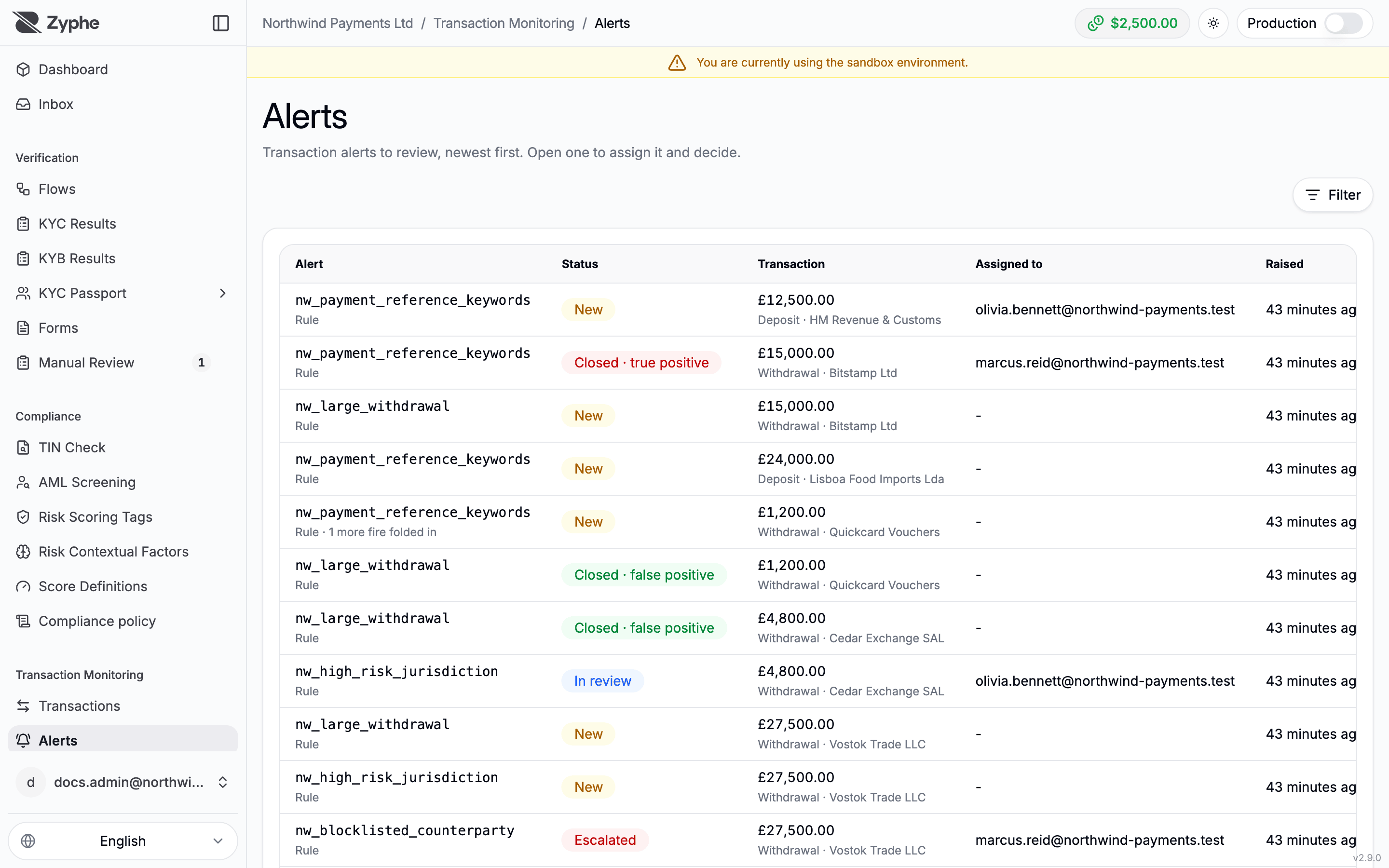
Each row shows:
- Alert: the rule key that raised it and its source. When later fires of the same rule were folded into an open alert, the row says how many.
- Status: where the alert stands (see Alert lifecycle).
- Transaction: the transaction the alert was raised on.
- Assigned to: the team member holding it.
- Raised and Last fired.
The Filter button narrows the queue by Status (including Open, every alert still to be decided), Source (Rule, Rescreening, Registry), Rule (Admin users only, as rules are part of the configuration), Assignee (Assigned to me, Unassigned, or a member), and Raised period. Active filters show as chips you can remove one by one.
Alert lifecycle
| Status | Meaning |
|---|---|
| New | Raised and not picked up yet |
| In review | Someone is looking into it |
| Escalated | Handed to a senior reviewer |
| Closed · true positive | Suspicious, handled without a SAR. Final. |
| Closed · false positive | Nothing suspicious after review. Final. |
| SAR filed | Reported to the authority and closed. Final. |
An alert is open while it is New, In review, or Escalated. The three closed outcomes are final: once an alert is closed, its outcome can no longer change.
Work an alert
Click a row to open the alert. The page shows the rule and its version, when the alert was raised and last fired, and an Open transaction link.
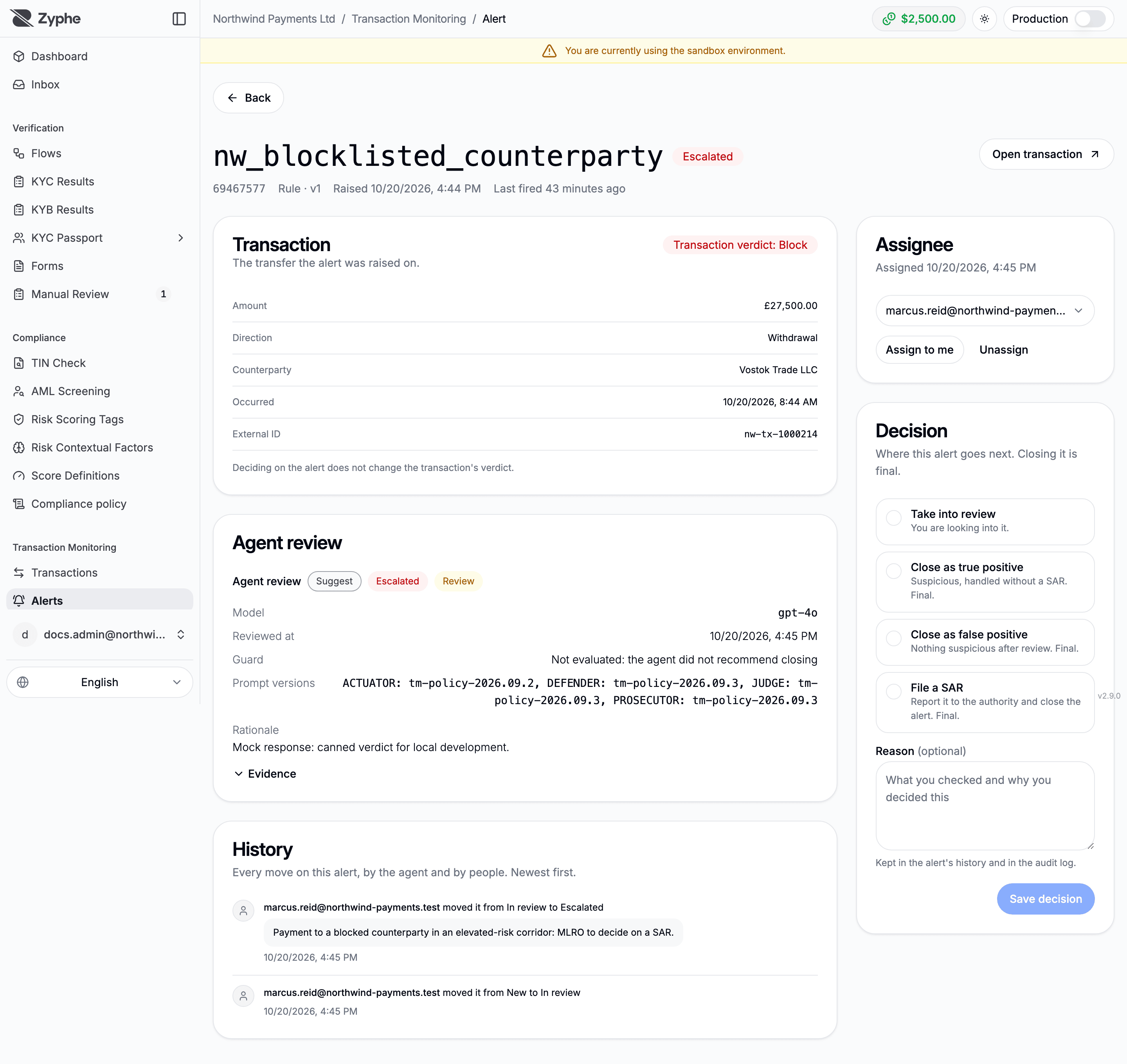
- Agent review: the recommendation of the agentic alert review, when the agent has reviewed the alert.
- Transaction: the amount, direction, counterparty, occurrence time, external ID, and the transaction verdict. Deciding on the alert does not change the transaction's verdict.
- History: every move on the alert, by the agent and by people, newest first.
- Assignee: pick a member under Assign to, or use Assign to me or Unassign.
Record a decision
The Decision card lists the moves available from the alert's current status:
- Take into review: you are looking into it.
- Escalate: hand it to a senior reviewer.
- Close as true positive, Close as false positive, or File a SAR: final outcomes.
Every move needs a Reason except taking a new alert into review, where it is optional. The reason is kept in the alert's history and in the audit log. Click Save decision to apply the move.
Moves out of Escalated, and File a SAR from any status, are shown to Operator users with a lock: only an Admin or an AML Officer can make them.
If someone else moved the alert while you were deciding, your decision is not saved: the page shows where the alert now stands, and you decide again.
Once closed, the page shows an Outcome card with the outcome, who closed it, and when.